How to Compress PDF on iPhone
Need to send a PDF from your iPhone, but the file is too large for an email, message, or online form? You don’t need to move it to a computer first.
Compress PDF on iPhone: Tap “Choose file” above to upload your PDF, reduce its size, and download a lighter file you can send from your phone.
Quick Takeaways
Smallpdf Compress PDF works in Safari and reduces the size of the PDF itself.
Choose Basic, Moderate, or Strong Compression based on how much you need to reduce the file.
The Preview app in iOS 26 can export a PDF but only adjust its file size if you export it as a JPG or HEIC.
The Files app’s “Compress” command creates a ZIP file rather than a smaller PDF.
Scanned and image-heavy PDFs usually shrink more than simple text documents.
Check the compressed copy before deleting your original PDF.
The simplest answer to how to make a PDF smaller on iPhone is to use a PDF compressor in Safari or the Smallpdf mobile app. Newer iPhones also let you reduce PDF size through the Preview app, although this only applies if you export the PDF as a JPG or HEIC.
The Files app includes a “Compress” command too, but that creates a ZIP archive. It does not reduce the PDF itself. And PDFs often become only slightly smaller when zipped.
How to Make a PDF Smaller on iPhone Without Losing Quality Using Smallpdf
Smallpdf Compress PDF works in your iPhone browser, so there’s no software to install. You can upload a document from Files or iCloud Drive, choose a compression level, and save the smaller copy back to your phone.
Here’s how to compress a PDF on iPhone using Safari:
Open Compress PDF in Safari.
Tap “Choose Files.”
Select the PDF from Files, iCloud Drive, or another available storage location.
Wait for the file to upload.
Choose Basic, Moderate, or Strong Compression.
Tap “Compress.”
Download the smaller PDF when it’s ready.
Tap the download icon in Safari and open the file.
Use the Share button to save it to Files, email it, or send it through another app.
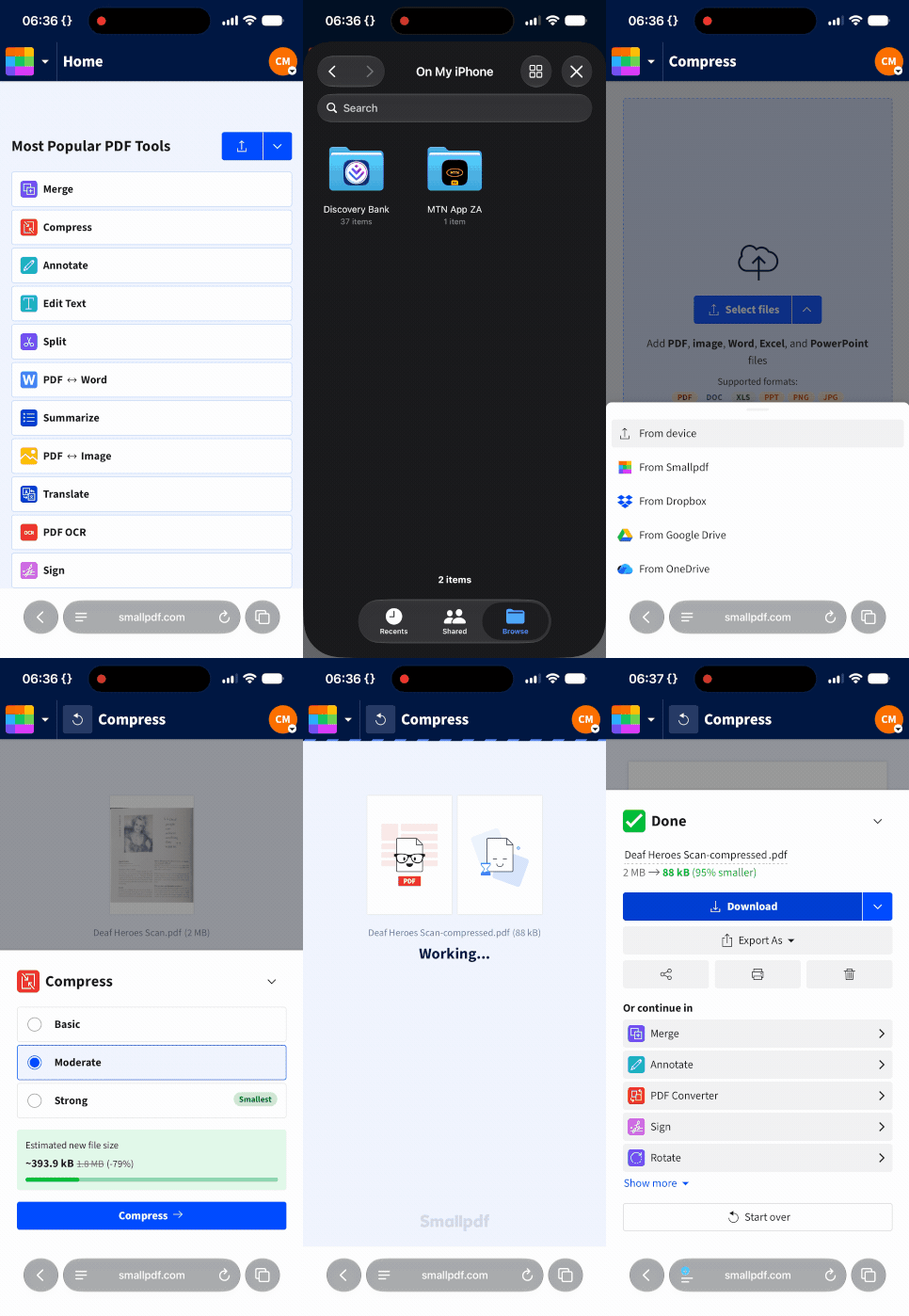
Basic Compression is free to use and aims to reduce the file while keeping visual changes to a minimum. Moderate Compression goes further when Basic does not remove enough, while Strong Compression aims for the smallest available result and may soften images more noticeably.
Moderate and Strong Compression are available with Smallpdf Pro. A Pro account also removes the free plan’s usage and download limits across Smallpdf’s 30+ tools. You can test the paid compression levels and other Pro features with a 7-day free trial.
Because Smallpdf shows the current size, expected compressed size, and percentage reduction before you continue, you can compare the options before deciding how much quality to trade for a smaller file.
Choose the Right Compression Level
Start with Basic Compression when the PDF is only slightly too large or when image clarity is your main concern. It is free to use, although the free plan has usage and download limits.
Moderate Compression is useful when Basic does not reduce the file enough, but you still want to avoid the stronger image changes that can come with the highest setting. Strong Compression aims for the smallest result and is usually the better choice for scanned, illustrated, or photo-heavy PDFs that must fit beneath a strict upload limit.
You do not have to guess which option will get closest to your target. After selecting a compression level, Smallpdf shows:
The PDF’s current file size
Its expected size after compression
The percentage reduction
Switch between the levels to compare the estimates before you compress the file.
Compression usually affects images more than normal text. Small text and fine details inside scans may look softer after a stronger reduction, so open the completed file and zoom in before sharing it.
Keep the original until you have checked every page.
Compress a PDF With the Smallpdf iPhone App
The Smallpdf mobile app is another option when you want to compress PDF files on iPhone without returning to Safari each time.
Open the Smallpdf mobile app.
Choose “Compress PDF.”
Select your document from Files or iCloud.
Choose the available compression level.
Tap “Compress.”
Save the finished PDF or share it from your iPhone.
The app can also help with other PDF tasks, including scanning, converting, merging, and splitting files. Smallpdf confirms that its iOS app supports PDF compression on the go.
Can We Compress a PDF in the Preview App?
Not while keeping the file in PDF format.
In iOS 26, the Preview app lets you export a PDF as another PDF, HEIC, JPG, PNG, or TIFF, but the file-size slider only appears when you choose HEIC or JPG. If you select PDF as the export format, the slider disappears.
You could export individual pages as smaller JPG or HEIC images, but you would then need to convert those images back into a PDF. That adds extra steps and may affect image quality, page order, or document features.
For a quicker route, use Smallpdf Compress PDF in Safari. It keeps the document as a PDF and lets you choose Basic, Moderate, or Strong Compression.
I Compressed My PDF in iPhone’s Files App, but the ZIP Is the Same Size—Why?
The Files app uses the word “Compress” for creating ZIP archives. It does not run PDF compression.
To create a ZIP on iPhone, you select one or more files in Files, open the More menu, and tap “Compress.” The result is a ‘.zip’ file containing the original document or documents.
ZIP compression works well on some file types because it finds repeated data and stores it more efficiently. But PDFs are often already compressed internally. Their images, fonts, and document data may leave little extra space for ZIP to remove.
That is why a 12 MB PDF might produce a ZIP that is still close to 12 MB. In rare cases, the ZIP can even be slightly larger because the archive adds its own structural data.
When a ZIP File Is Still Useful
A ZIP may not make one PDF much smaller, but it can still help you package several documents together.
For example, you could put a completed form, proof of address, and supporting letter into one archive. The recipient downloads one ZIP and extracts the three original files.
A ZIP is less useful when:
An upload form accepts PDF but not ZIP files
The recipient wants to preview the document immediately
You need to reduce the PDF beneath a strict size limit
The PDF will be opened frequently on a phone
The recipient may not know how to extract an archive
Use Compress PDF when the PDF itself needs to be smaller. Use Files to create a ZIP when you want to bundle one or more files for storage or sharing.
Frequently Asked Questions
Why can’t I find the Optimize File Size option on my iPhone?
Preview does not show a separate “Optimize File Size” option for PDFs. When you open a PDF, tap the Actions Menu, and choose “Export,” the file-size slider only appears if you select HEIC or JPG as the export format. It disappears when you choose PDF, so Preview cannot currently reduce the file size while keeping the document as a PDF.Can I compress a scanned PDF on my iPhone?
Yes. Upload the scanned file to Smallpdf Compress PDF in Safari or select it through the mobile app. Scanned PDFs often shrink well because compression can reduce the data stored in each page image.Will compressing a PDF on iPhone remove its password or signature?
Compression is intended to reduce file size, not remove security settings or signatures. Still, some protected PDFs may need to be opened before processing, and changing a digitally signed document can affect signature validation. Keep the original and check the finished file carefully.Can I compress several PDFs at once on my iPhone?
You can select and zip several PDFs together in the Files app, but that does not reduce each PDF internally. Availability of batch PDF compression depends on the Smallpdf plan and tool workflow you are using.Is it safe to compress a confidential PDF online from my iPhone?
Smallpdf uses TLS encryption during file transfer, holds ISO/IEC 27001 certification, and deletes processed files automatically after one hour. Follow your employer’s or organization’s file-handling rules before uploading confidential, medical, legal, or financial documents.How can I make files smaller on iPhone for email?
For a PDF, use Smallpdf Compress PDF. For several general files, create a ZIP in Files. You can also share a cloud link when the email service still rejects the smaller attachment.Does compressing a PDF reduce its page dimensions?
No. File-size compression reduces the amount of stored data but does not normally change the physical page format, such as Letter or A4. Cropping or resizing pages is a separate task.