How to Duplicate Pages in a PDF Document
Need to know how to duplicate pages in a PDF? Use Smallpdf to copy the pages you need, move them into the right position, then download your updated PDF.
Quick Takeaways
Smallpdf's Organize PDF tool lets you duplicate individual pages without copying the whole document.
You can duplicate one page or several different pages, then drag the copies into the right position.
Password protection or editing restrictions can prevent you from reorganizing a PDF.
Duplicating a page should preserve its visible layout, but interactive elements such as links, bookmarks, form fields, and signatures deserve an extra check afterwards.
Adding duplicate pages can increase file size, especially when the pages contain large images or scans.
Smallpdf works in a browser, so you can duplicate PDF pages on desktop computers, tablets, and phones.
Sometimes one page in a PDF needs to appear more than once. Maybe it's a form that several people need to complete, a template page you want to reuse, or a cover sheet that belongs in more than one section.
Whatever the reason, you don't need to copy the entire document and start rearranging things manually. Here’s how to duplicate a page in a PDF directly in your browser with Smallpdf.
How to Duplicate Pages in a PDF Online With Smallpdf
The quickest way to duplicate a PDF page is with Smallpdf's Organize PDF tool. You can see every page as a thumbnail, copy the one you need, and decide where the duplicate belongs.
Here's how:
Open Organize PDF and upload your PDF.
Find the page you want to copy and select it.
Use the duplicate icon on that page.
Drag the duplicated page into the position where you want it.
Repeat the process if you need more copies.
Click “Finish” when everything is in the right order.
Download or share your updated PDF.
Duplicate PDF pages: Click “Choose file” above to upload your document, copy the pages you need, and save the updated PDF.
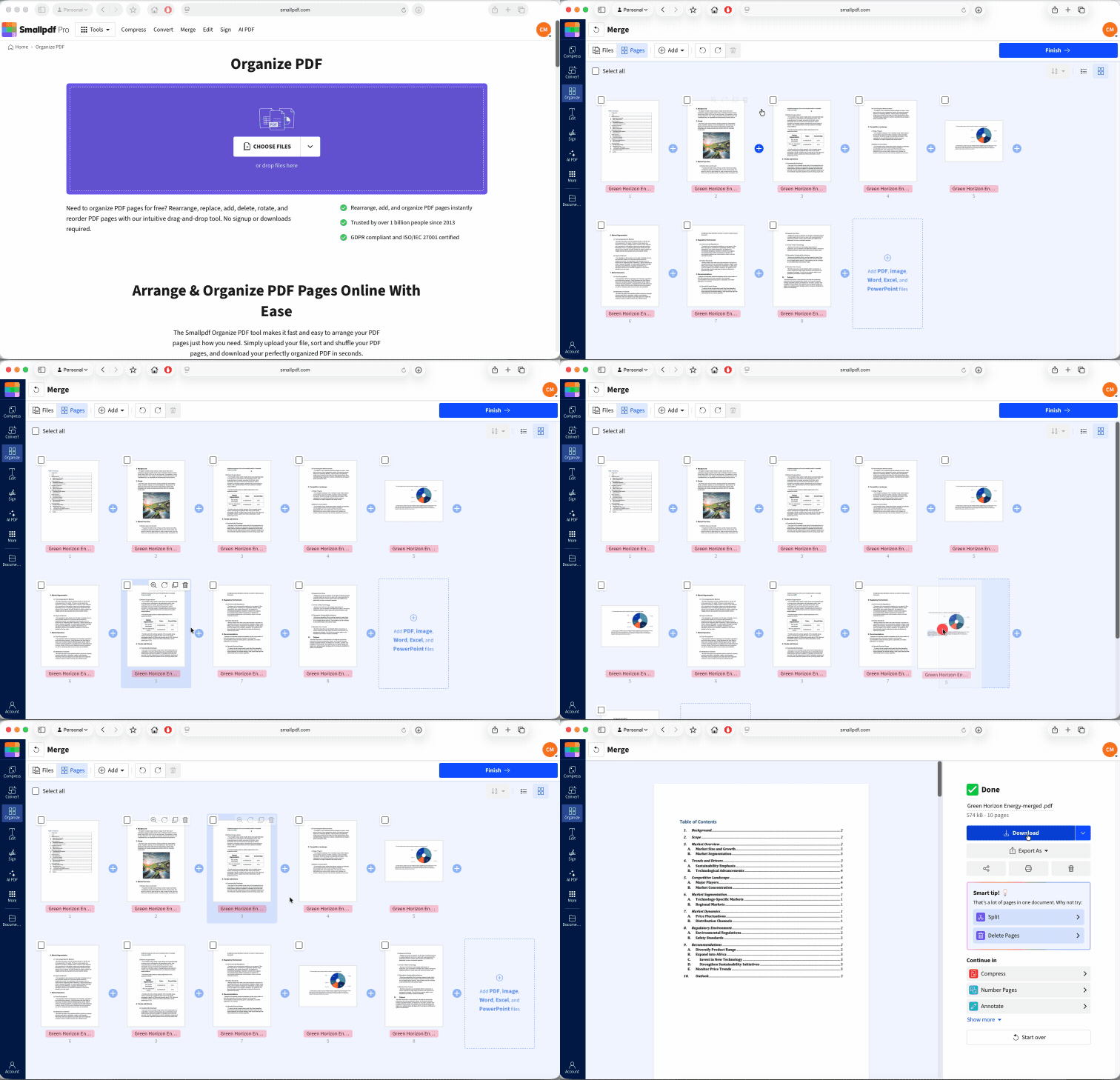
That's all there is to it.
The useful part is that you're working with individual pages rather than copying the entire file. If page 7 needs to appear again after page 12, for example, you can duplicate page 7 and drag the copy straight into place.
You can also reorganize the rest of the document while you're there. Organize PDF lets you reorder, rotate, delete, and add pages from the same workspace.
So now you know how to duplicate a PDF page without rebuilding your document. Quick, easy, and without installing any new software.
And page organization is only one part of what you can do with Smallpdf. We have 30+ PDF tools for jobs like compressing, converting, editing, signing, merging, splitting, and more. You can use many of them for free with some usage limits, or upgrade to Smallpdf Pro for unlimited access to all tools and other premium features. Want to try it first? You can start with a free 7-day Pro trial.
How to Duplicate Only Certain Pages of a PDF
You don't have to duplicate every page just because several pages need copying.
Let's say you've got a 30-page training manual and only pages 4, 9, and 15 need to appear again later in the document. You can duplicate those pages individually and leave everything else untouched.
Open the PDF in Organize PDF, find the first page you need, and select the duplicate icon. Then do the same for the other pages.
Once the copies have been created, drag each one into its new position.
This is handy for documents such as:
worksheets where the same answer page is needed several times
contracts with a repeated information page
planners with reusable weekly or monthly templates
reports that reuse a standard divider or cover page
instruction manuals where the same reference sheet belongs in several sections
forms where multiple identical copies are needed
If you need the same page more than once, simply duplicate it again until you have the number of copies you want.
There's one small thing you should check before you finish. Make sure it’s the duplicated page you’re moving rather than the original.
A quick scan through the page thumbnails before downloading can save you from discovering page 14 sitting somewhere mysterious later.
If you only want to keep certain pages, you can stay right where you are. In Organize PDF, delete the pages you don’t need by clicking the trash bin icon. You can then arrange the remaining pages in the order you want before finishing and downloading the new PDF.
Why Can't I Duplicate a Page in My PDF?
Usually, duplicating pages is straightforward. If the option isn't working, the problem often comes down to the PDF itself rather than the page you're trying to copy.
One common reason is password protection or editing restrictions.
Some PDFs are configured so that you can open and read them but can't rearrange, copy, delete, or otherwise modify their pages. In that situation, you'll need the correct password or permission before making changes.
If you're authorized to edit the document, Smallpdf's Unlock PDF tool can remove password protection after you enter the correct password. You can then return to Organize PDF and try again.
Another possibility is that you're viewing the PDF in an app or browser viewer. Just because you can open a PDF doesn't automatically mean that program can permanently reorganize its pages.
Uploading the file directly to Organize PDF avoids that because the page-management tools are built into the browser workspace.
A very large PDF can also be awkward to work with, particularly if it contains high-resolution scans or lots of images. If the file is unusually heavy, using Compress PDF first may make it easier to handle without forcing you to delete pages you still need.
And if the document seems damaged or pages won't display correctly at all, try opening the original file again before editing.
Why Did My Duplicated Page Lose Its Formatting or Links?
If you're using Organize PDF, the visible layout of the page should normally stay intact. You're copying the existing PDF page rather than recreating its text, fonts, and images from scratch, so the page should continue to look the same after you duplicate or move it.
Still, PDFs can contain more than what you see on the page.
A page may also include:
clickable hyperlinks
internal links to other pages
bookmarks
form fields
buttons
annotations
signatures
embedded media
Those interactive elements can behave differently when pages are copied or their position in the document changes.
For example, imagine a link on page 5 that points to page 12. If you add several duplicated pages before page 12, the visible page order has changed. Depending on how that link was created, its destination may need checking.
Bookmarks can have a similar issue. A bookmark is part of the PDF's navigation structure, not simply something printed onto the page. Duplicating the page doesn't necessarily mean you're also creating a new matching bookmark for the duplicate.
How to keep formatting and links working
The safest approach is to duplicate first, then test.
Once you've finished reorganizing the document:
Download the new PDF.
Open it and check the duplicated pages visually.
Click every important external hyperlink.
Test internal links and table-of-contents entries.
Check bookmarks still go to the expected places.
Test any form fields or buttons on the duplicated page.
Check signatures before distributing the file.
If a hyperlink has stopped working, Smallpdf's Edit PDF tool can be used to add or repair links in the PDF.
If the document contains a clickable table of contents, bookmarks, or lots of cross-references, checking navigation becomes especially important after inserting several duplicate pages.
Frequently Asked Questions About Duplicating PDF Pages
Will duplicating a page increase my PDF's file size a lot?
It can increase the file size, although the amount depends on what's on the page. A mostly text-based page may add relatively little, while a high-resolution photograph or scanned page can add much more. If your finished document becomes unwieldy, you can run it through Smallpdf's Compress PDF tool afterwards to reduce the size.Do form fields and signatures carry over when I duplicate a page?
Don't assume they will behave exactly like ordinary page content. Form fields and signatures are interactive PDF elements, and duplicating the visible page doesn't always produce the same result as creating a fresh form field or signing a new page. After duplicating, test every field you expect people to complete. Signed documents need particular care because changing pages after signing can affect how the document's signatures are treated. Before anyone signs, check the page order, names, dates, and signature fields one last time.Does duplicating a page keep hyperlinks and bookmarks working?
The page's visible content should remain intact, but links and bookmarks should always be tested after pages are added or rearranged. External web links may continue working normally, while internal links and bookmarks can be more sensitive to changes in the document's structure. Open the finished PDF and click through important navigation before sharing it.Can I duplicate pages on an iPhone or Android phone?
Yes. Smallpdf works through a browser, so you don't need to be sitting at a desktop computer to duplicate a page in a PDF. Open Organize PDF on your phone, upload the document, duplicate the required page, arrange the pages, and export the new file. Smallpdf also offers a mobile app.Is there a page limit when duplicating in free online tools?
With Smallpdf, you can use Organize PDF for free, although usage limits apply. The free plan is currently limited to two documents, so if you need to duplicate pages regularly or work through several PDFs in one session, Smallpdf Pro removes those limits and gives you unlimited access to all 30+ PDF tools. You can also try Pro free for 7 days.Does duplicating affect the page numbers in my PDF?
It can. Adding a duplicate changes the document’s page order, but any page numbers already printed on the pages won’t update automatically. If you need the visible numbering to match the new order, use our Number Pages tool after you’ve finished duplicating and rearranging the PDF.Duplicate PDF pages faster and keep your document organized with Pro