How to Edit a PDF That Has Been Signed
Need to fix a typo, update a date, or add one more signature to a PDF that has already been signed? How you edit a signed PDF depends on the type of signature you’re dealing with.
Quick Takeaways
You can often edit a signed PDF when the signature is a selectable drawing, typed name, or image and the file has no editing restrictions.
If the file says, “This document has been signed and cannot be edited,” it may contain a certificate-based digital signature. Changing the signed content can make that signature invalid.
If you’re the signer, use the original unsigned file whenever possible. Update it first, then sign the revised PDF.
If someone else has signed the PDF, ask them or the document owner for an updated unsigned version rather than changing the final copy yourself.
You can add another signature with Sign PDF, but only sign the latest version that everyone has approved.
A drawn signature, typed name, or signature image may still be editable. A digitally signed PDF is different. Changing the signed content can invalidate the signature. There are a few ways to edit a PDF that has been signed. But you also have to accept that sometimes you need to start with a fresh copy and sign the updated version afterward.
Can You Edit a Signed PDF?
Yes, sometimes. But the signature type decides what you can change and what happens afterward.
A simple electronic signature can be a drawn mark, a typed name, or an image of a handwritten signature placed on the page. If you can select it in Edit PDF, you may be able to move or delete it, then make your changes. This creates an updated PDF, so treat it as a new version rather than the original signed record.
A digital signature works differently. It uses a certificate to confirm who signed the file and whether the signed content has changed. Editing the text, changing a page, or adding an object can break that validation. So, while you may be able to make a copy and change it, the original digital signature will no longer confirm the revised document.
Before editing a signed PDF, check two things:
Is the signature editable? Click it in Edit PDF. If it selects like an image or text box, it may be a simple electronic signature.
Is the PDF restricted? A password or editing restriction can block changes even when the signature itself is not digital.
Don’t use an edited file as proof that someone approved the original wording. For agreements, forms, government documents, or anything with legal consequences, get approval before changing a signed copy.
How to Unlock a Signed PDF When You’re the Signer
If you signed the PDF yourself and need to correct it, start by looking for the unsigned original. It might be the Word document, a draft PDF, or a previous version in your cloud storage. This is the cleanest option because you can make the correction before signing again.
If you only have the signed PDF, use the route that fits the file.
Remove a Simple Signature and Edit the PDF
This method only works for drawn, typed, or image signatures that you can select.
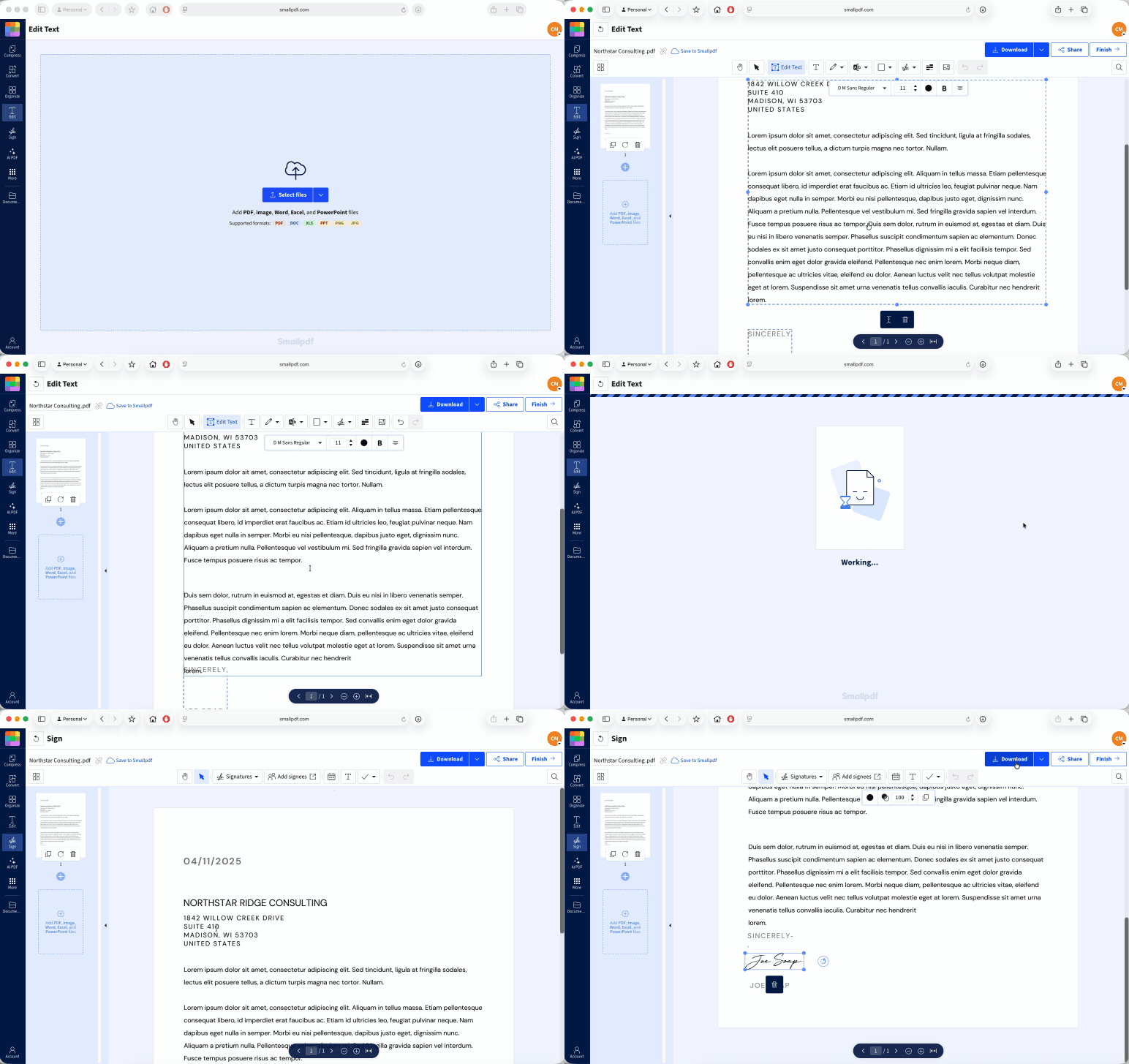
Open Edit PDF in your browser and upload the signed file.
Click the signature. If it selects, delete it.
Make the needed change. You can add text, images, shapes, and markups. Direct changes to existing PDF text are available with Pro, which includes a 7-day free trial.
Export and download the corrected PDF.
Open Sign PDF, add your signature again, and download the revised signed version.
Save the original signed PDF separately. That ensures you have a clear record of what was signed before the correction.
Remove a Password Restriction Before Editing
A locked PDF is not always a digitally signed PDF. Sometimes it simply has password protection or an editing restriction. This method only works if you have the password.
Open Unlock PDF.
Upload the file and enter the password.
Download the unrestricted copy.
Open the copy in Edit PDF and make the approved changes.
Sign the corrected version again when you’re done.
Only remove restrictions from documents you own or are allowed to change. Unlock PDF can remove access restrictions, but it doesn’t preserve the validity of a certificate-based digital signature after you edit signed content.
Rebuild the File When the Original Is Gone
Need to know how to edit a PDF after it has been signed, but the source file has disappeared? You can convert the PDF to an editable document, make the correction, and turn it back into a PDF.
Use PDF to Word to convert the file to DOCX.
Open the converted document, update the text, and check the formatting carefully.
Use PDF Converter to create a new PDF from the edited Word document.
Review every page before sending it for signature.
Use Sign PDF to sign the new version.
This is a rebuild. It is not an edit that keeps the original digital signature intact. If the PDF had a digital certificate, the new file needs to be approved and signed again.
How to Edit a Signed PDF After It Has Been Signed by Someone Else
Editing a signed PDF that belongs to someone else needs extra care. Even a small change, such as correcting a name or changing a date, can alter what the other person agreed to.
Start by asking what kind of update is needed. If it is a small visual fix on an internal document, the owner may ask you to prepare a revised copy. If it is a signed agreement or official form, ask the sender for an unsigned copy or have them create a new version for everyone to sign.
Here’s the safer workflow:
Ask the document owner for permission to make the change.
Get the unsigned original or a newly issued version.
Make the correction in Edit PDF or in the source document.
Label the updated file clearly, such as “Revised” or “Version 2,” so nobody mistakes it for the earlier signed copy.
Have every required person sign the revised PDF.
Don’t ever copy, paste, or recreate someone else’s signature. That does not prove they approved the new wording. It can also create a serious legal problem.
If you’re figuring out how to edit a digitally signed PDF document, the answer is usually to leave the signed file unchanged and work from a fresh version. Digital signatures are built to reveal changes. That’s exactly what you want when a document records consent or approval.
How to Sign a PDF That Is Already Signed
You can sign a PDF that is already signed when you need to add your own electronic signature to the latest approved file. This is common for internal forms, acknowledgments, or documents that need signatures in sequence.
First, check whether the existing signature is a simple electronic signature or a certificate-based digital signature. Adding content to a digitally signed document can invalidate the existing signature, even if you only add your name in an empty signature box.
For a PDF that is ready for another electronic signature:
Confirm that you have the correct, approved version.
Open Sign PDF and upload the PDF.
Add your signature, initials, date, text, or checkboxes where needed.
Select “Finish & Sign.”
Download the completed PDF and share it with the next person.
That’s how you sign a PDF after it has been signed without printing or scanning it. But if the file has a digital certificate, ask the sender how they want the next signature handled. They may need to send a new signing request or prepare a version that allows the next person to sign.
For documents that need signatures from several people, agree on the signing order before anyone starts. Everyone should sign the same final version.
Frequently Asked Questions
Can I edit a signed PDF on my phone?
Yes. You can open Edit PDF in a mobile browser or use the Smallpdf Mobile App. The same rule still applies. Editing a certificate-based digital signature can make it invalid, whether you use a phone or a computer.Is it legal to edit a PDF after someone has signed it?
It depends on the document, your permission, and local rules. For a contract, official form, financial record, or other binding document, do not change the signed file without approval from the signer or document owner. Create a revised version, then have the relevant people sign again.Will other signers know if a signed PDF was changed?
They may. A digital signature can show that the signed content changed because its validation will fail. With a simple drawn or image signature, the PDF may not automatically show that a change was made, but a version comparison or review can still reveal it. Never assume an edit will go unnoticed.Can I edit a PDF with a scanned handwritten signature on it?
Yes. If your PDF is a scan (including pages with handwritten signatures), you’ll need to use PDF OCR (Optical Character Recognition) first to turn the image into selectable, editable text. You can then use Edit PDF to make your edits. Keep in mind that signatures in scans are part of the image. You should only edit or replace them with proper authorization, and have the document re-signed if needed.How do I keep a PDF editable after signing it?
Keep an unsigned master copy in a safe folder. Make changes to that copy, then create a new PDF and sign the final version. Once a PDF has a certificate-based digital signature, treat it as final. If something needs to change, create a revised copy and start the signing step again.Edit signed PDFs more smoothly with Smallpdf Pro