How to Fill Out a PDF Form on Mac
Fill out a PDF form on Mac in seconds, right in your browser or with the Preview app already on your device. No extra software downloads needed.
Tax returns, NDAs, rental applications, onboarding paperwork. At some point, a PDF form lands in your Downloads folder and needs to go back completed. How you do this depends on the type of form you're dealing with.
Some PDFs have interactive fields built in. You click a box and your cursor appears. Others are flat, or scanned, with no fields underneath at all. Learn how to tackle both on a Mac, and what to do when a form refuses to cooperate.
How to Fill Out a PDF Form on Mac (Step-by Step Guide)
The fastest, no-hassle way to fill out an interactive PDF on Mac is a browser-based PDF Form Filler. It works in Safari, Chrome, or Firefox. No software to install, and no plugins needed.
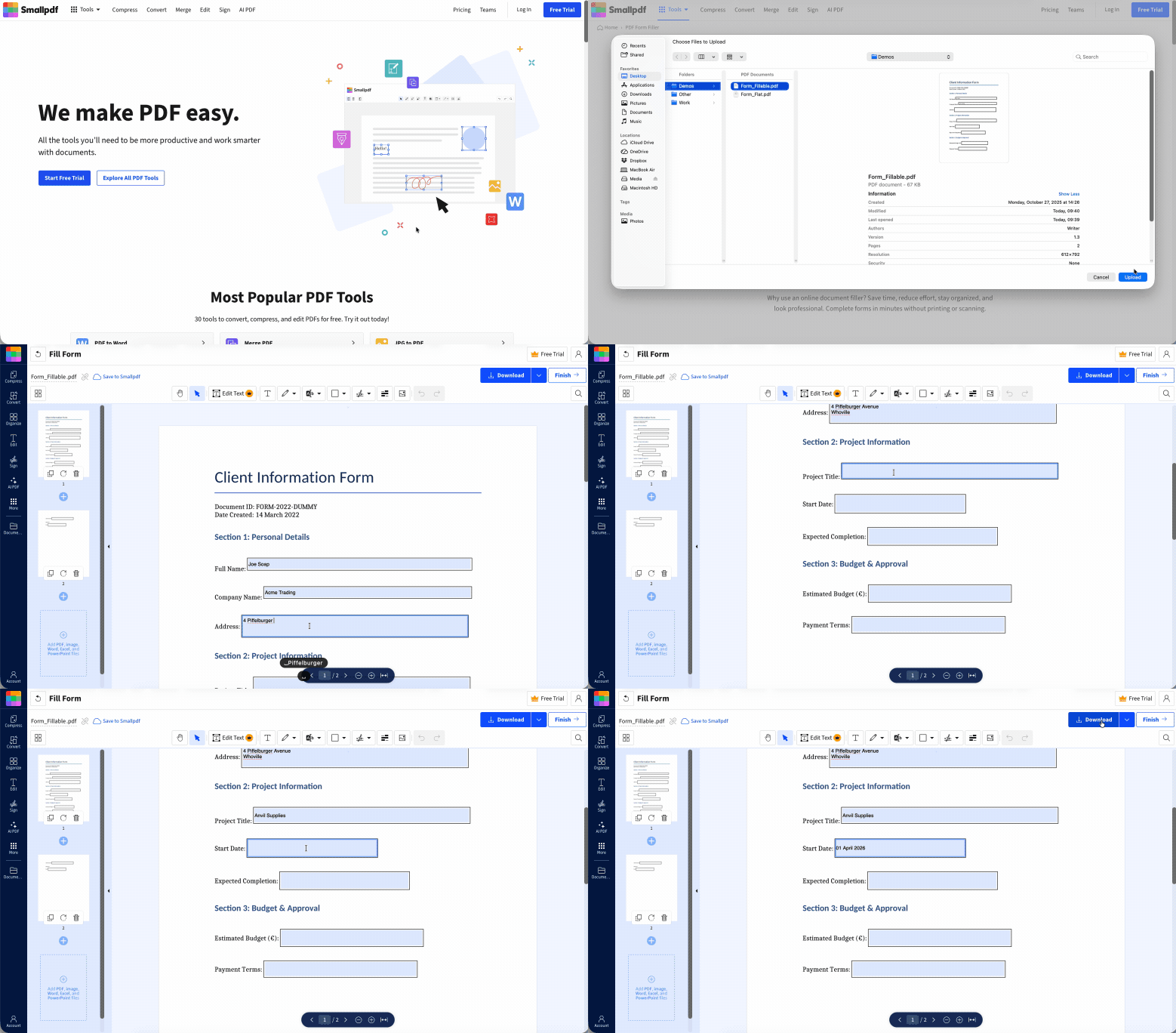
1. Upload Your PDF to the Form Filler
Go to the PDF Form Filler in your browser.
Upload your PDF from your Mac.
You can also pull files in from Google Drive, Dropbox, or OneDrive.
No sign-up needed.
Start here: Use the form filler below to upload your PDF and start filling it on your Mac.
2. Click Each Field and Enter Your Details
Click any text field. When your cursor appears, you can start typing immediately.
Tab through the form to move between fields in order.
Tick checkboxes with a single click.
Dropdowns open on click. Select your option and move on.
3. Download the Completed Form
Click to “Download” once you've filled everything in.
The PDF saves to your Mac with all your entries in place.
Formatting, fonts, and layout stay exactly as they were in the original.
How to Fill Out a Non-Interactive (Flat) PDF Form on Mac
Flat PDFs look like regular PDFs but behave like images. Clicking on them does nothing because there are no fields underneath. You'll run into them with scanned documents, older PDFs, and any PDF that was created in Word or by printing to PDF. A PDF must be created with fillable fields to be interactive.
The fix is to add your text directly on top of the page.
1. Upload the Flat PDF
Go to our PDF Form Filler in any browser.
Upload your flat PDF by clicking “Choose Files” or dragging it in.
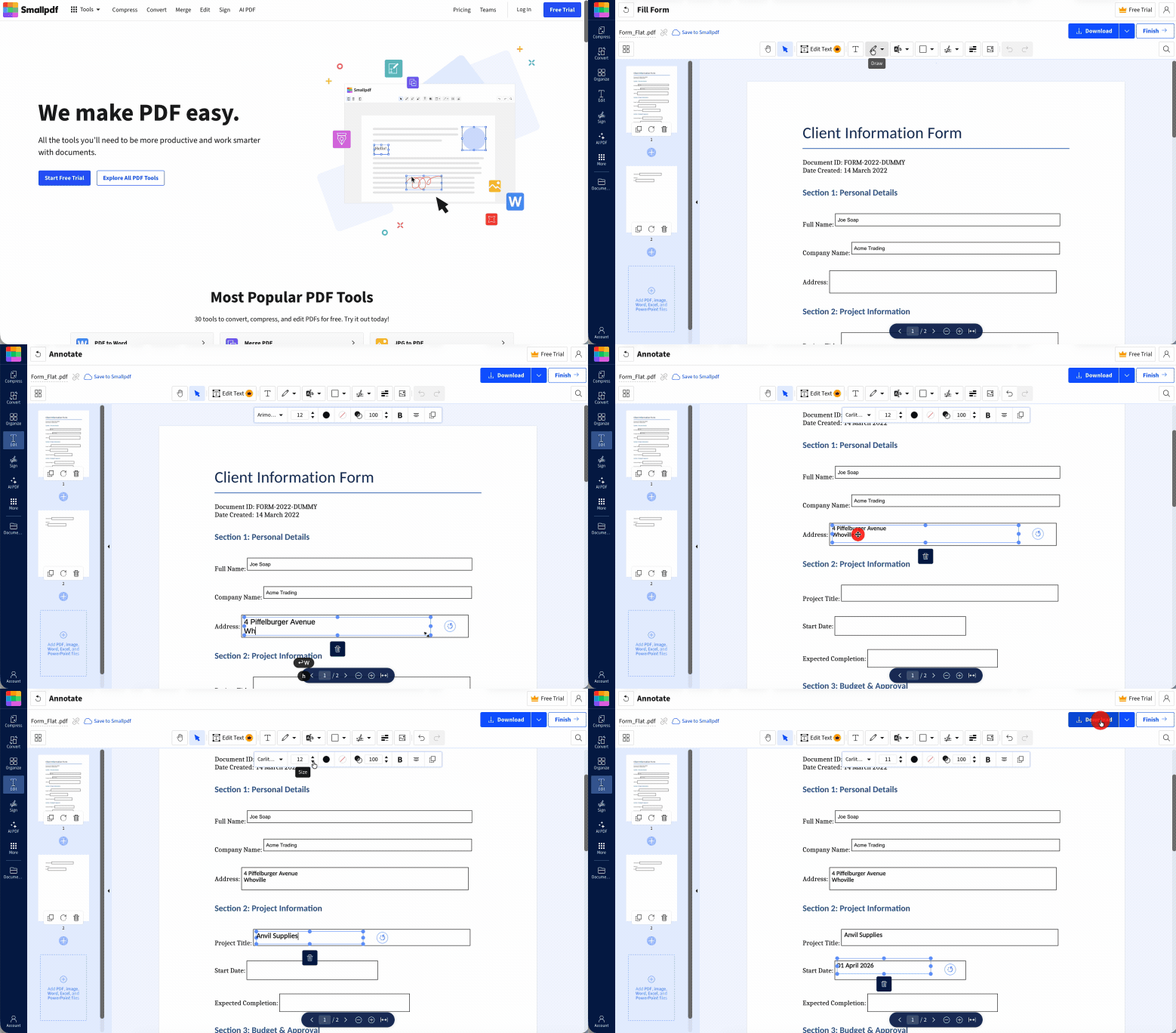
The tool detects there are no interactive fields and switches to annotation mode.
2. Position Text Over the Form Fields
Click the “Add text” button to place a text box on the page.
Click and drag it to sit over whichever field you're filling in.
Type your answer, then resize or adjust the font if needed so it fits the space cleanly.
Add a new text box for each field. Work through the form section by section.
3. Add a Signature if Required
If the form needs a signature at the end:
Click on the “Signatures & initials” button.
Draw with your trackpad, type your name, or upload an image of your signature.
Drag it over the signature line.
4. Download the Finished PDF
Click to download your completed document.
It saves as a standalone PDF, separate from the original.
How to Fill Out and Sign a PDF Form on Mac Using Preview
Preview is Apple’s built-in PDF app on Mac. Double-click a PDF and it opens in Preview automatically. The Markup toolbar lets you add text annotations and signatures, and macOS 26 introduced a small refresh that makes those tools easier to use.
It's a good fit for quick jobs—adding your name and date to a short form or signing a document before you send it back.
1. Open the PDF in Preview
Double-click the PDF in Finder to open it in Preview.
If it opens in a different app, right-click the file, choose “Open With,” and select “Preview.”
2. Show the Markup Toolbar
Click the pencil icon in the top-right area of the toolbar.
The Markup toolbar appears below the main toolbar, with text and annotation tools.
Alternatively, go to “View” and select “Show Markup Toolbar” from the menu bar.
3. Add Text to the Form
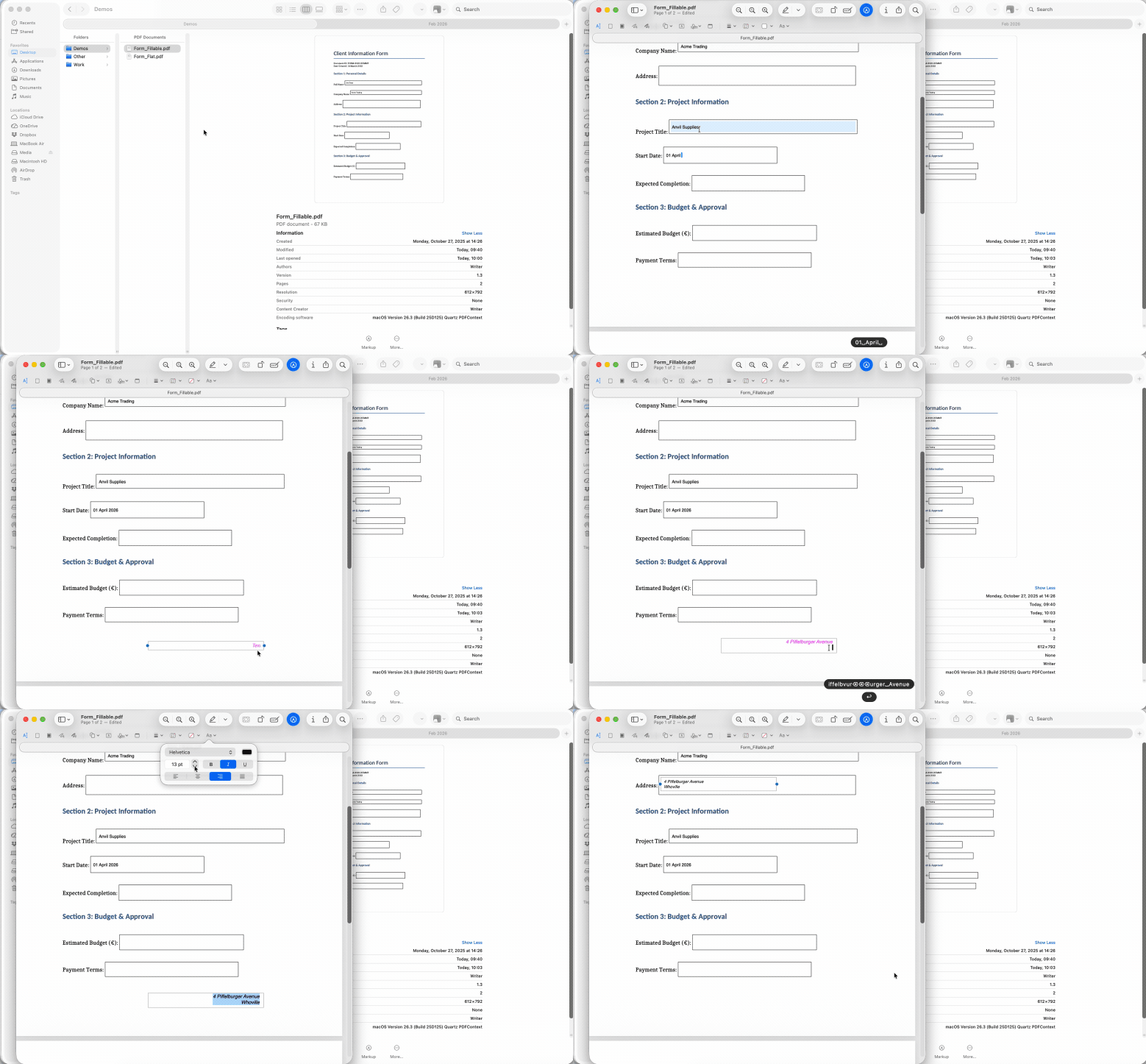
Click the text tool in the Markup toolbar.
Click anywhere on the PDF page. A text box will appear.
Type your answer, then click outside the box to deselect it.
Reposition the box by clicking and dragging it over the correct field.
Repeat for each field that needs filling in.
You can adjust the font, size, or color by selecting the text and then clicking on the “Text Style” button in the Markup toolbar.
4. Add Your Signature
Click the signature icon in the Markup toolbar (it looks like a cursive signature).
If you've saved a signature before, select it from the list.
To create a new one, click “Create Signature,” then sign on your trackpad, use your iPhone or iPad as a drawing surface, or hold a physical signature up to your Mac's camera.
Once added, drag the signature to sit over the signature line and resize as needed.
5. Save the Completed PDF
Preview saves changes automatically as you work. To be safe, create a copy of the original before you start.
Press Cmd+S to save or go to “File” and choose “Duplicate” if you want to save a separate copy.
To share the completed form, go to “File” and choose “Share” or drag the file from Finder into an email or message.
Why Can't I Fill Out Certain PDF Fields on My Mac?
A few common reasons why your PDF isn’t behaving as you expected include:
The form is flat or scanned. What looks like form fields are no different to an image if the PDF is scanned or flat. Use the text tool in PDF Form Filler to add your answers on top of the page.
The PDF is password-protected. If the document has been locked against editing, you won’t be able to add anything. If you have the password, Smallpdf's Unlock PDF tool can remove the restriction.
The fields are locked by the creator. This happens with finalized official documents. No tool can override a deliberate read-only lock set by the author.
Smallpdf is free to use, with some limitations. If you deal with PDFs daily or need to work with several forms at once, Pro unlocks higher limits and batch processing. And it comes with a 7-day free trial.
Want to Fill Out a PDF on an Mac
Frequently Asked Questions About Filling Out a PDF Form on an Mac
What's the best free way to fill out PDFs on Mac?
For interactive forms, open PDF Form Filler in your browser, upload the file, click through the fields and add your information, and download. For quick offline jobs, Preview in macOS 26 works without any browser at all. Both are free and don't require software installation.How do I create a fillable PDF form on my Mac?
Creating an interactive PDF with proper fillable fields requires a PDF editor with form-building tools. Smallpdf and Preview don’t support this. Although Word allows you to add form fields, these are not interactive once you save the document as a PDF. LibreOffice is a free option that allows you to create an interactive PDF with fillable fields.Can I fill out a PDF form on Mac using Preview?
Yes. For interactive forms, click directly into the fields. For flat forms, use the Markup toolbar. Reveal this toolbar by clicking the pencil icon or selecting “View” and “Show Markup Toolbar,” then use the Text tool to add your answers. Signatures can be added the same way.How do I add text to a PDF form on my Mac?
In Smallpdf's PDF Form Filler, click “Add Text” and drag the text box to the right position. In Preview, open the Markup toolbar, click the text tool, click in the text box that appears on the page, and type. Both methods let you reposition and resize the text before saving.Can I fill out scanned PDF forms on Mac?
Yes, but the process is different from filling in an interactive form. Scanned PDFs are images and have no clickable fields. Use Smallpdf's PDF Annotator to position text boxes over each field, or use the text tool in Preview's Markup toolbar to do the same thing.How do I add a signature while filling out a PDF form on Mac?
In Smallpdf, use the “Signature & initials” tool to draw, type, or upload an image of your signature. In Preview, click the signature icon in the Markup toolbar. You can then sign with your trackpad, camera, or a connected iPhone or iPad. Once added, drag it to the correct position in the document.Edit and complete PDF forms on Mac with Smallpdf Pro
Related Articles
