How to Save a Google Slides as a PDF
A PDF copy makes a presentation easier to send, print, and open across devices. For a clean slide-only PDF, start with a PPT or PPTX copy of your presentation, then use Smallpdf to convert and prepare the file.
Save Google Slides as PDF: Click “Choose file” above to upload your presentation, then convert it into a clean PDF ready to share.
With more than 30 tools, Smallpdf allows you to do much more than just save Google Slides as a PDF. The only time you need to stick to Google Slides is when you need a PDF that includes speaker notes.
Turn a Presentation Into a PDF With Smallpdf
Get a PPT or PPTX copy of the presentation ready before you begin. Then let Smallpdf create the PDF version.
Open PPT to PDF in your browser.
Drag and drop the presentation into the upload area or choose the file from your device.
Wait while Smallpdf converts the presentation.
Download the completed PDF.
Keep the original presentation file for future edits and live presentations.
An important point to remember is that PDF is static. It shows the content on each slide, but it does not play animations, transitions, videos, or audio.
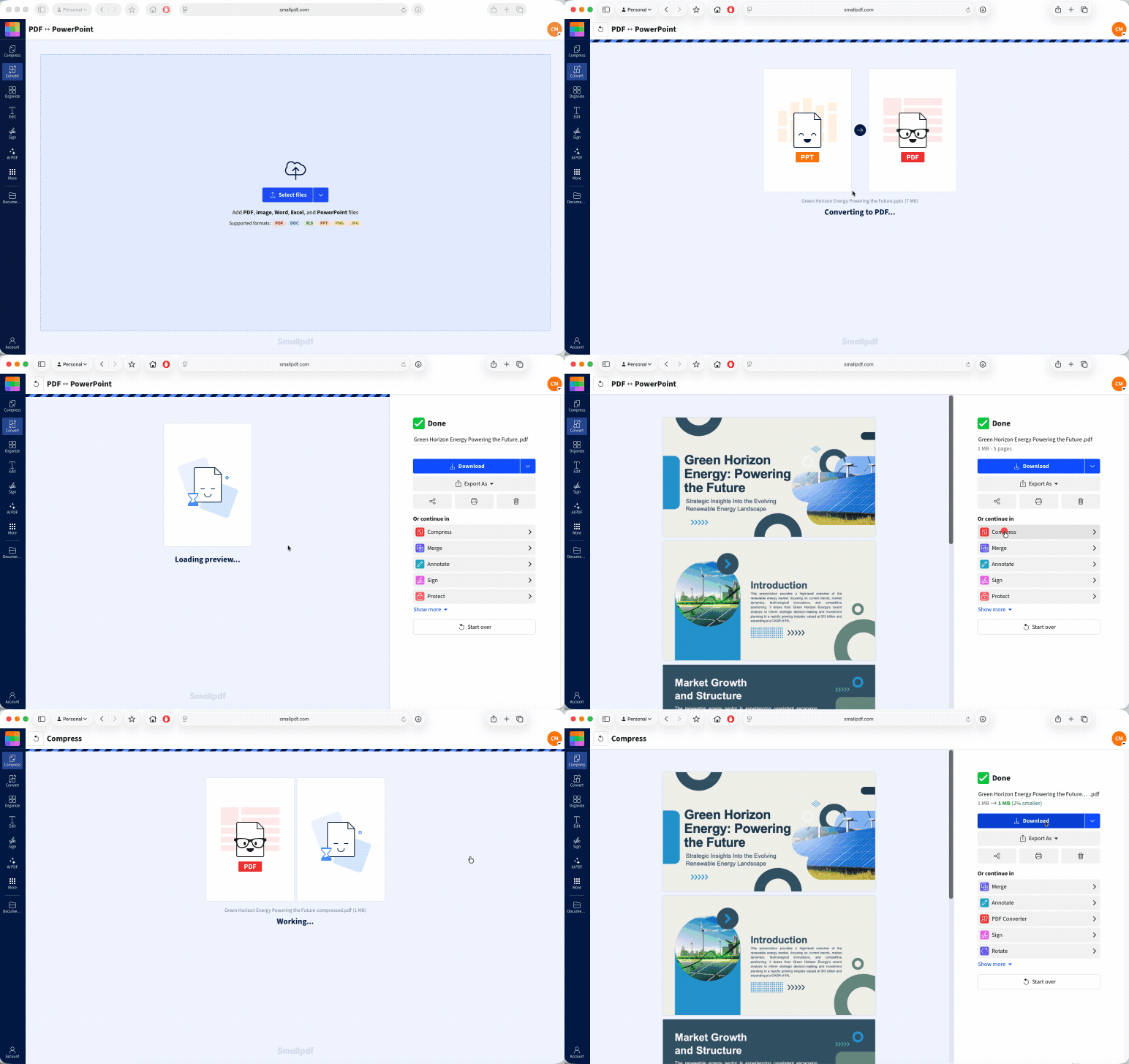
If the file is too large to email, run the completed notes PDF through Compress PDF. Check the compressed copy before you send it, especially when the notes contain small text.
Save Only the Slides You Need
You do not need to edit the original presentation just to send a few slides. It's easier (and safer) to convert the full PPTX file first, then create a smaller PDF from the finished document.
Extract PDF Pages is useful when you need a separate PDF containing specific slides. Upload the presentation PDF, choose the pages you want, and download the smaller file.
Use Organize PDF when you need to review thumbnails, delete pages, change the order, or rotate a page. This works well when a presentation includes an appendix, a duplicate slide, or pages that only apply to one audience.
For example, you may need slides 2–6 for a client update but not the planning pages at the end. Extract the pages you need and keep the full presentation PDF unchanged.
Why Is the PDF Blurry After Converting the Presentation?
To figure out why a PDF might be blurry, start by opening the downloaded PDF at 100 percent zoom. A preview inside an email or browser can look softer than the downloaded file.
If the PDF still looks blurry, check the source presentation. A conversion cannot add detail to a low-resolution photo, a stretched screenshot, or text pasted in as an image.
Go back to the source file and replace weak images with larger originals, if you can. Recreate screenshots of text as editable slide text where possible. Then create a fresh PPTX copy and convert it again.
Check detailed slides before you send the PDF. Maps, charts, fine print, and screenshots are usually where weak source images become obvious.
And avoid repeatedly compressing the same PDF. Start from the cleanest converted copy, compress it once if needed, then review the result.
Frequently Asked Questions
Do animations and transitions show up in the PDF?
No. A PDF shows static slide pages. It does not play animations, transitions, video, or audio. Animations will appear as a static image, and embedded video might show up as a single frame.Do hyperlinks in my slides stay clickable in the PDF?
Some hyperlinks may carry over but check the finished PDF before sending it. Test website links, email links, and any links to another page in the document.Can collaborators see that I downloaded the presentation as a PDF?
Smallpdf does not notify people who shared the original presentation. A company, school, or other managed account may keep its own file-access records, so follow your organization’s rules for shared documents.How do I turn a PDF back into Google Slides?
Use PDF to PPT to create a PPTX version of the PDF, then open that file in your presentation editor. Review the slides afterward, as some fonts, spacing, or layouts may need adjustment.Can I include hidden slides in the PDF?
The PDF will contain the pages in the PPT or PPTX file you upload. Make sure the source copy includes every slide you want before converting it, then use Extract PDF Pages or Organize PDF to create the final selection.Convert Google Slides to PDFs with Pro