How to Save a Screenshot as a PDF
Need to know how to save a screenshot as a PDF? Use Smallpdf to convert your screenshot for free, adjust the page size, or margins, then download it as a PDF
Quick Takeaways
You can turn screenshots into PDFs using built-in tools on Windows, Mac, iPhone, and iPad.
Screenshots are commonly saved as PNG or JPG files before being converted to PDF.
Smallpdf's Image to PDF converter works in your browser and supports common screenshot image formats.
You can add several screenshots at once, arrange them in the right order, and create one multi-page PDF.
Converting an image to PDF shouldn't suddenly make a clear screenshot blurry, but enlarging a low-resolution screenshot can reveal its limitations.
Screenshots are great when you need to grab something quickly. But when it comes to sharing, storing, or printing them, PDF is often the handier format.
Maybe you need to send a screenshot with an application, keep a receipt somewhere sensible, or turn several screen captures into one tidy document. Whatever the reason, learning how to save a screenshot as a PDF takes only a few steps.
Here’s how you can do it on Windows, Mac, iPhone, and iPad. We even cover the easiest way to combine several screenshots into a single PDF and what to do if the finished document looks blurry.
How to Save a Screenshot as a PDF on Windows
Windows gives you everything you need to capture your screen and create a PDF without installing extra software.
You can also use Smallpdf if you'd rather convert the image online, especially if you're working with several screenshots.
Step 1: Take and Save Your Screenshot
Press “Windows,” “Shift,” and “S” to open the Snipping Tool.
Choose whether you want to capture a rectangular area, a window, or another section of your screen. Once you've taken the screenshot, save it somewhere easy to find.
Windows screenshots are normally saved as image files, typically PNGs. That's completely fine because you don't need to change the image format before turning it into a PDF.
Step 2: Open the Screenshot and Choose Print
Open your screenshot, then select the “Print” option. You can also use Ctrl + P from an app that supports printing.
When the printer menu opens, choose “Microsoft Print to PDF” instead of a physical printer.
No need to worry about wasting paper and ink here, nothing is going to come out of your printer.
Step 3: Save Your New PDF
Select “Print,” choose where you want to store the file, give it a useful name, and save it.
You now have the same screenshot, saved as a PDF.
And if you're wondering how to convert a screenshot to PDF without going through the Print menu, you can also upload the screenshot to Smallpdf's Image to PDF converter. Add the image, adjust the page size, orientation, or margins if needed, then convert and download your PDF.
This is especially useful if you have screenshots in different image formats or want to deal with a bunch of screenshots at once.
Convert screenshots to PDF: Click “Choose file” above to upload your screenshot, adjust the page settings, and download it as a PDF.
How to Save a Screenshot as a PDF on Mac
Mac makes the process similarly straightforward. Screenshots are normally saved as image files, and Preview can convert them to PDF.
Step 1: Capture Your Screen
To capture your entire screen, press “Shift,” “Command,” and “3” together.
For only part of the screen, press “Shift,” “Command,” and “4,” then drag over the area you want to capture.
You can also press “Shift,” “Command,” and “5” to open the Screenshot controls, where you can choose exactly what to capture and where the file should be saved.
Step 2: Open the Screenshot in Preview
Find the screenshot and open it in Preview.
Screenshots on Mac are commonly saved as PNG files, so don't worry if there's no PDF in sight yet.
Step 3: Export the Screenshot as a PDF
Open the screenshot in Preview, choose “File” then “Export as PDF.”
That's it.
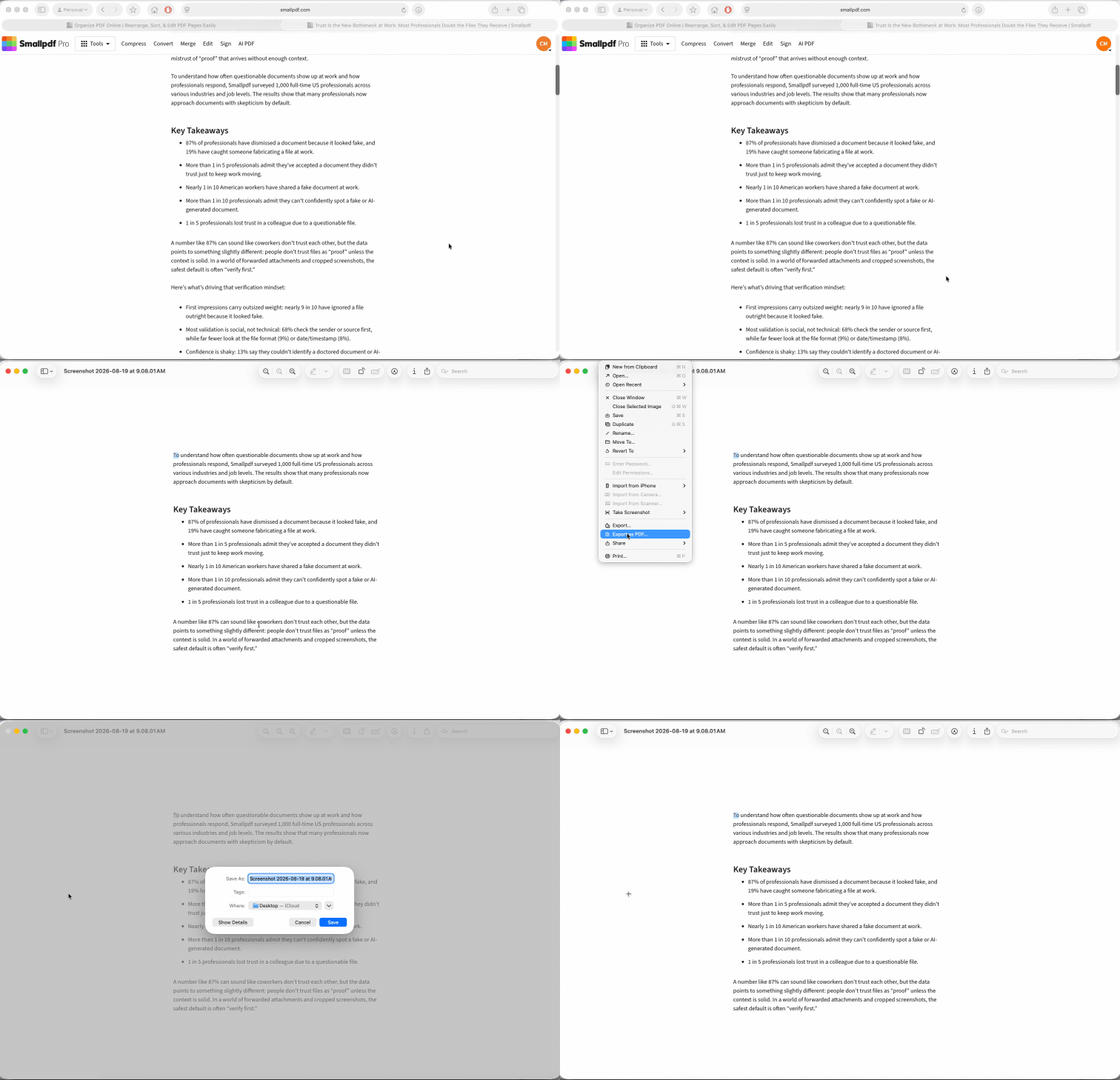
There's another handy option if you're trying to work out how to make a screenshot a PDF alongside other images. Select the files in “Finder,” Control-click them, and choose “Quick Actions,” then “Create PDF.” macOS will create a PDF from the selected files.
For more control over margins, orientation, or page layout, you can instead upload your screenshot to Smallpdf's Image to PDF tool.
How to Save a Screenshot as a PDF on iPhone or iPad
There are two slightly different situations here.
If you've already taken a normal screenshot, you can convert that image into a PDF. But if you're capturing a full webpage, document, or email, your iPhone or iPad may also let you save it directly as a PDF.
Step 1: Take Your Screenshot
On an iPhone with Face ID, press the Side button and Volume Up button together.
On devices with a Home button, the button combination differs depending on the model.
Once captured, the screenshot can be saved as an image and converted to PDF when you need it.
Step 2: Convert an Existing Screenshot to PDF
On current versions of iOS and iPadOS, an image can be opened in Preview and exported in another format, including PDF.
Open your screenshot, choose the export option, and select “PDF” as the format.
You can also open Smallpdf's Image to PDF converter in your browser, upload the screenshot from your device, and convert it there.
So, if you've been wondering how to make a screenshot a PDF on iPhone, you have two easy options right at your fingertips.
Step 3: Save a Full-Page Screenshot Directly as a PDF
This is particularly useful for webpages and other content that extends beyond what's currently visible on your screen.
Take the screenshot and open its preview. If the content supports full-page capture, choose “Full Page.”
You can scroll through the preview or crop the page if you don't need all of it.
Then choose the option to “Save PDF to Files,” select a folder, and save.
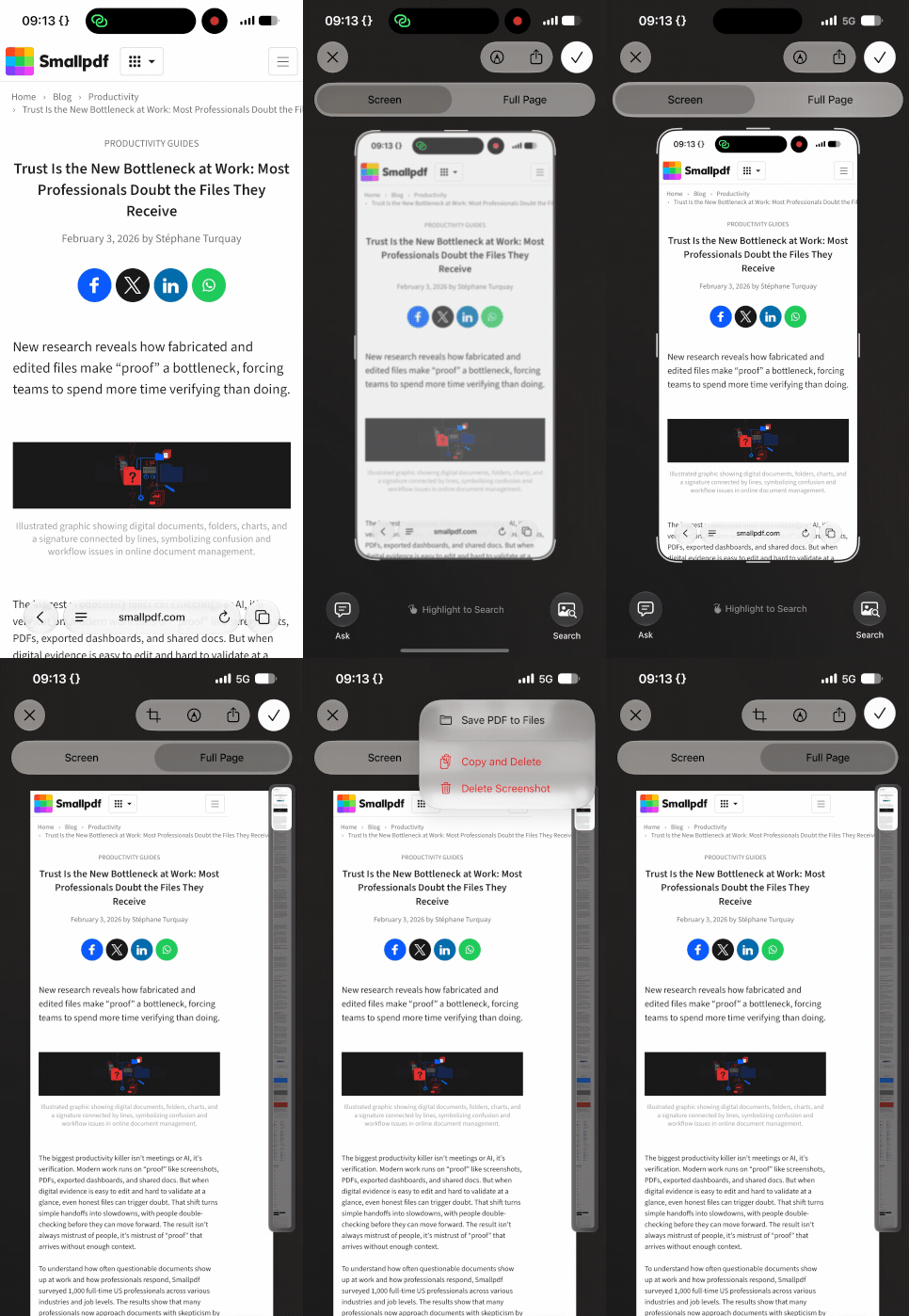
The big advantage here is that you can capture a long page without taking screenshot after screenshot and stitching everything together yourself.
Keep in mind that the “Full Page” option only appears for supported content. If you're taking a normal screenshot of an app screen, for example, you may only get the standard image capture.
How to Combine Multiple Screenshots Into One PDF
Got six screenshots that really ought to be one document? There's no need to send six separate attachments.
The easiest approach is to combine them while converting.
Open Smallpdf's Image to PDF converter and:
Upload your screenshots.
Add any other screenshots you want in the same PDF.
Arrange the images in the order you want them to appear.
Adjust the page size, orientation, or margins if needed.
Select “Finish.”
Download the finished multi-page PDF.
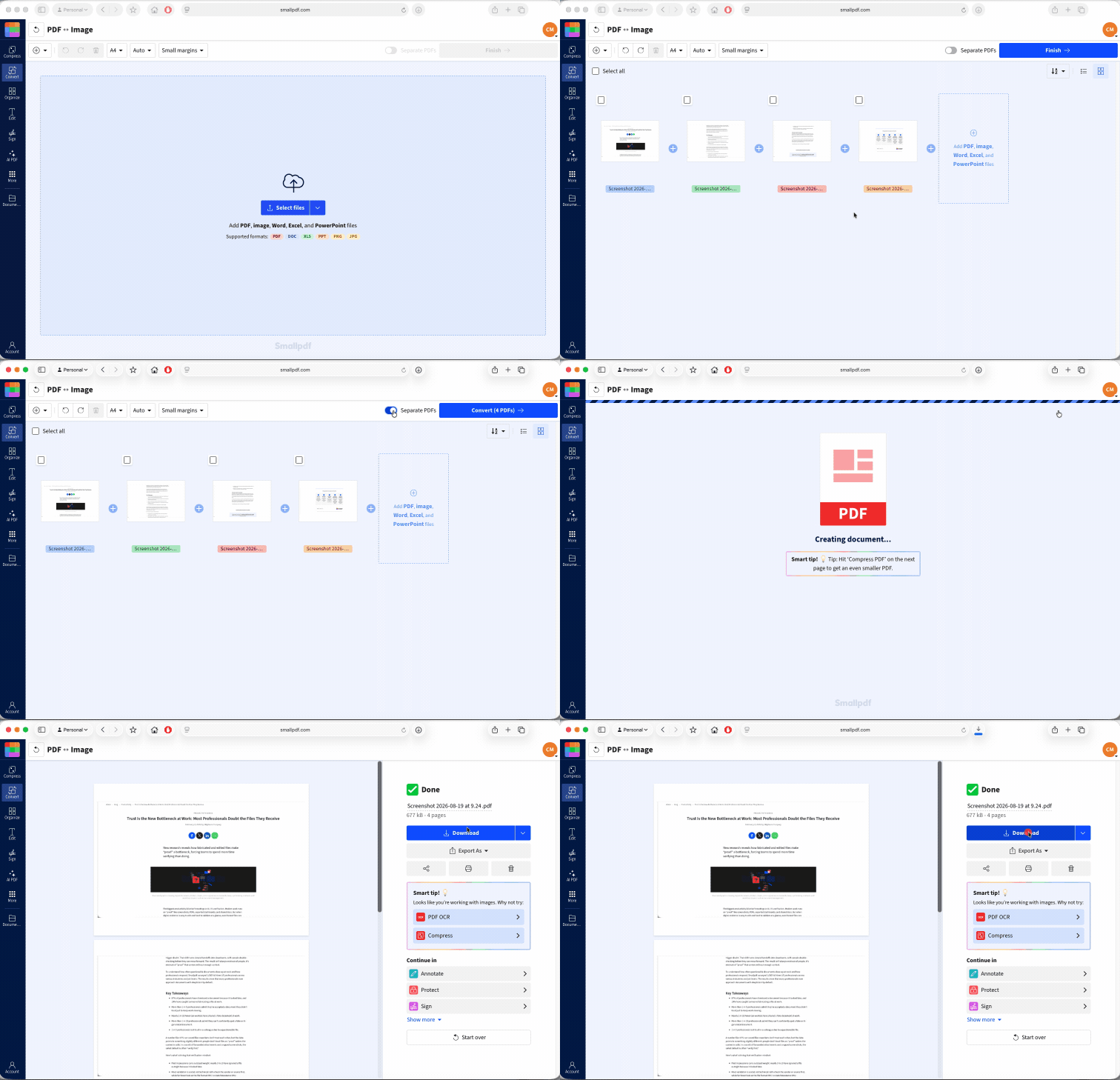
This works particularly well for things like step-by-step instructions, conversations, receipts, booking details, research notes, and screenshots from a long webpage. The default is to combine all the images into a single PDF file, with each page being a single screenshot. But there is a “Separate PDFs” toggle too.
Already converted each screenshot into its own PDF? Use Smallpdf's Merge PDF tool instead. Upload the individual PDFs, arrange them in the correct order, and combine them into one file.
That's often much easier for whoever you're sending the document to as well. One clearly ordered PDF beats a folder full of files called “Screenshot 1,” “Screenshot 2,” and “Screenshot 3.”
And if screenshots are only one part of your PDF to-do list, Smallpdf has 30+ PDF tools for jobs like converting, compressing, editing, organizing, signing, and more. Many are available for free with usage limits, while Smallpdf Pro gives you unlimited access to all 30+ tools and other premium features. You can also try Pro with a free 7-day trial before deciding if it’s right for you.
Why Is My Screenshot Blurry After Saving as PDF?
A PDF can't add detail that wasn't present in the original screenshot.
Screenshots are made from pixels. If the original capture has limited resolution and you enlarge it significantly inside a PDF, those pixels become more noticeable. Text and fine details can then start looking soft or blocky.
A few simple habits can help:
Capture at the size you'll need. Avoid taking a tiny screenshot and expecting it to stay pin-sharp when stretched across a large PDF page.
Don't crop too aggressively. Cropping a very small section and enlarging it afterwards can expose pixelation.
Start with the original screenshot. Repeatedly copying, resizing, or re-saving an image can sometimes reduce its usefulness.
Choose an appropriate page layout. If your screenshot is wide, landscape orientation may fit it better than squeezing it onto a portrait page.
Check the original image first. Zoom in before converting. If the source screenshot is already blurry, converting it to PDF won't fix that.
It's also worth remembering that a screenshot displayed at 100% and the same screenshot enlarged to fill a page may look very different. If image clarity is important, keeping the PDF page reasonably close to the screenshot's original proportions usually gives better results.
Frequently Asked Questions About Saving Screenshots as PDFs
Can a screenshot be saved as a PDF without extra software?
Yes. Windows, macOS, iOS, and iPadOS all provide built-in ways to create PDFs from screenshots or images. The exact process varies by device. You can also use a browser-based tool such as Smallpdf's Image to PDF converter when you don't want to work through your device's print or export menus.Does converting a screenshot to PDF reduce its quality?
Not necessarily. Converting the screenshot changes the file format, but that doesn't automatically mean the visible image will become worse. Problems are more likely when a low-resolution screenshot is enlarged considerably, resized repeatedly, or heavily compressed. Starting with a clear original and choosing a sensible page size should keep it looking sharp.How do I save a full-page screenshot as a PDF?
On supported content on iPhone or iPad, take a screenshot, open the capture preview, and choose “Full Page.” You can review or crop the page before selecting “Save PDF to Files.” This is useful for long webpages or documents because it captures content extending beyond the visible screen.Can I save a screenshot straight to PDF on my phone?
Yes, although it depends on what you're capturing. Supported full-page screenshots on iPhone and iPad can be saved directly as PDFs. For ordinary screenshots, you can save the image first and then export or convert it to PDF. Smallpdf's Image to PDF converter also works through a mobile browser.Is it free to convert a screenshot to a PDF?
Yes. Your device may already include a built-in PDF option, so you often don't need anything else. Smallpdf's Image to PDF converter can also be used online for image-to-PDF conversions without installing desktop software. Whether you're saving one quick screen grab or organizing a whole bunch of captures, turning screenshots into PDFs makes them easier to store, print, and share. And once you know where the right option is hiding on your device, the whole job usually takes less time than finding the screenshot in the first place.Turn screenshots into clean, share-ready PDFs with Pro