How to Scan a PDF Document on iPhone
Need to send a paper form, a receipt, or a signed agreement while you are out? Knowing how to scan a PDF on an iPhone means you can turn the page in front of you into a shareable file in a few taps.
Quick Takeaways
Use the Smallpdf mobile app to scan paper documents directly to PDF on your iPhone or iPad.
The scanner can detect page edges, then lets you crop, rotate, and apply a filter before you save.
Keep scanning to add pages and create one multi-page PDF.
Use PDF OCR when you need to find, copy, or select printed text inside a scan.
You can compress, merge, or sign the scanned PDF after you finish.
With the Smallpdf mobile app, you can scan directly to PDF, clean up the page before saving, and share the finished file from your phone. The same steps work on an iPad, too. No desktop scanner needed.
How to Scan a PDF on an iPhone With Smallpdf Scanner
The Smallpdf Scanner turns your iPhone camera into a document scanner. It is a handy option when you want a clean file instead of a loose collection of photos. Once you know how to scan a PDF on an iPhone, a paper document can become a shareable file wherever you are.
Download and open the Smallpdf mobile app on your iPhone or iPad.
Select “Scan document.”
Place the document on a flat surface and hold your camera above it. The scanner can detect the page edges automatically.
Take the scan. If the automatic capture does not catch the page at the right moment, capture it manually instead.
Tap the scanned-page stack in the lower-right corner to review it.
You can delete a scanned page, rotate it, crop, or reorder pages.
Once you are happy, tap “Done.”
You can then save it or share it.
Scan a PDF Document on iPhone
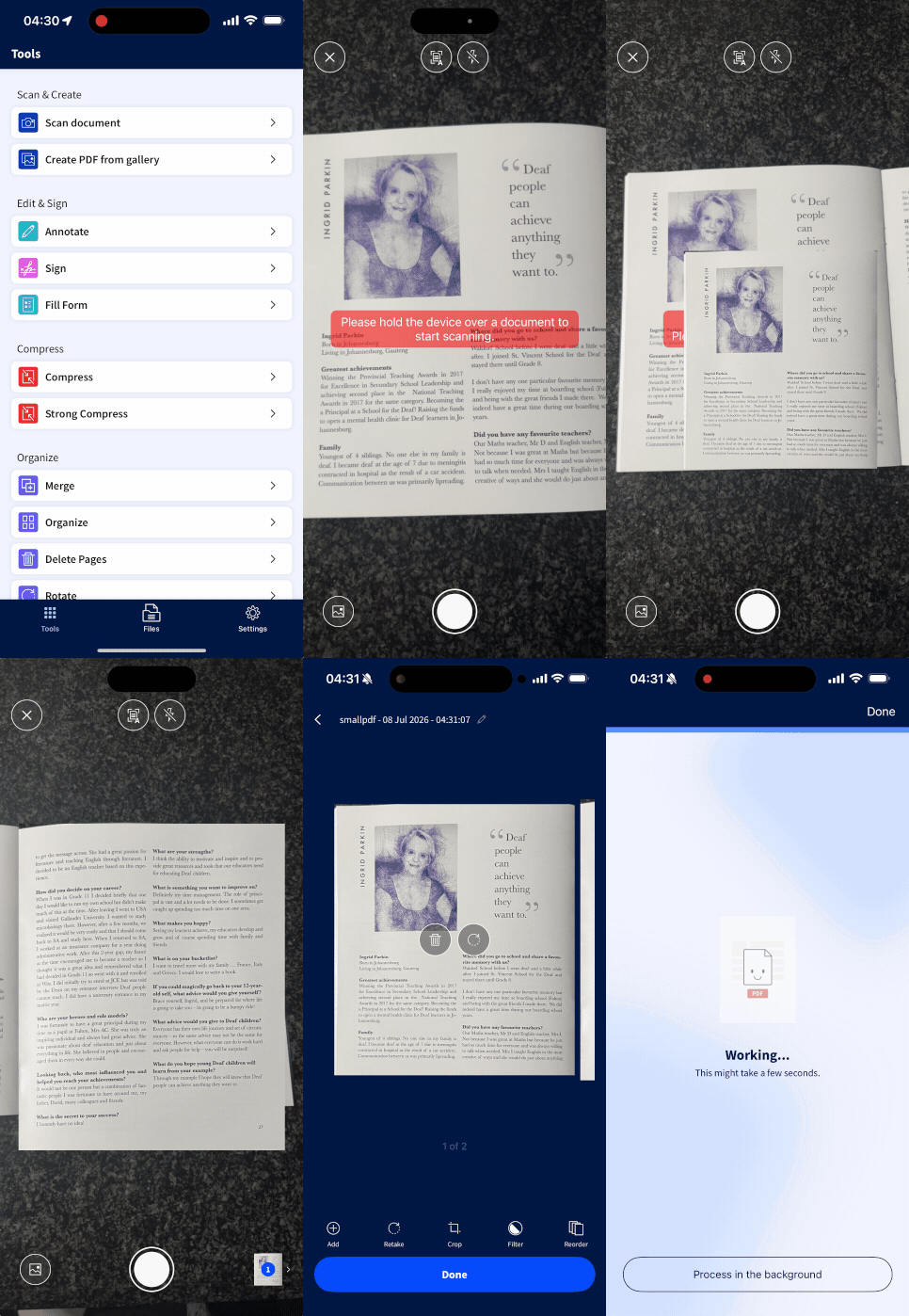
It's a simple way to scan and document as a PDF on an iPhone instead of saving each page as a separate photo. Keep the camera steady, let the app find the document edges, then check the page before you finish. It takes a moment, but it can save you from sending a crooked or cut-off file.
The scanner works well for everyday documents such as invoices, forms, letters, handwritten notes, school worksheets, and receipts. It also gives you a few clean-up controls before the PDF is saved, so you are not stuck with the first image you captured.
Want to use your phone’s built-in option instead? You can scan in Apple Notes or Files. In Notes, open a note, tap the attachment button, and choose “Scan Documents.” In Files, tap the meatball menu in the top right, choose “Scan Documents,” then save the result to a folder. Smallpdf Scanner is useful when you want to work on the PDF afterward without hopping between different apps.
Can You Scan Multiple Pages Into One PDF on an iPhone?
Yes. You can scan several pages into one PDF on an iPhone or iPad with Smallpdf Scanner. It is the same whether you are working with one page or a full stack of paper. After you capture the first page, keep scanning until you have added every page you need. The app collects them into a stack, which you can review and reorder before you create the final PDF.
Open the stack before you tap “Done.” This is where you can check that nothing is missing, crop a page again, remove a bad scan, or put pages in the right order. A quick review helps when you are scanning a contract, application, or any document where page order counts.
When you tap “Done,” the app makes one PDF with every page in the stack. That is much easier to email, upload, and keep than a series of separate images.
Already scanned pages separately? Use Merge PDF to combine individual PDFs into one file. You can also upload image files and arrange the pages before you download the finished document.
Fix Blurry or Crooked Scans on Your iPhone
A phone scan can look surprisingly clear, but the camera needs a little help. The same checks apply when you are figuring out how to scan to PDF on an iPhone for a document that needs to be printed later. If your document looks blurry, dark, crooked, or partly cut off, it is usually worth scanning the page again instead of trying to fix a weak image later.
Start with the paper itself. Place it flat on a surface with good, even light. A darker surface can make pale page edges easier for the scanner to spot, while bright light from one side can create shadows across the text.
Then hold your iPhone or iPad directly above the document. Keep your hands steady for a second or two, allowing the app time to find the edges and focus. Avoid pinching to zoom in. Try moving your device closer for a clearer scan.
Before you save, use the scanner’s edit screen to make small corrections:
Drag the corner markers if the automatic crop includes too much of the table or misses an edge.
Rotate the page if it was scanned sideways.
Try a filter when the page is faint, has colored paper, or picks up a background shadow.
Rescan a page with glare, fingerprints, folded corners, or unreadable text.
Open the final PDF and zoom in before you send it. Check names, dates, signature lines, totals, and other small print. PDF compression can make a file smaller for email, but it cannot make a blurry scan sharp. Use Compress PDF only after the scan already looks good.
Make a Scanned PDF on an iPhone Searchable
A scan is often an image of a page. You can see the words, but your phone cannot always search, copy, or select them. OCR, short for optical character recognition, reads the printed text in the scan and adds a searchable text layer.
This can be essential for a long receipt, a lease, a school record, or any file you may need to search again later. It is also helpful to know when you are learning how to do a PDF scan on an iPhone and expect to reuse the words in the document. Once the text is recognized, you can look for a name, date, amount, or phrase instead of scrolling through every page.
To make a scanned PDF searchable on your iPhone or iPad:
Open PDF OCR in Safari or another browser.
Upload the scanned PDF from your device or files.
Let Smallpdf process the file with OCR.
Download or save the searchable PDF.
Open the finished file and use the search function in your PDF viewer to check that the text is found.
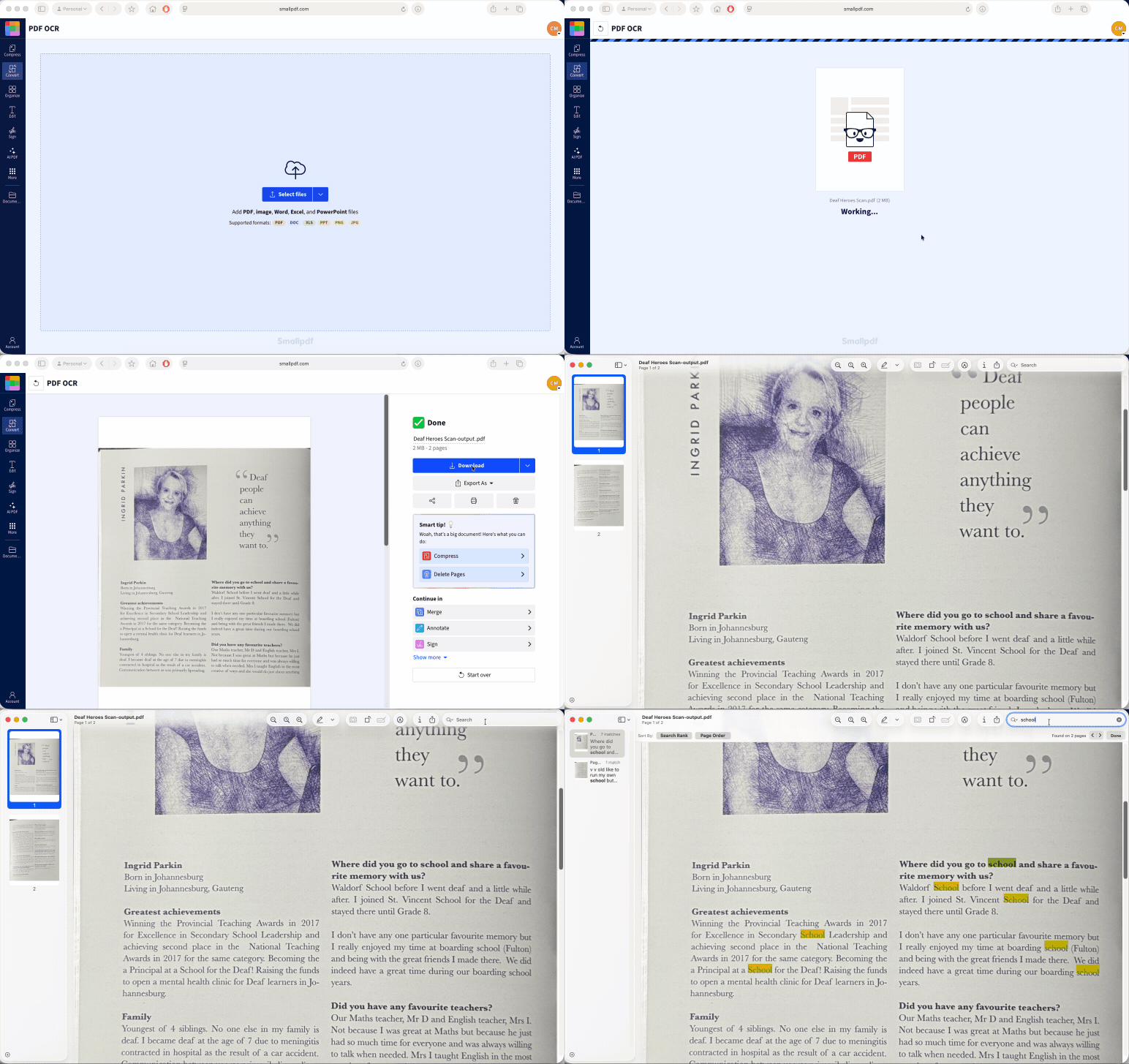
You can also use the Smallpdf mobile app to do this, just select “Convert with OCR” from the list of tools.
Clear scans give OCR more to work with. Printed text on a straight, well-lit page normally gives better results than faint print, cursive handwriting, shadows, or a heavily creased document. OCR can make text searchable and selectable, but it may still misread a character, so check names, numbers, and dates before you reuse them.
For deeper changes to the wording, use PDF to Word after OCR. That gives you an editable document to review and update before you save it as a PDF again.
Frequently Asked Questions
Why scan as a PDF instead of taking a photo?
A photo is fine for a quick reference, but a PDF is better for sharing a complete document. You can scan several pages into one file, crop the paper edges, keep the pages in order, and send a format that is easier for other people to open and print.Where do scanned PDFs get saved on an iPhone?
With Smallpdf Scanner, you can save the finished PDF on your phone, share it straight from the app, or sign in to sync files across your devices. If you use Apple Notes, the scan stays attached to the note. If you scan in Files, you choose the folder where the PDF is saved.Can I make a scanned PDF searchable or editable?
Yes. Use PDF OCR to make printed text searchable and selectable. If you need to change the wording, convert the OCR-ready file with PDF to Word, then check the layout before sharing the new version.Can I sign a scanned PDF directly on my iPhone?
Yes. Open the scanned file with Sign PDF in your browser or use the signing tool in the Smallpdf mobile app. You can also use Apple Markup in Notes or Files to place a handwritten signature on a document.Can I scan a PDF on an iPad the same way as on an iPhone?
Yes. The Smallpdf mobile app works on iPhone and iPad, and the steps are the same. You choose “Scan Document,” capture your pages, review them, then tap “Done.” The iPad’s larger screen can make cropping and reviewing pages more comfortable.Scan documents into clean PDFs on iPhone and iPad with Smallpdf