How to Send Documents Securely
Need to send documents securely without turning a simple handover into an IT project? Start by checking what the file contains, who needs it, and whether they need to download, edit, sign, or only read it.
Quick Takeaways
Check the recipient, file, and sharing method before you press “Send.”
Remove personal information the recipient does not need.
Add a strong password to a private PDF, then share the password through another channel.
Use a restricted link with named access, expiry, and revocation when your sharing service supports them.
Choose an approved secure portal for regulated or highly sensitive documents.
Remember that password protection controls access to the file. It does not prevent an authorized recipient from making another copy.
A routine invoice and a copy of your passport should not travel in the same way. For everyday private documents, a password-protected PDF and a carefully addressed email or controlled share link may be enough. Medical records, payroll data, legal evidence, and identity documents often belong in an approved client portal or managed file-transfer system.
Here’s how to send a file securely, how to protect a PDF, when to use a link instead of an attachment, and which common habits leave files exposed.
Is It Safe to Send Documents by Email?
Email is quite suitable for ordinary documents, but an attachment is not automatically private simply because it arrived in someone’s inbox. The message may remain in sent folders, recipient inboxes, backups, and downloaded files. It can also be forwarded or sent to the wrong address.
For sensitive information, the U.S. Cybersecurity and Infrastructure Security Agency (CISA) recommends placing the information in an encrypted document before attaching it to an email. The National Institute of Standards and Technology (NIST) also advises organizations to consider the sensitivity of the file and the protections used by both the sending and receiving email systems.
Before sending an attachment:
Confirm the recipient’s address, preferably using a trusted contact record rather than a newly supplied address in an unexpected message.
Check the file name and open the attachment once to make sure it is the right version.
Remove comments, hidden pages, old drafts, and personal information the recipient does not need.
Protect private PDFs with a strong password.
Send the password by phone, text, or another channel, not in the same email.
Ask the recipient to confirm receipt when the file is time-sensitive or particularly private.
Do not put confidential information in the email subject line or message preview. Even when the attachment is protected, those details may remain visible in notifications and mailbox listings.
How to Password-Protect a Document Before You Send It
Password protection is one of the simplest ways to securely send documents by email, chat, or a share link. It encrypts the PDF so the recipient must enter the password before opening it.
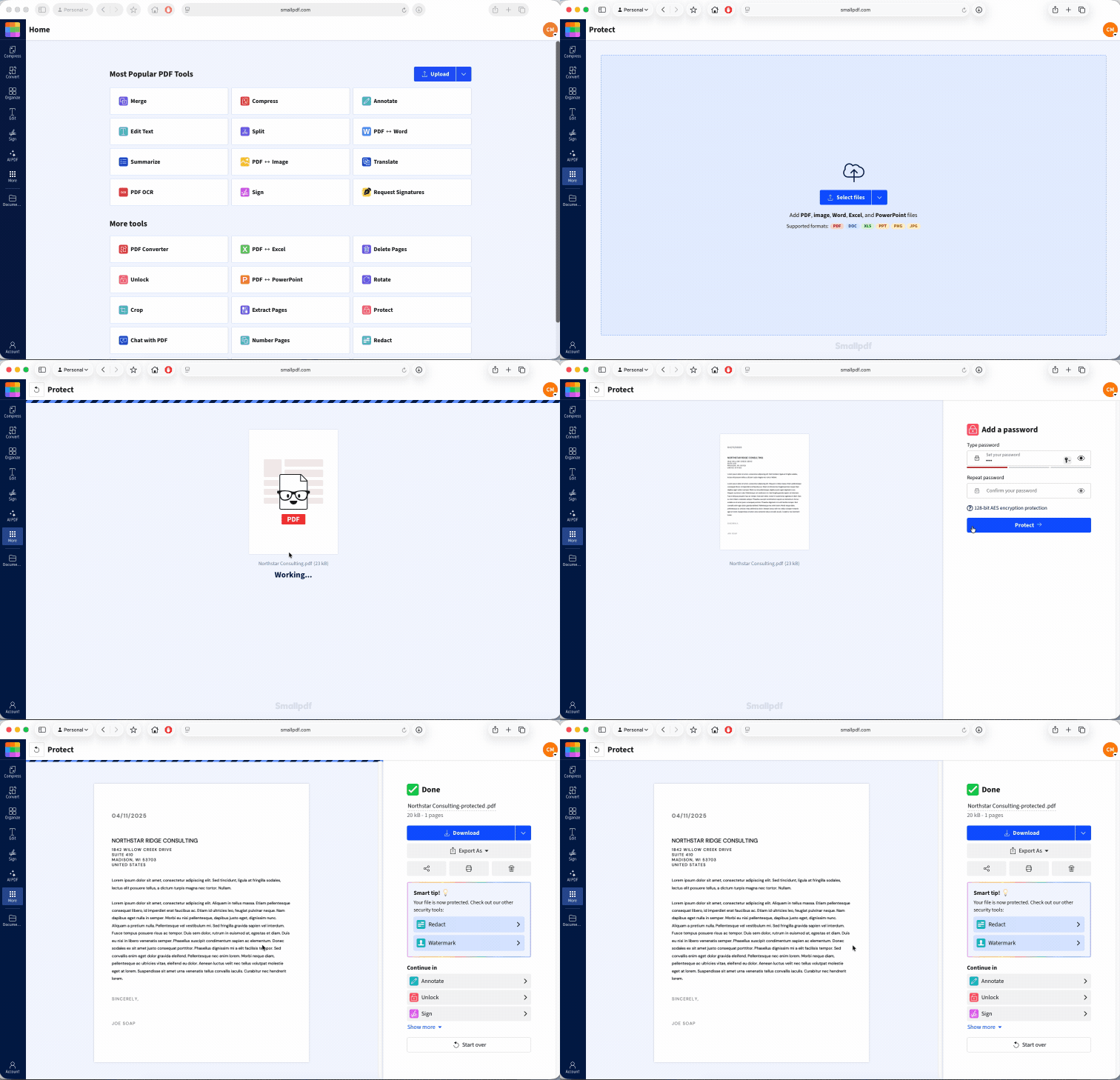
You can add a password with Protect PDF in your browser:
Open Protect PDF. or upload the PDF you want to send in the drop are below
Enter a strong, unique password.
Enter it again to confirm.
Click “Protect.”
Download the secured PDF and open it once to test the password.
Send the file and password through separate channels.
Smallpdf uses TLS encryption during file transfer, does not save document passwords, and deletes files from its servers after one hour for most tools. Smallpdf is also ISO/IEC 27001 certified.
Choose a Password That Is Hard to Guess
A long password or passphrase is safer than a short, complicated-looking word. It is recommended that you aim for at least 15 characters when you create your own password. Random words can be easier to remember while still giving you plenty of length.
Avoid names, birthdays, company names, document titles, and reused passwords. “SmithTax2026” is easy to connect to a tax return sent by the Smith family. A password manager can create and store a stronger alternative.
Remove Information Before Protecting the File
Encryption keeps unauthorized people from opening the document, but the recipient will still see everything inside once they enter the password. Redact any data they do not need before you protect it.
Use Redact PDF to permanently remove account numbers, addresses, signatures, identification numbers, or other private details. Proper redaction removes the underlying information rather than simply placing a movable black box over it.
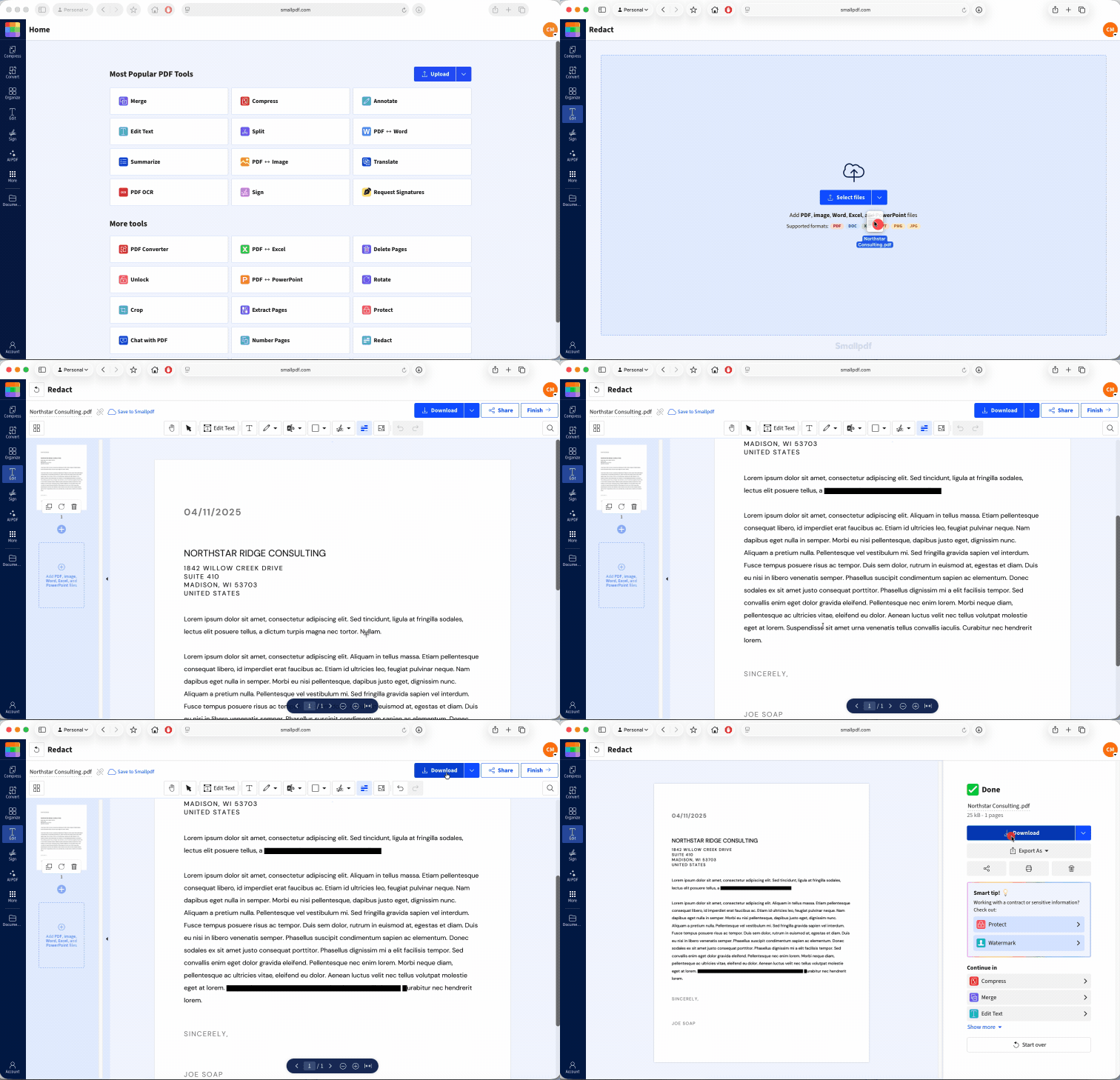
Check every page after redaction. Then protect the finished copy and keep the untouched original somewhere safe.
How to Share a Document With a Secure Link Instead of an Attachment
A share link can keep large files out of email inboxes and give you more control than sending a permanent attachment. The protection comes from the link settings, though. A public link that anyone can open may be no safer than an unprotected attachment.
For sensitive documents, choose a sharing service that lets you:
Restrict access to named recipients
Require sign-in or multi-factor authentication
Set the recipient to viewer rather than editor
Add an expiry date
Revoke access after the work is finished
Review access or download activity when required
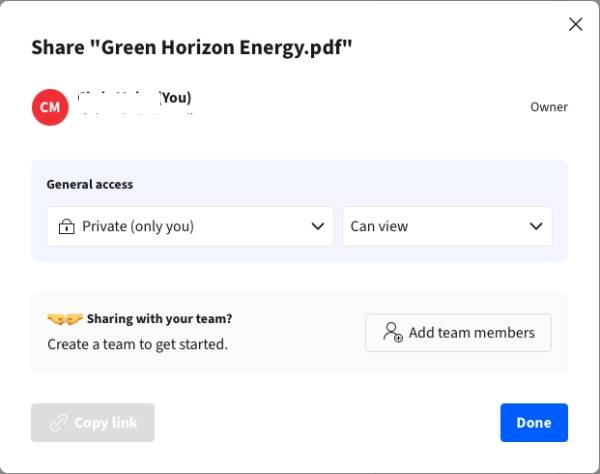
Share Document lets you upload a PDF or another supported document and create a shareable link. It’s useful when an attachment is too large or awkward to resend, and you can use it with a free Smallpdf account. For unlimited access to Smallpdf’s Pro tools and features, you can also start a 7-day free trial. A link alone doesn’t make an unprotected document confidential, so add password protection first when the file contains private information.
A secure workflow would look like:
Redact information the recipient does not need.
Protect the PDF with a strong password.
Upload the protected copy to your chosen sharing service.
Apply the strictest useful access settings.
Send the link through your normal work channel.
Send the password separately.
Remove access when the recipient no longer needs the file.
Check the link in a private browser window before sending it. This is useful for checking whether the recipient will be asked to sign in, enter a password, or request permission.
The Most Secure Way to Send Sensitive Documents
There is no single most secure way to send documents in every situation. The right method depends on the harm that could follow if the wrong person saw the file.
For low-risk documents, a correctly addressed email may be fine. For private personal or business information, use an encrypted file and send its password separately. For highly sensitive or regulated material, use the secure portal or managed transfer service approved by the organization handling the information.
A strong setup for sensitive files would include:
Encryption while the file is sent and while it is stored
Access limited to a named recipient
Multi-factor authentication
View-only access where editing is unnecessary
A clear expiry or removal date
Activity records for downloads, changes, or signatures
A way to revoke access quickly
A secure portal also helps keep the file out of multiple inboxes and gives the sender more control over access.
For documents that must be signed, use the signing process required by the receiving organization. Do not replace an approved legal, medical, government, or financial workflow with an ordinary email attachment simply because it is quicker.
Common Mistakes That Make Document Sharing Unsafe
Most sharing problems come from small decisions made before the file leaves your device.
Sending the Password With the File
Anyone who gains access to the message gets both pieces. Send the password through a separate channel and confirm that you are speaking to the intended recipient.
Using the Wrong Recipient or Version
Autocomplete can select a similar name, and vague file names make mistakes harder to spot. Use clear names such as Lease-Signed-2026-07-16.pdf, then reopen the attachment before sending it.
Sharing More Information Than Needed
A full statement may contain an address, account number, transaction history, and reference codes when the recipient only needs one total. Redact the rest or extract the relevant page.
Leaving a Link Open Forever
Old links can remain in message histories and forwarded emails. Set an expiry or remove access when the recipient is done with the document.
Reusing a Weak Password
A password used for several files gives an attacker more opportunities to guess or obtain it. Create a fresh password for each sensitive document or transfer.
Treating “View Only” as Copy Protection
A recipient may still take screenshots, photograph the screen, or reproduce the information manually. Share only what they genuinely need, even when downloading and editing are restricted.
Ignoring the Device and Network
Keep your browser, operating system, and security software up to date. On public Wi-Fi, check for ‘https’ and the padlock before uploading a file. Widespread web encryption usually makes public Wi-Fi safe, but a trusted network or mobile connection is still the more cautious choice for highly sensitive documents.
Frequently Asked Questions
Can a password-protected PDF still be intercepted while sending?
Yes. Someone may still copy or intercept the encrypted file, but they should not be able to read its contents without the password. Use a strong password, send it separately, and use a service that encrypts the transfer.Is it safe to send sensitive documents over public Wi-Fi?
Most websites now use encryption, so public Wi-Fi is usually safe when the site uses ‘https’ and shows a padlock. For highly sensitive documents, use a trusted network or mobile data when practical, and keep your device and browser updated.Can the recipient remove the password after they open the file?
Yes. A recipient who knows the password may be able to save or create an unprotected copy. Password protection limits who can open the file, but it doesn’t control every action taken after authorized access.Are secure share links safer than email attachments?
They can be. A restricted link may support named access, expiry, view-only permissions, and revocation, while an attachment remains in the recipient’s inbox. An unrestricted “anyone with the link” URL does not provide the same control.Is it safe to use an online tool for secure document sharing?
It can be, provided the service uses encrypted transfers, explains how long files are stored, and publishes clear privacy and security information. Smallpdf uses TLS encryption, deletes files after one hour unless shared or saved to your Smallpdf account, and is ISO/IEC 27001 certified. You can review the details in the Trust Center.Can I securely send multiple documents at once?
Yes. Protect each document separately or use Merge PDF to combine related PDFs into one file before adding a password. Combining them is convenient but only include files every recipient is allowed to see.