- Home
- ›
- ›How to Make All Pages in a PDF the Same Size
How to Make All Pages in a PDF the Same Size
Need to know how to make all pages in a PDF the same size? Use Smallpdf to convert it for free, fix the page size, then save it back as a PDF.
Quick Takeaways
If you need to make all PDF pages the same size, PDF Converter first.
Smallpdf handles the conversion step. Microsoft Office is where you fix paper size, slide size, margins, scaling, or orientation.
After fixing the size, export the file back to PDF and check every page before sending.
Keep the original PDF. Conversion can affect spacing, tables, links, form fields, or page breaks.
Mixed page sizes usually show up after you combine files from different places. A Word document, spreadsheet, scan, image, and slide deck can all keep their original page setup when they become one PDF.
And you end up with one page looking normal, the next may look tiny, and a landscape table may suddenly sit in the middle of a portrait document.
How to Make All PDF Pages the Same Size on Windows and Mac
Making all your PDF pages the same size is always going to start with converting the PDF to another format first. The right format depends on what your PDF contains. Don’t convert every PDF to Word by default. A text-heavy contract works well in Word. A spreadsheet belongs in Excel. A slide deck belongs in PowerPoint. A scanned page or image-based PDF may work better as an image first.
Once the file is in an editable format, you can use Microsoft Office to correct mismatched page sizes.
Upload your document to PDF Converter below
Convert your PDF to Word, Excel, PowerPoint, or JPG.
Download the converted file.
Open it in Microsoft Office.
Change the page, sheet, or slide size so all pages match.
Check the layout.
Save or export the file back to PDF.
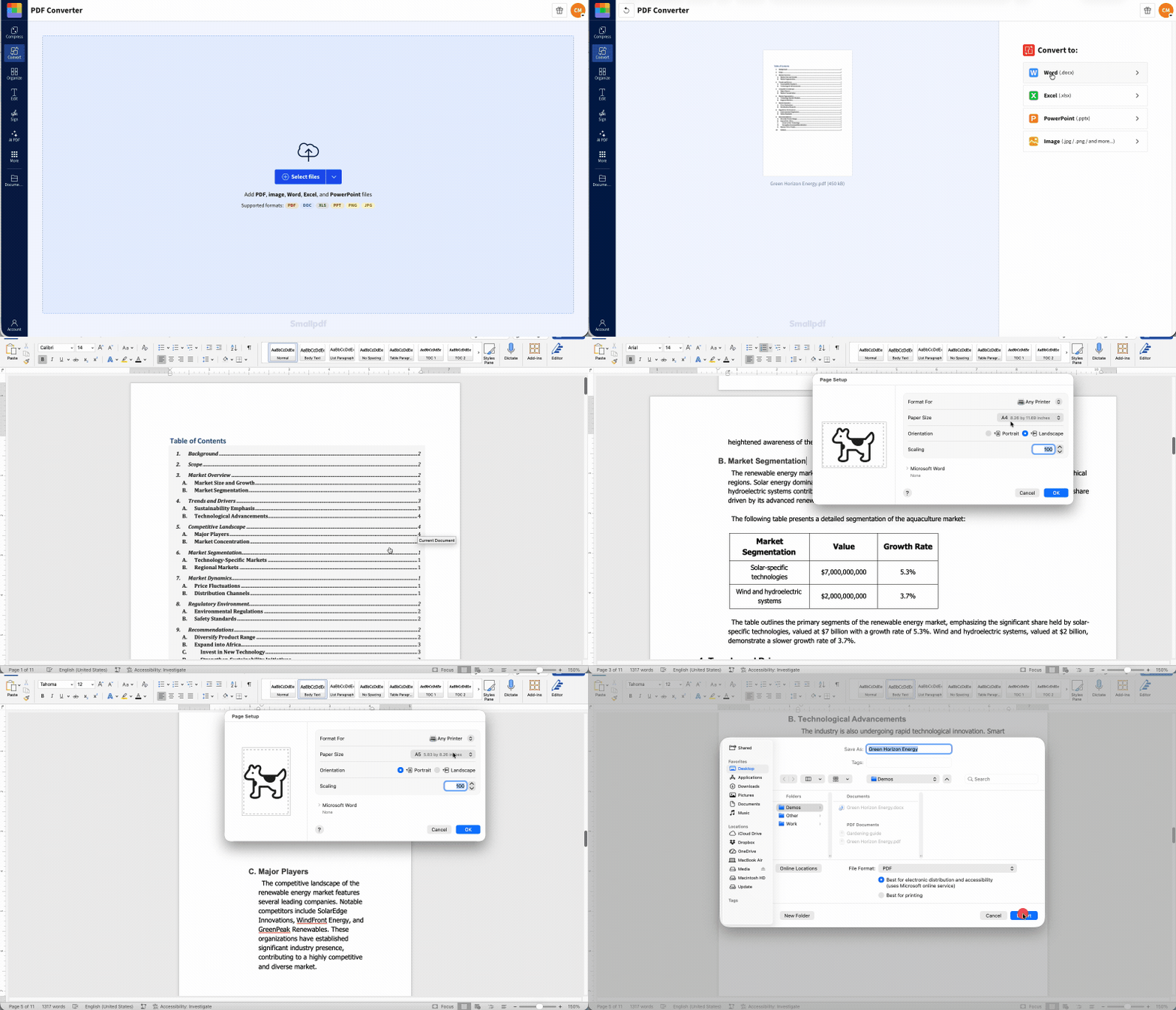
Here's how to adjust paper size and orientation in Word, Excel, and PowerPoint:
Once the file opens in Office, go to the page, sheet, or slide that looks wrong. In Word, click inside the affected page or section, then open the page setup controls. On Mac, go to “File,” then “Page Setup.” Change the paper size, fix the orientation, then use the extra Word settings in the same window to apply the change to “This Section.” On Windows, use the “Layout” tab, open the “Page Setup” dialog, change the paper size or orientation, and use the “Apply to” option so the change affects the right section.
In Excel, check the print setup rather than only the sheet view. On Mac, go to “File,” then “Print.” Choose the correct paper size, then use the Excel settings in the print window to set the orientation. You may also need to set the print area or use scaling so the worksheet fits neatly. On Windows, use “Page Layout” to set paper size, orientation, print area, and scaling.
In PowerPoint, use the print or slide size settings depending on what you’re fixing. On Mac, go to “File,” then “Print.” Near the top of the print window, choose the paper size. In the PowerPoint settings below, adjust orientation and use “Scale to Fit Paper” if needed. On Windows, use “Design,” then “Slide Size,” then “Custom Slide Size” to set the slide size and orientation before exporting.
Once everything looks right, save the file as a PDF again. You can also upload the edited Word, Excel, or PowerPoint file to Smallpdf PDF Converter and convert it back in your browser. Smallpdf can then help with Merge PDF if you need to combine corrected files, or Compress PDF if the final file is too large.
Why PDF Pages End Up Different Sizes After Combining
PDFs keep their page settings, and when you combine several PDFs, the merged file keeps each page exactly as it was. And it happens a lot with mixed-source files. A contract may be A4. A spreadsheet may be Letter landscape. And a scanned receipt may be a small custom size.
Once those files are combined, the size differences become obvious. Some pages fill the screen. Others sit in the middle with wide white space. Some rotate sideways. Others print on the wrong paper size.
How to Standardize PDF Page Sizes on iPhone and Android
You can do parts of this on mobile, but it’s usually not the easiest place to fix page sizes. Phones are fine for quick conversions and downloads. Page setup is more comfortable on a computer.
A mobile workflow looks like this:
Upload the document to PDF Converter.
Convert the PDF to Word, Excel, PowerPoint, or JPG.
Download the converted file.
Open it in the matching Microsoft Office mobile app.
Change what you can, depending on the app and device.
Export or save the result as a PDF.
If it’s just one page you need to change, mobile can work. But for a PDF with multiple mixed page sizes, use a desktop if you can. You’ll spot cut-off tables, odd margins, and shifted images much faster on a larger screen.
What Happens to Your Content When You Change Page Size
Changing page size is a layout change. You’re telling Word, Excel, or PowerPoint to place the content on a new canvas. And that can affect the way the final PDF looks.
Text may reflow. A paragraph that used to fit on one page may move onto the next. Headings may shift, and tables might cut off.
So, before you go ahead and Save as PDF again, check the whole document for any changes to the content. Most should be fairly easy to fix, though spreadsheets and presentations could require more effort.
Page numbers may also need fixing. If the content reflows, old page numbers inside footers may change. Check them before you send the final document.
How to Prevent Mixed Page Sizes Before You Combine PDFs
The cleanest fix is to set the size before you combine the files.
Choose one page size first. Use A4 for many international documents. Use Letter for US documents. Use landscape only where the content needs the width, such as large spreadsheets or slides.
Then prepare each file.
For Word documents, set the paper size and orientation before saving as PDF. Also check section breaks, because different sections can sometimes carry different page settings.
For Excel files, set the print area, paper size, orientation, and scaling before exporting. A wide worksheet often needs landscape orientation or “fit to one page wide” scaling.
For PowerPoint files, set the slide size before exporting. Don’t mix widescreen and standard slide formats if you want a consistent final PDF.
For images and scans, place them into a fixed-size Word page or PowerPoint slide before converting to PDF. This stops each image from creating its own odd page size.
After that, convert each file to PDF and use Merge PDF to combine them. Because the page sizes were cleaned up first, the merged PDF should look much more consistent.
Standardize PDF Page Sizes With Smallpdf
Smallpdf helps you get the PDF into a format where page-size fixes are easier to make. Convert the file to Word, Excel, PowerPoint, or JPG, depending on what the PDF was originally built from. Then adjust the page size, orientation, scaling, or margins in the matching editor before saving it back as a PDF.
Once the corrected PDF is ready, a few other Smallpdf tools can help tidy up the final file. Use Merge PDF if you fixed separate documents and need to combine them again. And use Compress PDF if the finished file is too large to email or upload.
If the mixed-size pages came from scanned documents or images, you may also find Crop PDF useful before the final conversion. Trimming extra white space can make pages look more consistent before you rebuild the PDF.
Free accounts include a limited number of files each day. If you work with PDFs often, Pro removes that daily limit, gives you access to extra features, and includes a 7-day free trial.
Frequently Asked Questions
How do I make all PDF pages the same size online for free?
Convert the PDF to the format that best fits the content, such as Word, Excel, PowerPoint, or JPG. Then change the page size in that app and save it back as a PDF. This gives you more control than trying to force mixed pages inside a PDF viewer.Will changing PDF page sizes crop or lose any of my content?
It can if the content doesn’t fit the new page size. Use fit, scaling, margin, and orientation settings carefully. Check tables, signatures, page numbers, images, and anything near the edge before sending the final PDF.What is the best standard page size to use when normalizing a PDF?
Use A4 for many international documents and Letter for US documents. If the file is for printing, match the paper size the recipient will use. If it’s for a form, portal, or application, follow the size listed in the instructions.Can I resize PDF pages in bulk without installing software?
You can convert the PDF online with Smallpdf, but the page-size changes usually happen in Word, Excel, PowerPoint, or another editor. For several files, convert them first, fix the page setup in batches where possible, then export them back to PDF.Do bookmarks and hyperlinks survive when I standardize PDF page sizes?
Hyperlinks do, but bookmarks might not. Always check the full document before you convert it back to PDF. The great thing about using Smallpdf is that your original PDF is never affected. All our tools work off a copy of the original.Resize and standardize PDF pages more smoothly using Smallpdf