How to Combine PDF Files in PDF24
PDF24 offers a quick way to combine multiple PDFs into one file. Below, you’ll find step-by-step instructions for the browser-based PDF24 tools.
How to Merge PDF Files Online With PDF24 Tools
You can merge your PDF files for free using the PDF24 Merge PDF Tool, which runs entirely in your browser. Just upload your files, arrange them in order, and click merge.
The online version works well for quick tasks on any computer with internet access. Here’s how to combine your PDFs step by step.
1. Open the Merge PDF Tool in PDF24 Tools
Go to PDF24 and find “Merge PDF” in the main tool grid. Click it, and the merge tool opens directly in your browser window.
You won’t see a login screen or registration form. The tool is ready to use the moment the page loads.
2. Upload or Drag Your PDF Files Into the Tool
Once the tool opens, you’ll see a file box in the center of the page. You can click “Choose Files” to browse your computer, or drag and drop your PDFs straight into the box.
PDF24 accepts multiple files at once. After uploading, each file appears as a small thumbnail preview so you can see what you’re working with.
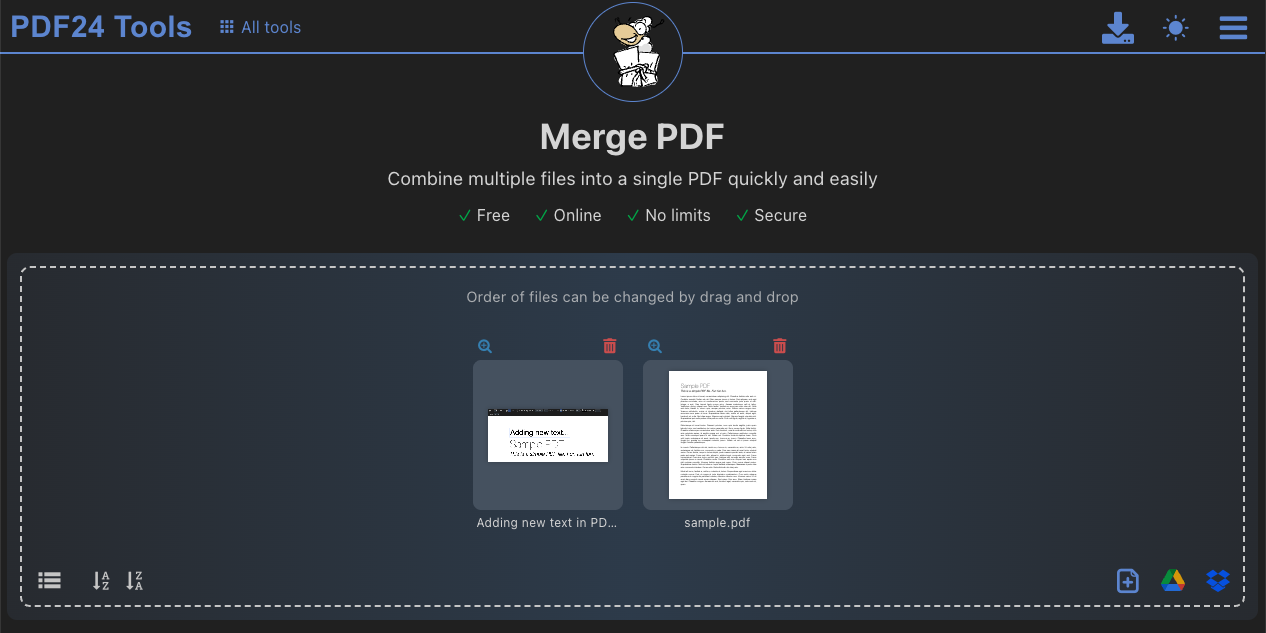
3. Rearrange the Files in the Right Order
Your uploaded files appear in a row, and the sequence you see is the sequence they’ll follow in your final merged PDF. If you want Chapter 2 before Chapter 3, now’s the time to fix that.
Click and drag any thumbnail to move it. The reordering happens instantly, so you can experiment until the order looks right.
4. Click Merge and Download Your Combined PDF
When you’re happy with the arrangement, click the “Merge” button. PDF24 processes your files and creates a single combined document.
After a few seconds, a download link appears. Click it to save your new PDF to your device. The whole process typically takes under a minute for standard-sized files.
Smallpdf as an Alternative to PDF24
You might prefer a more unified experience, especially if you work with PDFs often. Smallpdf's PDF combiner brings all your PDF tasks into one clean interface.
Merge smarter: Click “Choose file” below to combine PDFs in Smallpdf, then keep signing, summarizing, or editing without jumping between separate tools.
Smallpdf works across web and mobile. Beyond merging, you get access to e-signing, AI-powered document summaries, and more in the same place.
Here’s how the two compare:
| Feature | PDF24 Tools | Smallpdf |
|---|---|---|
| Online merging | ✓ | ✓ |
| Desktop app | ✓ (Windows only) | ✓ (Windows only) |
| Mobile app | Limited | ✓ |
| e-sign & AI features | ✗ | ✓ |
| Unified interface | ✗ | ✓ |
If you want something that grows with your workflow rather than a collection of separate tools, give Smallpdf a try.
Frequently Asked Questions
Is PDF24 completely free to use?
Yes, PDF24’s online tools are free without registration. Merged files don’t include watermarks, and basic merging doesn’t require a paid tier.Can you merge Word documents directly in PDF24?
PDF24 can convert Word files to PDF format and then merge them. Upload your Word documents alongside your PDFs, and the tool handles the conversion automatically before combining them into a single file.Is there a file size or page limit when merging PDFs in PDF24?
PDF24 doesn’t impose strict limits on file size or page count. However, very large files may process slowly in the browser version.Can you combine PDF files with PDF24 on a mobile device?
The PDF24 online tool works in mobile browsers, so you can merge files on a phone or tablet. The experience is more comfortable on desktop, though. If mobile PDF work matters to you, Smallpdf's Mobile App offers a smoother experience on smaller screens.Merge PDFs and handle every PDF task in one place with Pro