- Home
- ›
- ›How to Remove Hyperlinks from a PDF for Free
How to Remove Hyperlinks from a PDF for Free
Remove hyperlinks from a PDF for free by flattening the file or converting it to Word to remove links, blue text, underlines, and styling.
Quick Takeaways
The fastest way to remove hyperlinks from a document is to use Flatten PDF.
To remove both the hyperlink and the link styling, convert the PDF to Word first.
After editing the Word file, save or convert it back to PDF.
If hyperlinks keep coming back, they are probably still in the original source document.
Fastest Way to Remove All Hyperlinks from a PDF
The fastest way to remove hyperlinks from a PDF is to flatten it.
Flattening turns interactive PDF elements into a static page layer. In plain English, that means clickable links, fillable fields, buttons, and other interactive parts stop working. The text is still there, unchanged, but clicking on links won’t do anything.
Here’s how to do it:
Upload your document to Flatten PDF.
Wait for the tool to flatten your PDF into a single layer.
Download the new PDF.
Open the finished file and try clicking the old links to test them. If the links no longer open, the hyperlink actions have been removed.
Start with your document: Upload your document to Flatten PDF below and let the tool turn all layers into one clean PDF.
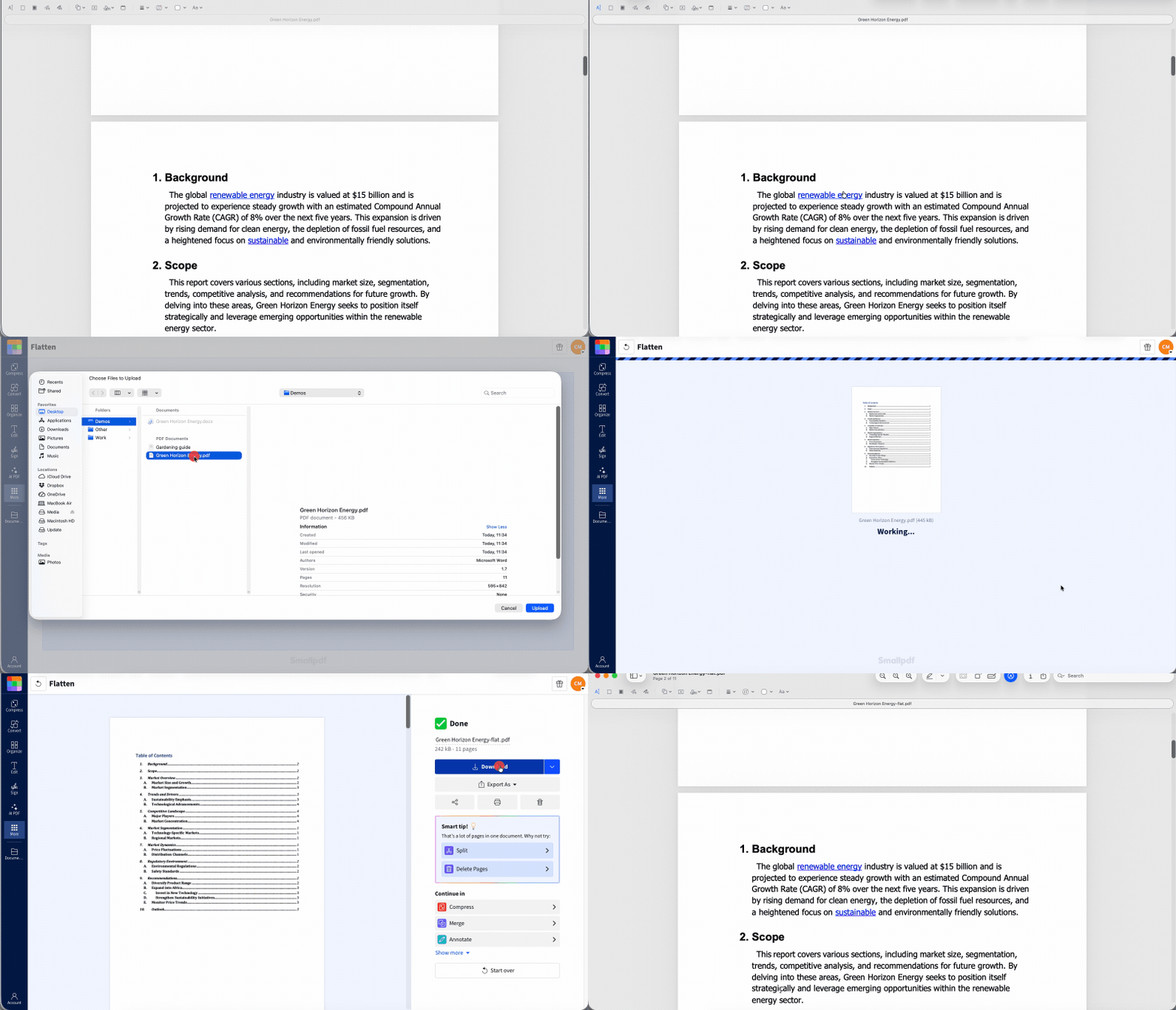
But there is one catch.
Flattening removes the click action, not the visual style. If the link was blue and underlined before, it will still be blue and underlined after flattening. It just won’t be clickable anymore.
What Does It Mean to “Remove” a Hyperlink in a PDF?
Removing a hyperlink from a PDF can mean two slightly different things.
Sometimes you only want to remove the clickable part. The text can stay where it is, but it should behave like normal text. This is what flattening does.
Other times, you want to remove the link completely, including the blue color and underline. For that, you need to edit the text itself. The better method is to convert the PDF to Word, remove the hyperlink in Word, then save the file as a PDF again.
A quick way to think about it:
| What You Want | Best Method |
|---|---|
| Stop all links from opening | Flatten PDF |
| Remove one clickable link but keep the text | Flatten PDF, if removing all link actions is okay |
| Remove the blue underline and link color | Convert PDF to Word |
| Edit link text properly | Convert PDF to Word |
| Stop links coming back in future versions | Remove them from the source document |
Flattening is fast. Converting to Word is cleaner.
Choose the method based on what you want the final PDF to look like.
How to Remove a Single Hyperlink from a PDF
If you want to remove one hyperlink from a PDF, you still have the same two choices.
The fastest option is to flatten the PDF. This removes clickable links from the whole file, including the one you’re trying to remove. It’s simple, but it’s not selective. If the PDF has other useful links, those will stop working too. So, this is better saved for PDFs that only have a single link in them. If it has multiple links, and you need the other links to still work, the next section will cover the other method for removing hyperlinks from a PDF.
How to Remove a Hyperlink and the Blue Underlined Text Styling
If you want to remove a hyperlink from a PDF and the blue underlined styling, flattening is not the best method. It’s also not the right method if you only want to remove a single link and have other links in the document still work.
To remove the styling properly, convert the PDF to Word.
Upload your document to PDF to Word.
Wait a few seconds for the conversion to finish.
Download the Word version.
Open the file in Word.
Right-click on any links you want to remove.
Select “Hyperlink” and then “Remove Hyperlink.”
Save the file as a PDF once you’re done.
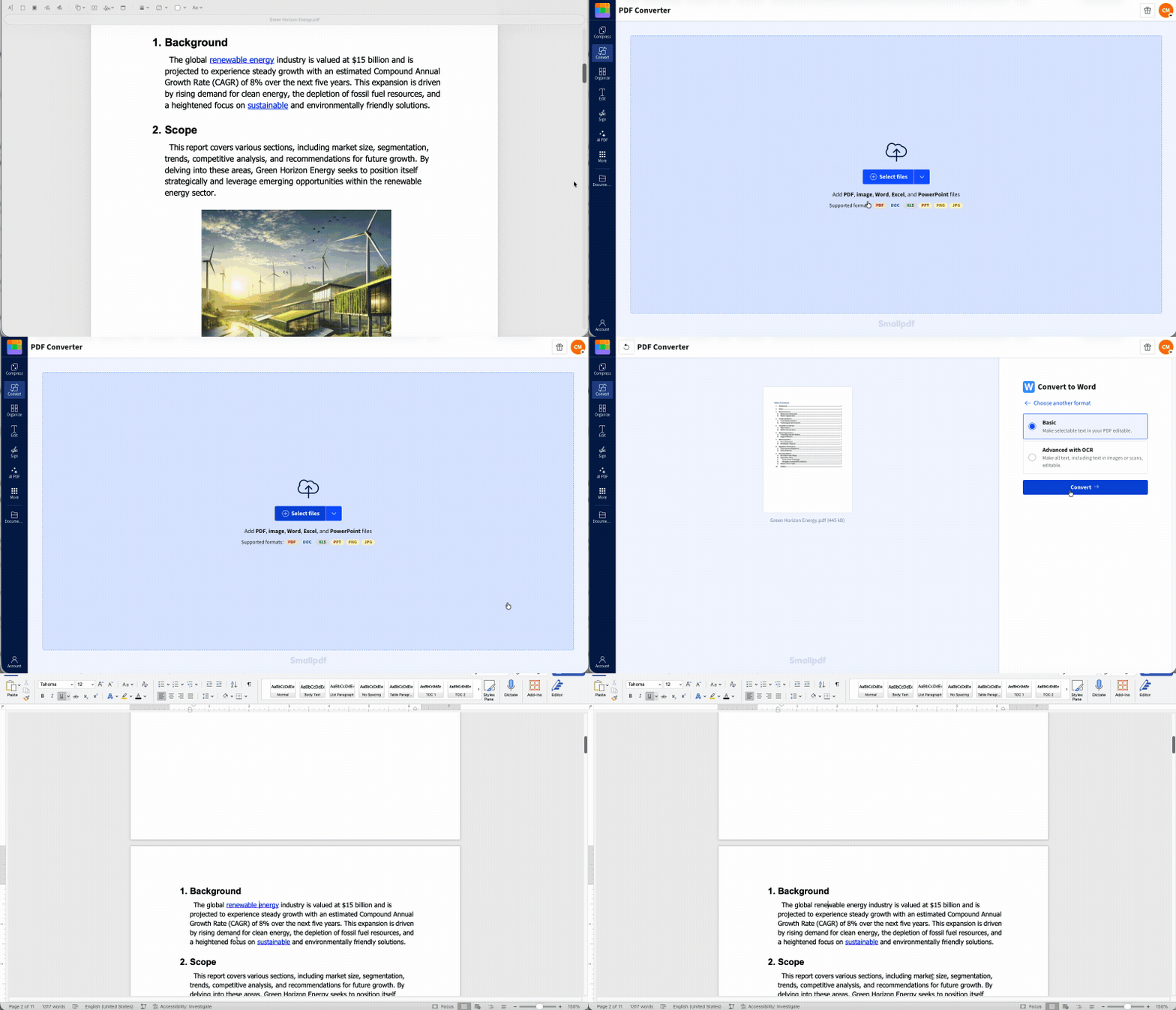
This is the better method for polished documents. You’re not only removing the link, but you’re also getting rid of any link styling, so the text looks like all the other text. Use it for client files, proposals, reports, resumes, application documents, school materials, or anything that needs to look clean. If the file also needs protecting, you can lock the PDF from editing
How to Remove Hyperlinks from a PDF on iPhone, Android, or iPad
The same two methods work on mobile: flatten the PDF if you only want to stop links from opening, or convert the PDF to Word first if you also want to remove the blue underlined styling.
For one-off edits, you can do everything in your mobile browser with Smallpdf. Upload the file, use Flatten PDF or PDF to Word, then download the finished version.
If you work with PDFs on your phone or tablet often, the Smallpdf mobile app may be easier than starting from your browser every time.
Why Hyperlinks Keep Coming Back and How to Stop It Permanently
Hyperlinks usually come back because they were never removed from the original file.
Say you flatten a PDF today. The links stop working. Then next week, you open the original Word document, make a few edits, and save it as a new PDF. If the Word document still has hyperlinks, the new PDF will have them too.
The same thing can happen with Google Docs, PowerPoint, design files, templates, or website exports.
To stop hyperlinks coming back, you need to remove them from the source document first.
That means:
Remove the link in Word before exporting to PDF.
Remove links in Google Docs before downloading as a PDF.
Check buttons, images, logos, and text boxes in design tools.
Look for automatically created links, especially plain URLs and email addresses.
Frequently Asked Questions
How do I remove all hyperlinks from a PDF at once for free?
Use Flatten PDF if you don’t mind the link styling still showing up. Use PDF to Word if you want to remove the link and the styling. Both tools are free to use on up to two documents a day. Switch to Pro if you need to do this on multiple documents. You can sign up for a free 7-day trial to test it out first.How do I remove one specific hyperlink from a PDF without deleting the text?
For the cleanest result, convert the PDF to Word, remove the hyperlink from the text, then save or convert the file back to PDF. This keeps the text while removing the link. This is the better method too if the document has other links you want to leave unchanged.Why do hyperlinks come back after I remove them?
They usually come back because the links are still in the original source file. Remove the links in Word, Google Docs, PowerPoint, or the original design file before exporting a new PDF.How do I remove hyperlinks from a PDF on Mac or iPhone?
Use Smallpdf Flatten PDF in your browser if you only want to stop links from opening. If you also want to remove blue underlined styling, convert the PDF to Word, remove the links, then save it as a PDF again.Can I remove hyperlinks from a password-protected PDF?
Yes, if you own the file or have permission to edit it. You may need to use Unlock PDF first, then use Flatten PDF or convert the file to Word to remove the hyperlinks.Does removing a hyperlink also remove the blue color and underline?
Not if you flatten the PDF. Flattening removes the clickable action, but the text will still look like a link. To remove the blue color and underline, convert the PDF to Word and remove the hyperlink in Microsoft Word.Remove unwanted PDF hyperlinks in seconds using Pro
