- Home
- ›
- ›Why Can’t I Sign a PDF? Common Causes and How to Fix It
Why Can’t I Sign a PDF? Common Causes and How to Fix It
Can’t sign a PDF you need to send back today? Start by checking what the file is asking for. It may be password-protected, already signed, or set up for a certificate-based signature rather than a standard electronic one.
Quick Takeaways
A PDF may block signing because it has a password, editing restrictions, a locked signature field, or an existing digital signature.
Smallpdf’s Sign PDF is for placing an electronic signature, such as a drawn, typed, or uploaded signature image.
Some documents need a certificate-based digital signature instead. In that case, follow the sender’s required process.
Keep the original file unchanged until you know what is blocking the signature.
Download and reopen the final PDF before sending it back.
Most fixes are simple once you know which of those you are dealing with. Here are some of the common issues and the safest way to handle each one.
Why a PDF Won’t Let You Add a Signature
The first thing to check is the type of signature the document needs.
An electronic signature can be a drawn signature, a typed name, or an uploaded signature image. Sign PDF lets you place this type of signature on a PDF, including a form that only has a printed signature line. A digital signature is different. It uses a certificate to confirm the signer and show whether the document changed after it was signed.
It's a difference that causes plenty of confusion. A standard form may be ready for an electronic signature, while a government, finance, or company document may require you to sign through a specific portal or with a personal certificate.
Before you change anything, read the instructions that came with the document. Look for wording such as:
“Electronic signature accepted”
“Sign with a digital certificate”
“Use your digital ID”
“Do not alter this document”
“Complete fields in signing order”
That tells you whether you can use Sign PDF straight away or need to follow a different signing process.
How to Fix a PDF You Can’t Sign
For a regular electronic signature, you can use Smallpdf in your browser:
Open Sign PDF or upload the PDF from your device or cloud storage in the dropbox below
Create your signature by drawing, typing, or uploading an image.
Place it where the document asks you to sign.
Add initials, a date, or text fields where needed.
Click “Finish,” then download the completed PDF.
Open the downloaded copy and check that the signature is visible.
Smallpdf Sign PDF can add text and electronic signatures to both fillable forms and flat PDFs that only show printed lines.
When that route does not work, the problem is usually one of the following.
The PDF Is Password-Protected or Restricted
Some PDFs need a password before you can open them. Others let you read the file but block editing, printing, form filling, or signing.
You might see a message about document permissions, or the signing tools may simply be unavailable.
Fix: Ask for a Signable Copy or Use the Password
Ask the sender whether the restrictions can be removed. If you have their approval and know the password, use Unlock PDF to make an unrestricted copy, then sign that version.
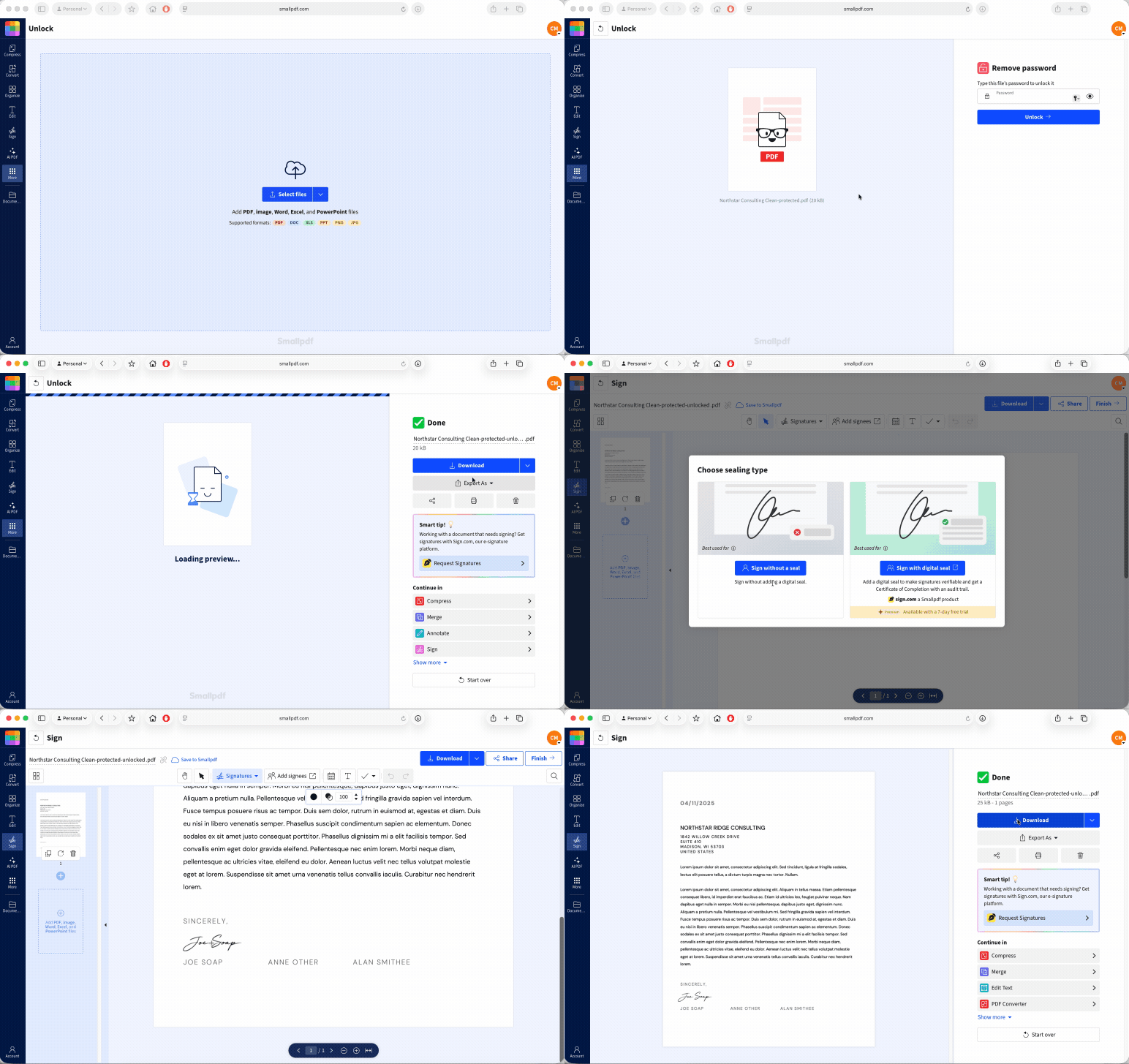
Do not guess passwords or remove restrictions from a document you are not allowed to change. If the sender cannot share the password, ask them to send a signable copy instead. Smallpdf’s Unlock PDF tool requires the document password.
The PDF Has Already Been Certified or Signed
A certified PDF may allow only certain changes after the first signature. Some permit later signatures or form filling. Others do not allow any changes at all.
This is why a document can seem fine but then reject your signature. Editing, converting, or saving a replacement copy may also invalidate the signature that is already there.
Fix: Do Not Change the File
Check whether the document has a blank signature field assigned to you. If it does, use the method specified by the sender and avoid editing anything else.
If there is no available field, ask for a fresh signable version. Do not flatten the PDF, convert it, or print it to a new file in the hope that the restriction will disappear. Changes to signed content can break digital-signature validation.
The Document Needs a Certificate-Based Digital Signature
Some organizations need more than a drawn or typed signature. Their process may require a digital certificate, digital ID, smart card, or approved signing portal.
This is common where the organization needs to confirm the signer’s identity and detect changes to the PDF afterward.
Fix: Follow the Required Signing Process
Read the instructions carefully and use the system named by the sender. Check that your certificate belongs to you and has not expired.
Smallpdf Sign PDF is useful for everyday electronic signing. It does not replace a personal-certificate process when the organization specifically requires one. A certificate-based digital signature uses cryptographic information tied to the signer. If this is what they need but have not specified a system to use, you can use Sign.com. On the free plan you can sign two documents a month using basic verification. If you have a Smallpdf Pro account, you can use a digital seal to make the document tamper proof. All new Smallpdf Pro accounts come with a 7-day free trial.
The Signature Field Is Locked or Missing
A PDF may have a field that is assigned to someone else, locked after another person signed, or not set up as an interactive field at all.
A printed line beside the word “Signature” is not always a real signature field. It may just be part of the page design.
Fix: Place an Electronic Signature or Ask for a New Copy
If the sender accepts an electronic signature, upload the PDF to Sign PDF and place your signature on the printed line.
If the document requires a specific field, do not place a signature elsewhere unless the sender says that is fine. Ask them to confirm the signing order or send a fresh version with the correct field available.
The File Is Damaged or Opened in a Preview
Sometimes the PDF is fine, but the copy you are using is not. Browser previews, cloud-storage previews, and incomplete downloads can fail when you try to save changes.
Fix: Download a Fresh Copy
Download the original PDF again and save it to your device. Open the saved file in a current browser, then try signing it through Sign PDF.
If the file is a scan, you can still place an electronic signature over the page. Use PDF OCR only when you also need the printed text to be searchable or selectable.
Avoid PDF Signing Problems Next Time
A few simple checks can save a lot of back-and-forth.
First, ask what type of signature the recipient needs before you begin. “Please sign this PDF” usually means an electronic signature is fine. Instructions that mention a certificate, digital ID, smart card, or qualified signature need closer attention.
Keep an untouched original file. Work from a copy, then name the finished version clearly, such as Agreement-Signed.pdf.
Also, avoid changing a document after a digital signature has been added. Even a small edit can invalidate it. Before you send the file, reopen it and check the signature, dates, initials, and page count.
Frequently Asked Questions
Will removing a PDF’s restrictions damage the file or its content?
Removing restrictions with permission should not change the visible content of the PDF. Keep the original file, then inspect the unrestricted copy before you sign it. Do not remove restrictions from a certified or signed file without the sender’s approval.Why does my signature disappear or turn into a red error after I save?
A signature may disappear when a preview does not save the completed file properly. A digital signature can show an error when the document changed after it was signed or the reader cannot validate the certificate. Download the signed PDF, reopen it, and check the result before sending it.Can I sign a scanned PDF that does not have a real form field?
Yes, provided the recipient accepts an electronic signature. Upload the scanned PDF to Sign PDF and place your signature over the line on the page. OCR is not needed to sign it.Why can someone else sign the same PDF but I can’t?
You may have a different version of the file, a field assigned to another signer, or a missing certificate. Ask the sender for the exact copy you should use and confirm whether there is a required signing order.Can I sign a certified PDF without invalidating the certification?
Sometimes, but only when the certification allows later signatures or form filling. Use the assigned field and the signing method named by the sender. If the PDF does not allow you to sign, request a new signable version rather than altering the document.Fix signing issues and complete your PDFs with Smallpdf