- Home
- ›
- ›Why Won't My Scanned Document Save as a PDF? 7 Quick Fixes
Why Won't My Scanned Document Save as a PDF? 7 Quick Fixes
Need to know why your scanned document won't save as a PDF? Find the cause, then convert scanned images to PDF with Smallpdf if needed.
Quick Takeaways
Check the output or file type in your scanner settings and choose “PDF” before scanning.
A JPG, PNG, TIFF, BMP, WEBP, HEIC, or GIF scan can be converted with Smallpdf’s Image to PDF tool.
If saving fails, try a local folder, shorten the file name, check storage space, and confirm the app has permission to save files.
Use Merge PDF when separate pages have already been saved as individual PDFs.
Apply optical character recognition (OCR) if you need to search, select, or copy text from the scanned PDF.
You finish scanning a form, receipt, or signed letter, tap “Save,” and end up with a JPG. Or, worse, no saved file at all. So, why won't your scanned document save as a PDF?
It’s possible the scanner may be set to save images, the app may not have permission to write to your chosen folder, or the file may be too large for the available storage. Often, the scan has already worked, but it still needs converting to PDF. Here’s what to check first, along with some less obvious causes.
Why Your Scan Saves as an Image Instead of a PDF
A scanner captures a document as an image. It is the scanning software that then decides how to package that image. If its output setting is JPG, PNG, or TIFF, each page is saved as an image file rather than placed inside a PDF.
This could happen after an app update, a new scanner setup, or an accidental switch from “Document” mode to “Photo” mode. Some basic scanning apps also use JPG as their default format.
First, check the file extension at the end of the saved file name. You’re looking to see if it is an extension associated with images or something else. On a phone or computer that hides extensions, open the file information or properties panel and look for “File type,” “Kind,” or “Format.”
An image file does not mean the scan failed. The page is already on your device, and you can turn it into a PDF without having to scan the paper again.
There is one exception worth checking. Some scanners create a preview image first, then ask you to confirm or finish the scan before they create the PDF. Closing the app after the preview can leave you with a temporary image or no finished document. Look for a button such as “Done,” “Finish,” “Save,” or “Export.”
How to Set Your Scanner to Save as PDF
The exact labels differ between scanner brands and apps, but the setting is usually near the scan type, output, or save options. Make the change before pressing the final scan button.
Open your scanner software or mobile scanning app.
Choose “Document” rather than “Photo,” if both modes are available.
Open “File type,” “Format,” “Output format,” or “Save as.”
Select “PDF.” Choose “Searchable PDF” only if the app includes OCR and you need searchable text.
Turn on a multi-page option if you are scanning several sheets into one file.
Choose a folder on your device that you can easily find, such as Documents or Downloads.
Scan one test page, save it, and open the file before scanning the full stack.
The last step confirms the format, page size, orientation, and save location before you spend time scanning every page.
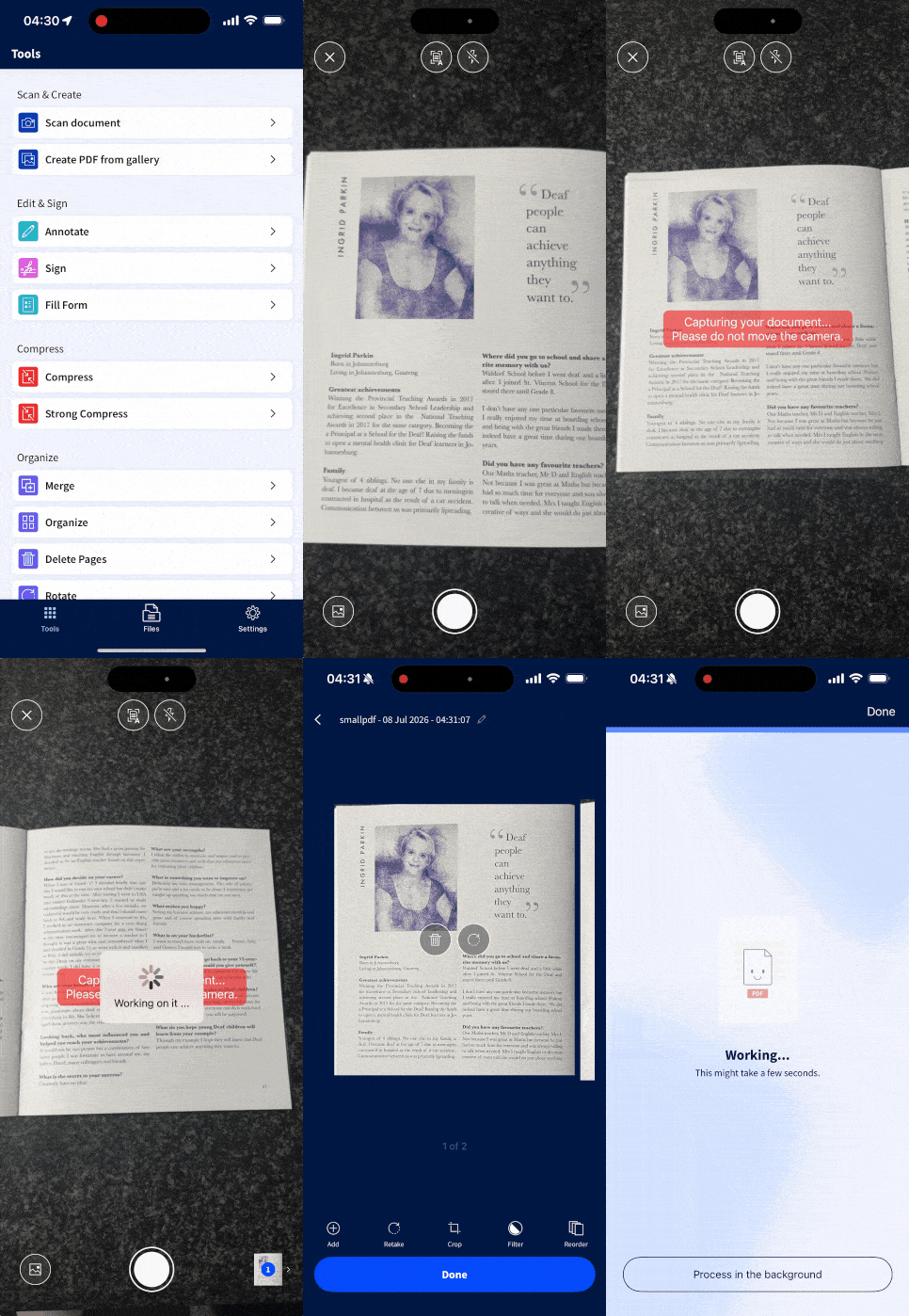
If you are using the Smallpdf mobile app, the PDF Scanner can capture paper documents on an iOS or Android phone and create a PDF. You can crop pages, apply filters, reorder scans, and finish them as one document. It’s a useful alternative if you haven’t found a mobile scanner app you like, or have a physical scanner that refuses to save as PDF.
Check the Multi-Page Setting
A PDF can contain many pages, while a JPG or PNG normally represents one image. If your scanner saves every sheet separately, look for settings such as “Combine pages,” “Scan more pages,” “Single PDF,” or “Multi-page PDF.”
Do not choose “PDF per page” unless you want a separate file for every sheet. If you already have several PDF files, you can combine them later with Merge PDF.
Check Where the File Is Being Saved
Sometimes the PDF exists, but was saved somewhere unexpected. Search for files created today and filter the results by PDF. Check Documents, Downloads, Desktop, Pictures, your scanner’s own folder, and any connected cloud-storage folder.
Also read the save confirmation carefully. Some apps show the folder path for only a moment. Others save to the app’s private document area until you use “Share,” “Export,” or “Save to Files.”
How to Turn a Scanned Image Into a PDF
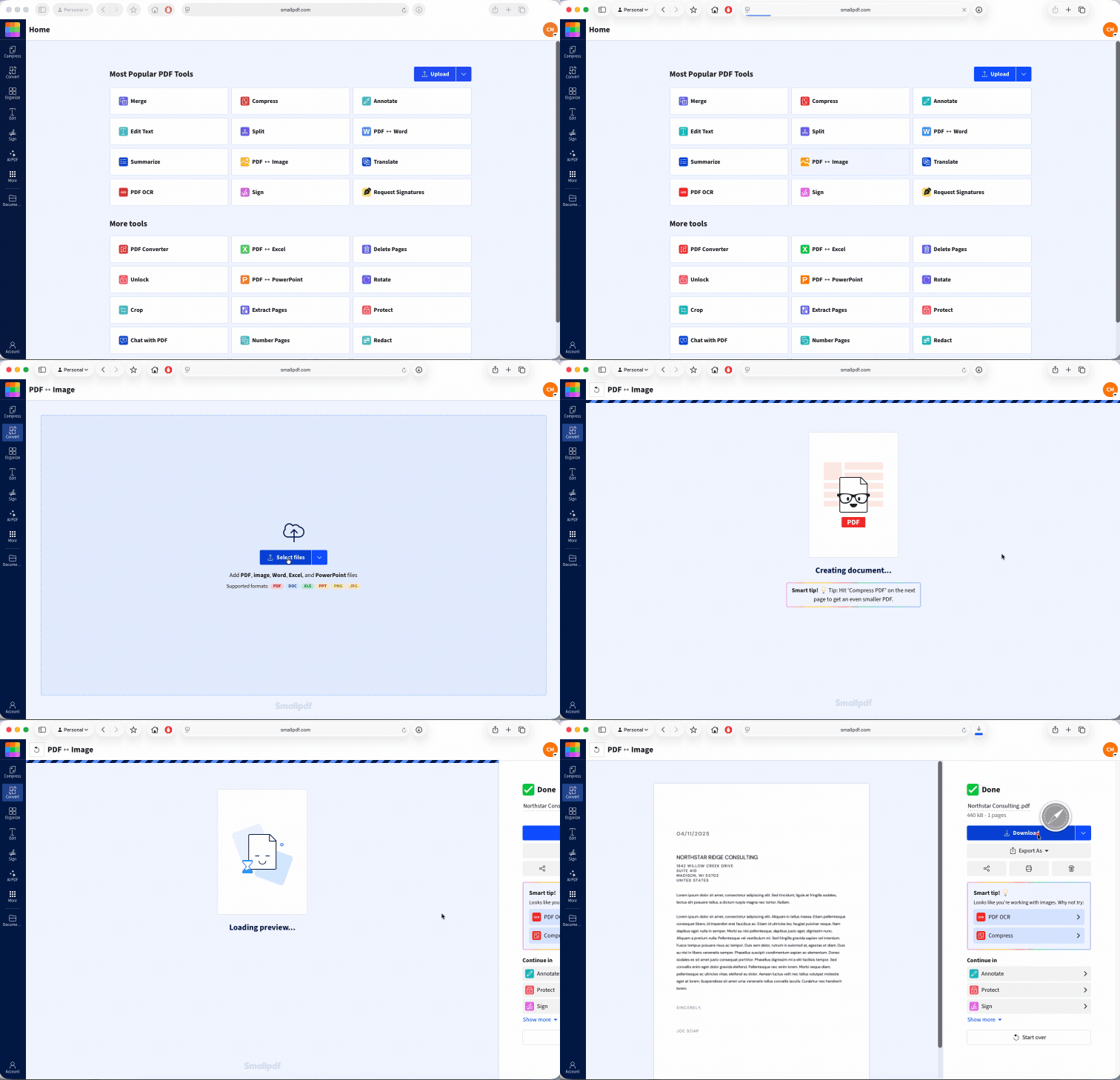
Already have the scan as an image? There is no need to start over. Smallpdf’s Image to PDF tool accepts common image formats, including JPG, JPEG, PNG, TIFF, GIF, BMP, WEBP, and more, and works in your browser.
Open Image to PDF.
Select “Choose Files,” or drag and drop your scanned image into the tool.
Add any other scanned pages you want in the same PDF.
Put the pages in the correct order.
Choose the page size, orientation, and margins where available.
Select “Convert.”
Download the finished PDF and open it to check every page.
Try to use the original scan rather than a screenshot of it. Screenshots may reduce the page resolution, trim the edges, or add unwanted screen elements. The original image usually produces a cleaner PDF.
You can use Image to PDF for free without creating an account, although free usage limits apply. Smallpdf Pro gives you unlimited access to all 30+ tools and unlimited document downloads, which is useful when you have a large batch of scans or regularly work with PDFs. You can try Pro with a 7-day free trial.
Keep Several Pages in the Right Order
Rename image files before uploading when their order is unclear. Names such as ‘page-01’, ‘page-02’, and ‘page-03’ are easier to sort than a mix of camera-generated file names.
After conversion, scroll through the PDF from beginning to end. Check that no page is upside down, duplicated, or missing. Organize PDF lets you reorder, rotate, add, or remove pages if the document needs a quick tidy-up.
What If the Scan Still Won't Save as a PDF?
If PDF is selected but the file still does not save, the problem may have nothing to do with scanning. Work through these fixes in order.
1. Save to a Local Folder
A network folder, removable drive, or cloud-synced folder may be offline or temporarily unavailable. Save the PDF to Documents or Downloads on your device first. You can move or upload it after confirming that it opens.
2. Check Available Storage
High-resolution color scans can be large, especially when they contain many pages. Delete or move unneeded files, then try again. You can use Compress PDF after saving if the finished document is too large to email or upload.
3. Shorten the File Name
Use a simple name such as ‘scanned-contract.pdf’. Remove unusual symbols and avoid an extremely long folder path. Some apps fail when the complete path or file name exceeds what the operating system accepts.
4. Check App and Folder Permissions
Your scanning app needs permission to access the camera or scanner and write files to storage. Open your device settings, find the app, and check its file, photo, camera, or storage permissions. On a work computer, you may need to choose a folder where your account has permission to save.
5. Close and Reopen the App
A stuck scan queue or temporary app error can block the final save. Close the scanning app fully, reopen it, and scan one page as a test. Restart the scanner and your device if the problem continues.
6. Reduce the Scan Resolution
Very high dots per inch (DPI) settings create much larger files. For ordinary text documents, 300 DPI is usually enough for clear reading and OCR. Lowering a 600 or 1,200 DPI setting can help when a long scan keeps failing during saving.
Keep a higher setting when the document contains tiny print, detailed drawings, or photos that need close inspection. The aim is to reduce unnecessary file size without making the page hard to read.
7. Update or Reinstall the Scanner Software
An old or damaged scanner driver may fail at the export stage even though the preview looks normal. Check for an update from the scanner or device manufacturer. If the problem started after an update, reinstalling the scanning app may also clear damaged settings.
Before removing anything, make sure your scans have been exported from the app. Reinstalling can erase documents stored only inside it.
Test Whether the PDF Is Damaged
A saved file with a ‘.pdf’ extension can still be incomplete if the app stopped writing before the process finished. Warning signs include a file size of zero bytes, an opening error, blank pages, or a file that ends abruptly.
Scan one page again and save it under a new name in a local folder. If the test PDF opens, the earlier file was probably incomplete. If every new PDF fails, change the output folder or scanning app and try once more.
Frequently Asked Questions
How do I combine several scanned pages into one PDF?
Upload the separate PDFs to Merge PDF, arrange them in order, and download the combined file. If the pages are images, upload them together to Image to PDF and convert them as one document.Will converting a scanned image to PDF lower its quality?
Placing an original image inside a PDF should keep it readable, though output settings and later compression can affect image quality. Use the original scan, check the finished pages at normal zoom, and avoid repeated screenshotting or conversion.Can I make a scanned PDF searchable so I can copy the text?
Yes. Run the file through PDF OCR to add a text layer that can be searched, selected, and copied. Clear, straight scans with readable print give OCR the best chance of recognizing the text correctly.Why is part of my scanned document cut off or missing?
The paper may be outside the scanner’s selected page area, or automatic edge detection may have cropped too closely. Choose the correct paper size, place the sheet squarely, and check the full preview before saving.Why won't my scanned PDF open after I save it?
The save may have been interrupted, the file may be empty, or the app may have created an incomplete PDF. Save a one-page test under a new name in a local folder, then open it before rescanning the full document.