- Home
- ›
- ›Word to PDF Hyperlinks Not Working? 7 Ways to Fix It
Word to PDF Hyperlinks Not Working? 7 Ways to Fix It
Word to PDF hyperlinks not working? Find out why links break and convert your document with Smallpdf to keep them intact.
Quick Takeaways
Test each link in Word before converting the document.
Insert links with Word’s hyperlink command instead of relying on blue, underlined text.
Export or save the document as a PDF rather than sending it through a print menu.
Check links to websites, email addresses, headings, bookmarks, and other files separately.
Use Smallpdf Word to PDF when you need a browser-based conversion route.
Open the finished PDF in another reader and test every important link before sharing it.
Your Word document looks ready to send, but the links stop responding as soon as you turn it into a PDF. Annoying, especially when the document contains a table of contents, references, email addresses, or buttons readers need to use.
Word to PDF hyperlinks not working usually comes down to how the links were added or how the PDF was created. Text can look blue and underlined without containing a real hyperlink, while some print-based conversion routes flatten the page and leave only its visible appearance.
The good news is that you can usually fix the problem in the Word file and create a fresh PDF in a few minutes.
Why Your Hyperlinks Stop Working When You Save Word as PDF
A hyperlink has two parts: the text or object readers see, and the destination stored behind it. During conversion, the PDF needs to keep both. When only the visible styling remains, the text may still be blue and underlined but clicking it does nothing.
Several common problems can cause this.
The Text Was Styled to Look Like a Link
Pasting a web address into Word often creates a working hyperlink automatically. But changing text to blue and underlining it does not add a destination. The same issue can appear after text has been copied from a website, email, or older document.
Right-click the text in Word. If you see “Edit Hyperlink,” Word recognizes it as a link. If you only see “Link” or “Hyperlink,” select that option and add the correct web address.
The Document Was Printed Instead of Exported
“Print to PDF” creates a PDF through a virtual printer. Its main job is to reproduce what a printed page would look like. Depending on the app, operating system, and link type, interactive elements may be lost during that process.
Word’s own PDF export route is usually the better choice for a document containing hyperlinks, bookmarks, headings, or a clickable table of contents. You can also convert the DOC or DOCX file with Smallpdf Word to PDF in your browser.
The Link Points to the Wrong Destination
A link can survive conversion and still fail because its address is incomplete or outdated. Common examples include a missing ‘https://’, an accidental space at the end of the address, or a link copied from a private workspace that requires permission.
Open the hyperlink settings in Word and review the complete address. Then paste the same address into a browser to check that it works outside the document.
The Link Goes to a Local File
A link to a file on your computer may work for you and fail for everyone else. The destination could begin with a local path, a mapped office folder, or a location the recipient cannot access.
Replace local file links with a web address that recipients have permission to open. When the destination must stay private, share it through your approved cloud or document system and set the correct access permissions before inserting the link.
The Internal Destination Has Changed
Word can link to headings, bookmarks, footnotes, and other places inside the same document. These links depend on the destination still existing when the PDF is created.
If you renamed a heading, deleted a bookmark, moved content, or rebuilt the table of contents, update the link before conversion. Click it in Word and confirm that it lands on the expected section.
The PDF Reader Handles Links Differently
A working PDF link may behave differently across browser previews, mobile viewers, email previews, and installed PDF readers. Some readers ask for confirmation before opening external websites. Others may not support every type of internal link.
Download the PDF and test it in a full reader rather than relying only on an email or browser preview. If the link works there, the preview is the likely cause.
How to Convert Word to PDF Without Losing Hyperlinks
Start with the original Word file. Repairing the links there gives you a cleaner result than trying to rebuild every destination after conversion.
Step 1: Check That Each Link Works in Word
Hold Ctrl while clicking a link on Windows, or use the normal link-opening command available on your Mac. Test website links, email links, the table of contents, cross-references, and any linked images or buttons.
Fix links that open the wrong page, show an error, or do nothing. For a long document, begin with the links readers are most likely to need, then check the rest section by section.
Step 2: Insert Real Hyperlinks
Select the text or image you want readers to click. Use Word’s “Link” or “Hyperlink” command and add the full destination.
For a website, use the complete address, including ‘https://’. For an email address, choose the email option or use a mailto: link. For an internal destination, select the correct heading or bookmark instead of typing a page number that may change later.
Keep the visible link text descriptive. “Download the application form” tells readers where the link goes, while “click here” does not.
Step 3: Update the Table of Contents and Fields
A clickable table of contents is built from headings and fields. If the document changed after the table was added, update it before exporting.
Click inside the table of contents, choose the update option, and update the entire table. Do the same for cross-references or other fields that point to sections, figures, or page numbers.
Then test two or three entries near the beginning, middle, and end of the document. This catches broken heading links without making you click every entry twice.
Step 4: Save a Clean DOCX Copy
Save the corrected document as a DOCX file before creating the PDF. A fresh copy gives Word a stable source and protects your original if you need to compare versions later.
Use a simple file name and save the document locally when a network or cloud folder is behaving unpredictably. Close and reopen the DOCX, then test one or two links again.
Step 5: Convert With Smallpdf Word to PDF
Smallpdf Word to PDF converts DOC and DOCX files in your browser, with no software to install.
Open Word to PDF.
Drag and drop your Word file into the upload area, or choose it from your device.
Wait for the conversion to finish.
Download the new PDF.
Open it and test the hyperlinks before sharing it.
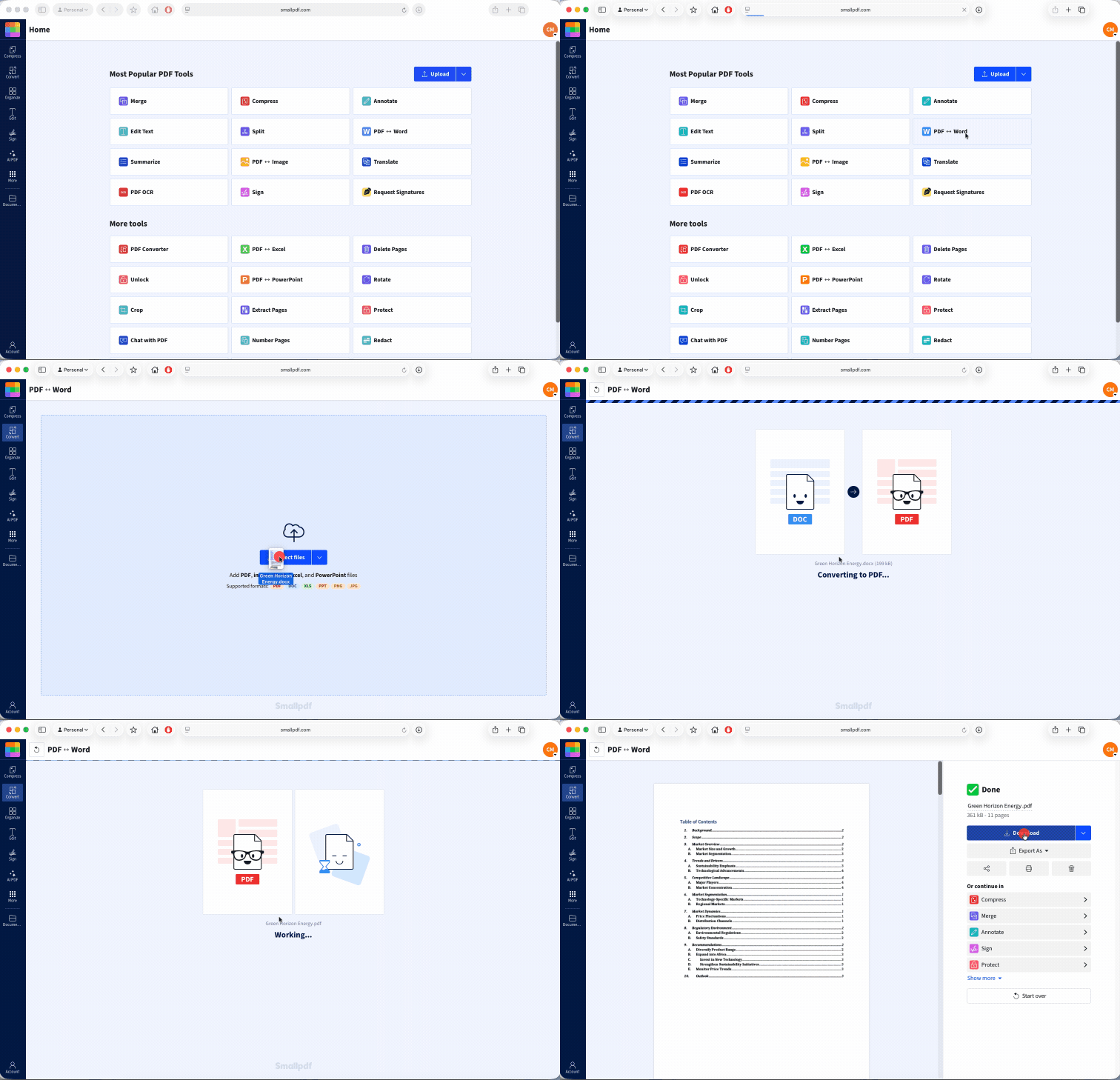
Hyperlinks created correctly in the source document should usually carry into the PDF. Complex internal navigation can vary by document, so always test the finished file rather than assuming every link survived.
Step 6: Export Directly From Word
You can also use Word’s built-in PDF export option. The exact menu wording varies by version and device, but look for “Save As,” “Export,” or “Create PDF/XPS.” Choose PDF as the output format and save a new copy.
Avoid using “Print” as your first route when preserving links is the priority. Exporting lets Word create the PDF from the document’s structure instead of treating every page mainly as printed output.
Step 7: Test the Finished PDF Properly
Open the downloaded PDF and click every link that a recipient will rely on. Check at least the following:
Website links open the intended page.
Email links start a new message with the right address.
Table of contents entries jump to the correct section.
Internal links move to the right heading, bookmark, figure, or note.
Shared-file links work in a private or signed-out browser window when recipients should have access.
Testing in a private browser window is useful for permission checks because it shows what someone without your active account may see.
Why Are My Links Blue and Underlined but Not Clickable?
Blue, underlined text is a visual style. It does not prove that a clickable destination exists behind it.
This often happens when formatting was copied from another document or applied manually. It can also happen when a link field is removed but its color and underline remain.
Check the source in Word:
Right-click the text.
Look for “Edit Hyperlink.”
If that option is missing, choose “Link” or “Hyperlink.”
Enter the full destination.
Test it in Word.
Create the PDF again.
A second possibility is that the link annotation exists, but your current viewer is not responding to it. Download the PDF and open it in PDF Reader. If it works there, the browser or email preview caused the problem.
Do not try to fix this by adding another underline or changing the color. Those changes affect appearance only.
Does “Print to PDF” Always Remove Hyperlinks?
No. Some print-to-PDF routes detect web addresses and keep them clickable, while others produce a page that behaves much like a digital printout. The result can also vary between external website links and internal links such as bookmarks or table of contents entries.
That inconsistency is the problem. A document may look correct while losing part of its navigation.
Use export or conversion when links need to work reliably. Reserve print-to-PDF for cases where the page appearance is the main concern and interactive elements are unnecessary. After either method, test the resulting PDF yourself.
More Checks When the Links Still Don’t Work
You have repaired the links and exported the file, but one or two destinations still fail. These checks cover the less obvious causes.
Remove Spaces and Line Breaks From Long URLs
A long address can pick up an extra space or line break when copied into the hyperlink field. Open the link settings, copy the stored destination, and paste it into a plain-text field so you can inspect it.
The visible text can wrap across lines without causing trouble. The stored address should remain complete and uninterrupted.
Check Whether the Website Still Exists
Open the destination directly in your browser. A removed page, expired campaign link, or changed website structure cannot be fixed through PDF conversion.
Replace dead links with current pages. When the content has moved, use the new final address rather than a chain of redirects where possible.
Review Access Permissions
Links to shared documents, folders, intranet pages, and account portals may work only for certain people. Test them while signed out or ask a colleague with the same access level as the intended recipient to open them.
Do not make a confidential file public simply to get the link working. Set access for the correct people or group.
Check Security Warnings
Some PDF readers warn users before opening an external website. The link may be working, but the reader is waiting for permission.
Look for a banner, dialog box, or blocked-action message. Recipients may need to approve the destination or change their reader’s security settings according to their organization’s rules.
Rebuild One Problem Link
When a single link keeps failing, remove it completely and create it again. This clears damaged or outdated link data that may have stayed in the document through several rounds of editing.
Save the DOCX, close Word, reopen the file, and test the rebuilt link before converting again.
Frequently Asked Questions
Do hyperlinks survive when I convert Word to PDF on a Mac?
They usually do when they are real hyperlinks and you use Word’s PDF export option or a converter such as Smallpdf Word to PDF. Test the finished PDF because internal links and complex document navigation can behave differently between viewers.Will converting through Google Docs keep my links?
Standard website links often remain clickable, but imported Word formatting, bookmarks, cross-references, and table of contents links may change. Review the document in Google Docs, export the PDF, and test every important link.Does a large or image-heavy Word file cause links to drop?
File size alone does not normally remove hyperlinks. A large document can take longer to process or fail partway through conversion, so save a fresh DOCX copy, retry the export, and check that the PDF downloaded completely.Will the links still work if I email or share the PDF?
Emailing or sharing a complete PDF should not remove its hyperlinks. Links to private websites or cloud files can still fail for recipients who do not have permission to open them.Why do links work on my computer but not the recipient’s?
The link may point to a local file, private folder, signed-in account, or internal company page. Ask the recipient what error they see, then check the address and its access permissions.How do I check that all my links work before sending the PDF?
Test the links in Word, create the PDF, and test them again in the finished file. For shared destinations, open each link in a private browser window to see whether someone outside your account can access it.