How to Check if a PDF Has Been Edited
Need to know how to tell if a PDF has been edited before you trust, sign, or share it? Start with the document’s properties, then inspect the pages and compare the file with a copy you know is genuine.
Quick Takeaways
A later modified date may suggest a change, but it isn’t proof on its own.
PDF metadata can show creation and modification dates, the author, and the software used to create or save the file.
Visual problems such as mismatched fonts, uneven spacing, blurred patches, or changed page sizes may point to an edit.
Comparing the file with a trusted original is usually the simplest way to find wording or layout changes.
A valid certificate-based digital signature can detect changes made after signing.
For sensitive files, keep the original, flatten the final copy, add password protection, and use clear version names.
Sometimes you can find clear signs of a change. In other cases, the clues are incomplete or easy to alter. A PDF usually doesn’t keep a simple, reliable edit history, so you’ll get the clearest answer by checking several sources rather than relying on one date or name.
Can You Actually Tell if a PDF Has Been Edited?
Can you tell if a PDF has been edited? Often, yes. But the answer depends on what evidence you have.
A standard PDF may contain a creation date, a modified date, an author name, and details about the application that produced it. Those fields can help you build a timeline. They can also be missing, outdated, or changed, so treat them as clues rather than evidence. PDF standards include fields such as ‘CreationDate,’ ‘ModDate,’ creator, producer, author, and title, but their presence and accuracy depend on how the file was created and saved.
The strongest everyday check is a comparison with a trusted earlier copy. Open both versions side by side and check the wording, numbers, images, page order, and formatting. For a long document, convert both PDFs with PDF to Word, then use a word processor’s comparison feature to find text changes faster.
For a sensitive file, you may also have a digital signature or a recorded file hash. A hash is a long code calculated from the file’s exact contents. Changing even a small part of the file changes the result, which makes matching hashes strong evidence that two copies are identical. This only helps when you already have a trusted hash for the original.
So, can you see if a PDF has been edited with complete certainty? Sometimes. Metadata and appearance can support your conclusion, while a trusted original, matching hash, or valid digital signature gives stronger evidence.
How to Check if a PDF Has Been Edited Using Properties and Metadata
PDF metadata is information stored inside the document. Common fields include the title, author, creator application, PDF producer, creation date, and modification date.
The file also has device-level properties, such as its size and the date it was saved to your computer. These are separate from the metadata inside the PDF. A downloaded or copied file may therefore have device dates that differ from the dates stored in the document.
Step 1: Save a Working Copy
Keep the received PDF untouched. Duplicate it and inspect the copy, especially when the document may be needed for a complaint, contract, audit, or legal dispute.
Record where the file came from and when you received it. An email thread, download record, or message from the sender may later help explain the document’s source.
Step 2: Check the File Information on Your Device
On Windows, right-click the PDF and choose “Properties.” On a Mac, right-click the file and choose “Get Info.” These are also the standard routes Smallpdf recommends when checking local PDF file details.
Look at:
Created and modified dates
File size
File name and location
Any tags or comments added by your device
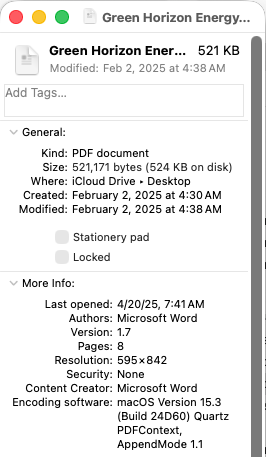
A modified date later than the date shown in the document deserves a closer look. Still, file-system dates often describe what happened on your device, such as a download or copy, rather than an edit to the PDF itself.
Step 3: Open the PDF’s Document Properties
Open the PDF in a desktop viewer and look for “Properties,” “Document Properties,” or “Document Info.” Menu names vary, but this section usually sits under “File” or an information icon.
| Field | What It May Tell You | Why It Can Mislead |
|---|---|---|
| Creation date | When the PDF was first created | The field may be missing, copied from another file, or changed |
| Modified date | When an application last saved the PDF | Some software may not update it, and the value can be edited |
| Author | The name stored by the creating application | It may name the original author, an account owner, or nothing |
| Creator | The application used to create the source document | It may describe the first application rather than the latest editor |
| PDF producer | The software or service that generated the PDF | Conversion or export can change this without changing the wording |
The pattern is more useful than any single field. For example, a document dated March that shows a June modification date, and an unfamiliar producer may have been resaved or converted. That still doesn’t tell you what changed.
Step 4: Compare the Details With the Document’s Story
Ask whether the metadata fits the document you received. Does the creation date fall before the stated signing date? Does the author name match the sender? Does the producer make sense for the file’s origin?
Odd details deserve another check. Normal-looking details don’t guarantee that the file is original.
How to Spot Visual Signs That a PDF Was Altered
Can you see if a PDF has been edited just by looking at it? Sometimes the pages give away a rushed change, especially in scans, forms, invoices, certificates, and statements.
Open the document in PDF Reader and zoom in on names, dates, totals, signatures, and account details. The browser-based tool works across devices and supports scanned documents.
Check for:
A font, weight, or text size that changes within one line
Uneven character spacing or text that sits too high or low
Blurred rectangles, rough edges, or a different background behind one detail
Images or signatures with sharper or softer resolution than the surrounding page
Pages with different dimensions, margins, rotation, or scan quality
Totals that don’t match the listed amounts
Dates, page numbers, references, or names that conflict elsewhere in the document
Try selecting suspicious text. If one part behaves like an image while the rest is selectable text, it may have been pasted in or added as a scan. That is still only a clue because legitimate PDFs can mix scans, images, and searchable text.
A side-by-side comparison is much safer than relying on memory. Put the trusted copy and the questioned copy at the same zoom level, then move through them page by page. Check text first, followed by images, form fields, comments, and page order.
Scanned PDFs need extra care. A patch may come from compression, optical character recognition, a poor scanner, or a genuine edit. Use PDF OCR when you need searchable text, then compare the extracted wording with the trusted version.
Can a Digital Signature Show if a PDF Was Tampered With?
Yes, when it is a valid certificate-based digital signature and your PDF viewer can verify it.
A digital signature uses cryptography to connect the signer’s certificate to the signed data. If the protected contents change later, verification can report that the document was modified after signing. Digital signatures are specifically used to detect unauthorized changes and confirm the signer’s identity.
Some certificate signatures allow limited actions, such as completing approved form fields or adding another signature. Read the validation message carefully to see whether the detected changes were allowed.
An image of a handwritten signature, typed name, or ordinary electronic signature doesn’t provide the same file-integrity check. It can show a person’s intent to sign, but the appearance alone can’t tell you whether the rest of the PDF changed later.
When checking a digitally signed PDF, look for:
Whether the signature is reported as valid
Who issued the signer’s certificate
Whether the signer’s identity is trusted
The signing time and any trusted timestamp
A warning that the document changed after signing
Whether those changes were permitted by the signature
How to Stop Your PDFs From Being Edited Without Permission
No file is impossible to copy, recreate, photograph, or alter. You can still make casual editing harder and make approved versions easier to identify.
Keep the Original and Label Each Version
Save an untouched source file before making changes. Use names that include the status and date, such as:
Contract-Draft-2026-07-16.pdf
Contract-Approved-2026-07-18.pdf
Contract-Signed-2026-07-19.pdf
Avoid repeatedly saving over the same file. Separate versions give you something reliable to compare later.
Flatten the Final PDF
Flatten PDF merges interactive elements such as form fields, comments, annotations, and layered content into the page. This makes the file more static and stops someone from casually moving or changing those elements.
Keep the editable original. Flattening can remove interactive features and is difficult to reverse.
Open Flatten PDF.
Upload the final document.
Review the file before processing it.
Download the flattened copy and open it once to check every page.
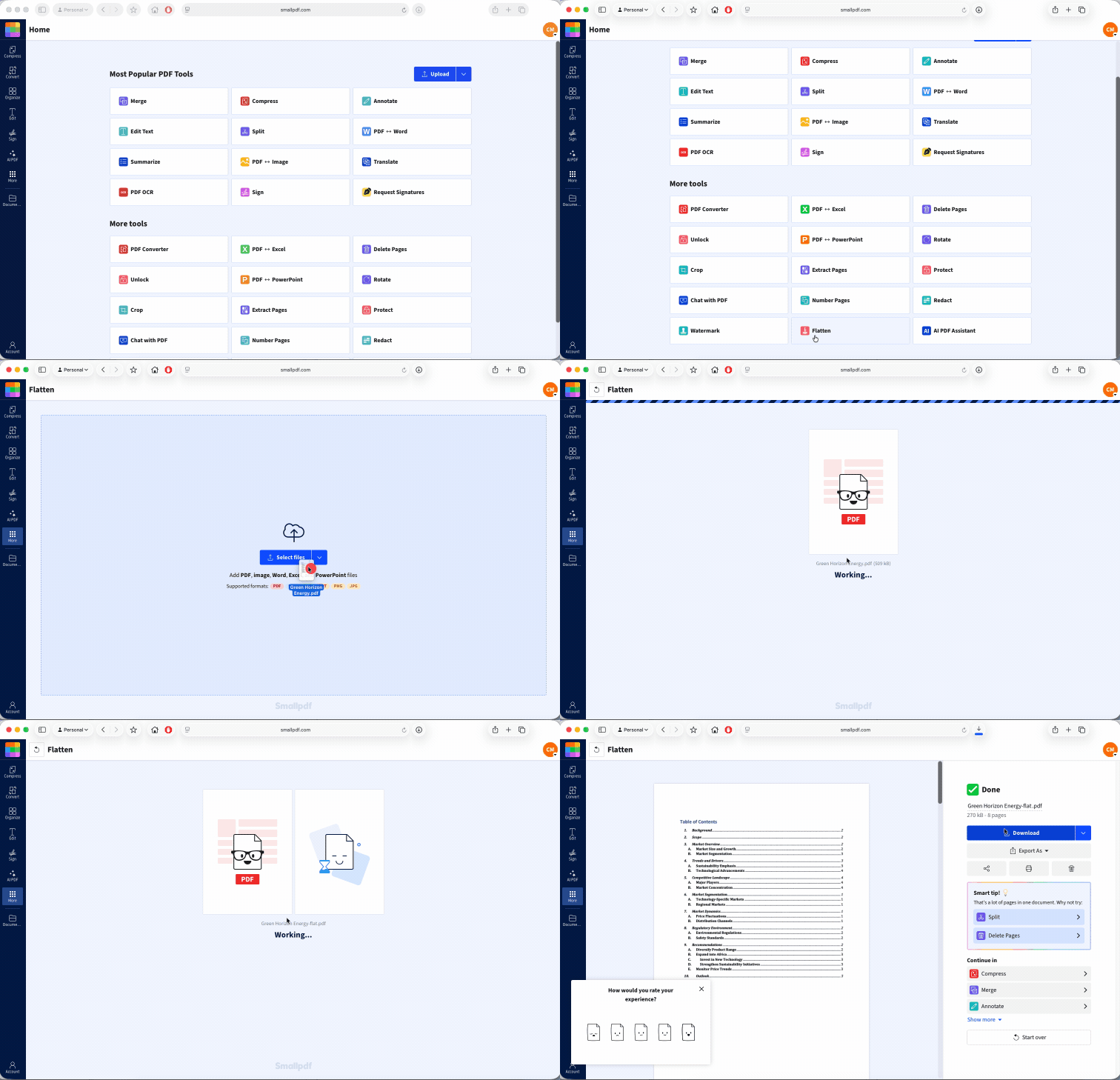
Flattening reduces easy edits, but it can’t stop someone from rebuilding the page or editing a screenshot.
Add Password Protection
Use Protect PDF to add a password and control who can open the document. Choose a strong, unique password and send it through a different channel from the PDF.
Password protection controls access. It doesn’t tell you whether an authorized recipient later changed and resaved the file, so keep your original for comparison.
Add a Visible Status or Ownership Mark
A watermark can label a copy as “Draft,” “Confidential,” “Approved,” or “Copy for Client Name.” Use Watermark PDF to add custom text across the pages.
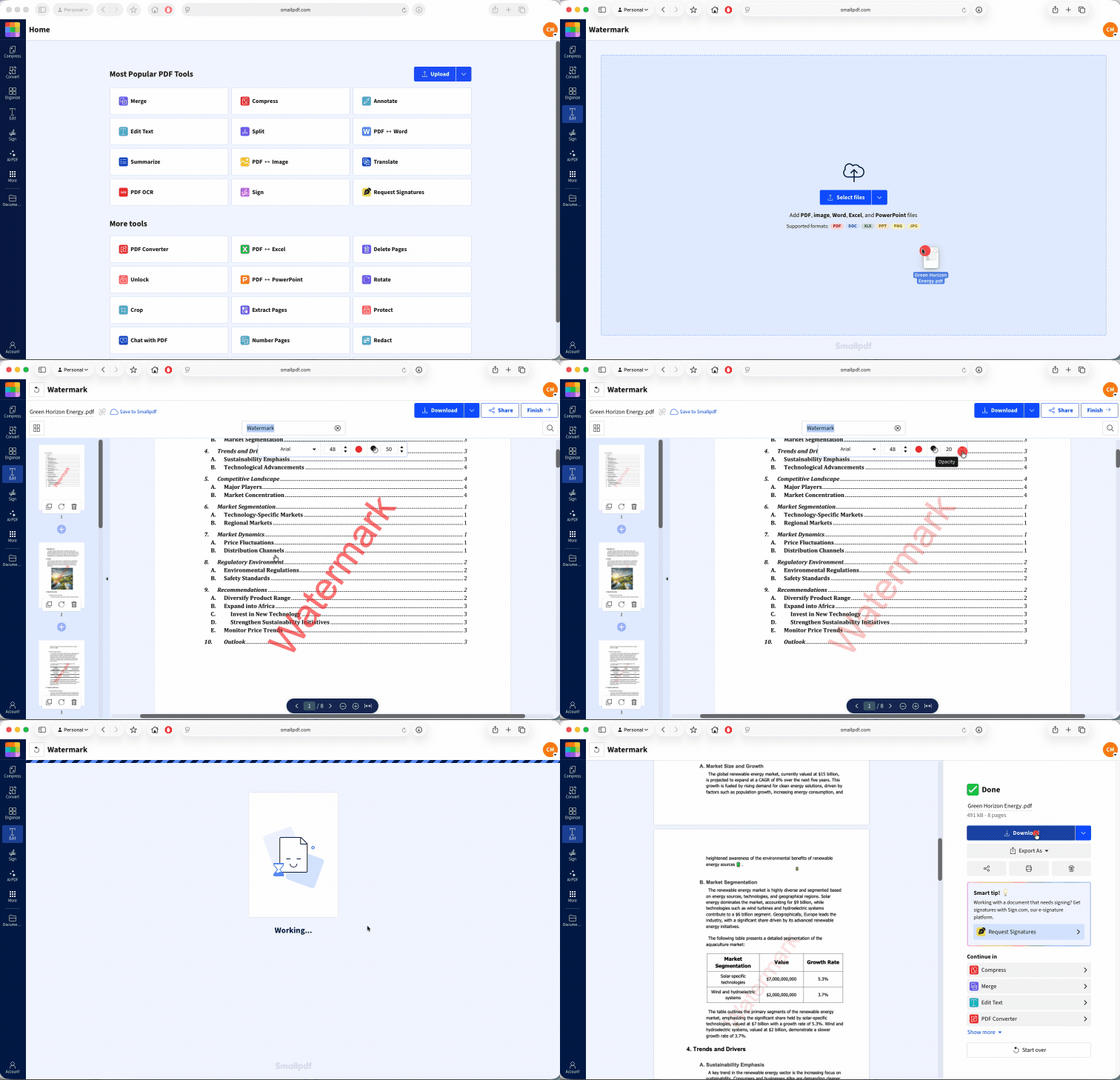
A watermark won’t block editing. It helps recipients identify the intended status and makes an unofficial copy easier to question.
For contracts, financial records, official forms, or evidence, combine these steps with a controlled signing process, trusted timestamps where required, and a clear record of who received each version.
Frequently Asked Questions
Does the modified date change if I add highlighting or comments to a PDF?
Usually, yes. Saving highlighting, comments, drawings, or other annotations normally creates a new saved state and updates the file’s modified date, although the exact metadata fields depend on the app and save method.Can someone edit a PDF without changing the modified date?
Yes. A person or application can remove, replace, or fail to update PDF metadata, and device-level timestamps can also be reset or changed. A normal-looking date can’t prove that the document is untouched.How can I tell who edited a PDF, not just when?
The PDF alone often can’t identify the last editor. Check author and creator fields, named comments, digital signatures, email records, cloud activity logs, or the system used to send and approve the document.Can I check a PDF’s edit history on my phone?
You can view basic file information and inspect the pages on a phone, but many mobile apps don’t expose full PDF metadata or signature details. For a careful check, use a desktop viewer or compare the file with a trusted copy.Does adding a comment or annotation count as “editing” a PDF?
Yes. It changes the saved file, even when the original text and images stay untouched. The distinction may be important when a signature allows comments or form completion but blocks other changes.Is an edited PDF still legally valid as evidence?
It can be. Depending on the jurisdiction, the person presenting an electronic document may need to prove that it is what they claim it is. Source records, witness evidence, digital signatures, hashes, and chain of custody can all help with authentication. Electronic documents are not necessarily rejected simply because they are digital or have been edited.