How to Fill Out a PDF Form on an iPhone
Need to fill out a PDF form on your iPhone—a lease, a job application, a consent form? The method that works depends on the type of PDF you have.
Some forms have interactive fields built in. Others are flat, with no tappable fields at all. And Apple includes a basic built-in option that works offline.
This guide covers all three:
Fillable PDFs with interactive fields
Flat or scanned PDFs where you add text on top
Apple Preview for a built-in, offline option
Best of all, the steps work on iPad, too.
How to Fill Out a Fillable PDF Form on iPhone (Interactive Fields)
Interactive PDFs have clickable text boxes, checkboxes, and dropdowns built into the file. These are the straightforward ones. A browser-based PDF Form Filler reads those fields correctly and lets you fill them out without downloading anything.
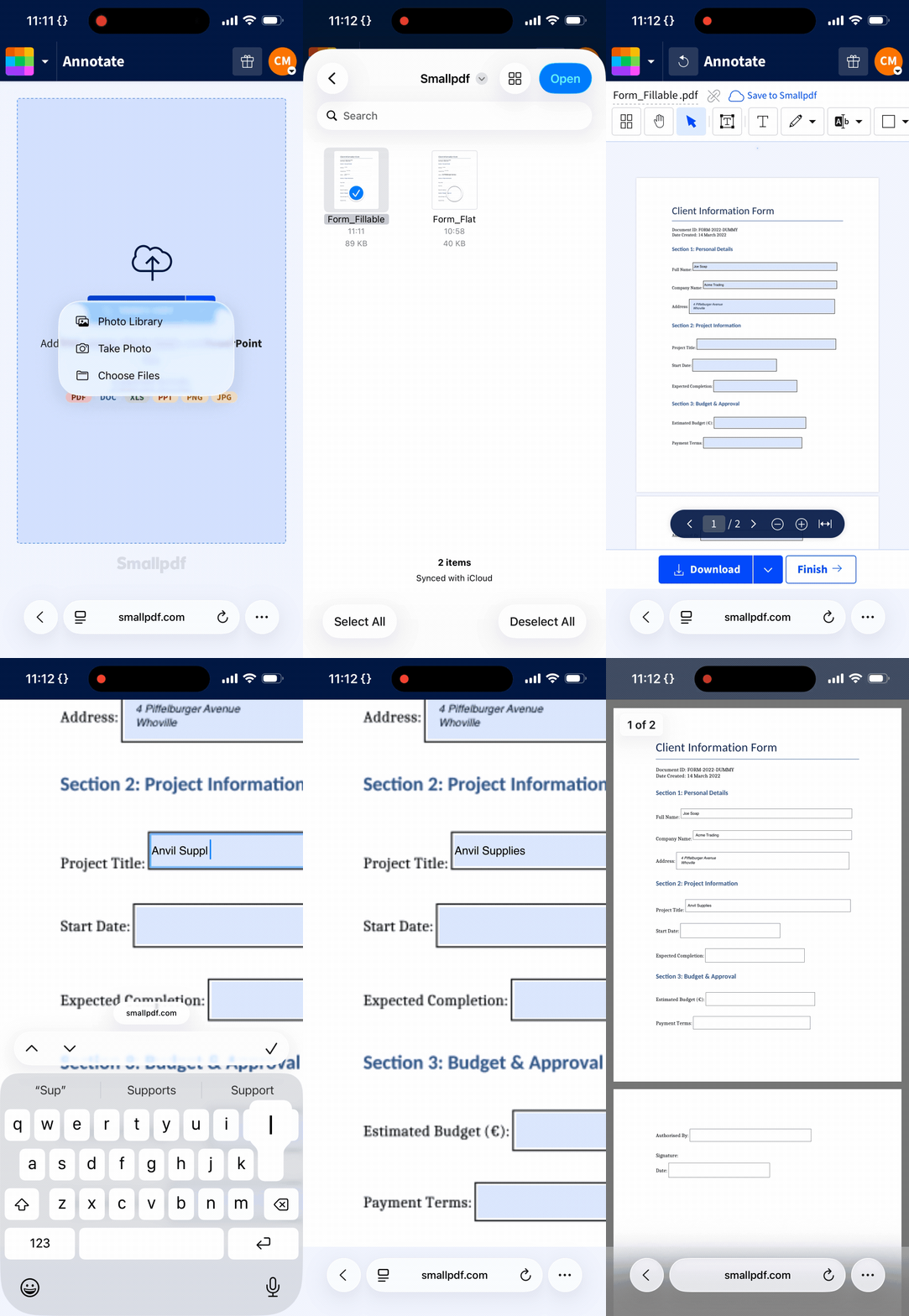
1. Open the PDF Form Filler
Go to our PDF Form Filler in your favorite browser on your iPhone.
Tap “Choose Files” to upload your PDF.
You can pull it from the Files app, your camera roll, Google Drive, OneDrive, or Dropbox.
No sign-up needed to start.
Start here: Use the form filler below to upload your PDF and start filling it on your iPhone.
2. Tap Each Field and Type Your Answer
Tap any interactive field. Your iPhone keyboard will open automatically.
Fill in your answer and move to the next field.
Checkboxes toggle on and off with a single tap.
Dropdowns work the same way.
Scroll through each page and fill as you go.
3. Review the Form, Then Download
Scroll through the completed form to check every field.
Tap “Download” or “Finish” when you're done.
The filled PDF saves to your iPhone in its original format, with layout, fonts, and spacing intact.
If you regularly fill out PDF forms on your iPhone, you can also use the Smallpdf iOS app instead of working in a browser. It gives you access to the same PDF tools in a dedicated app, so you can upload, fill, sign, and export documents directly from your device.
How to Fill Out a Non-Interactive (Flat) PDF on an iPhone
Flat PDFs have no clickable fields underneath. They're common with scanned documents, older government forms, and templates printed to PDF. To fill out this kind of PDF on an iPhone, you add text on top of the page.
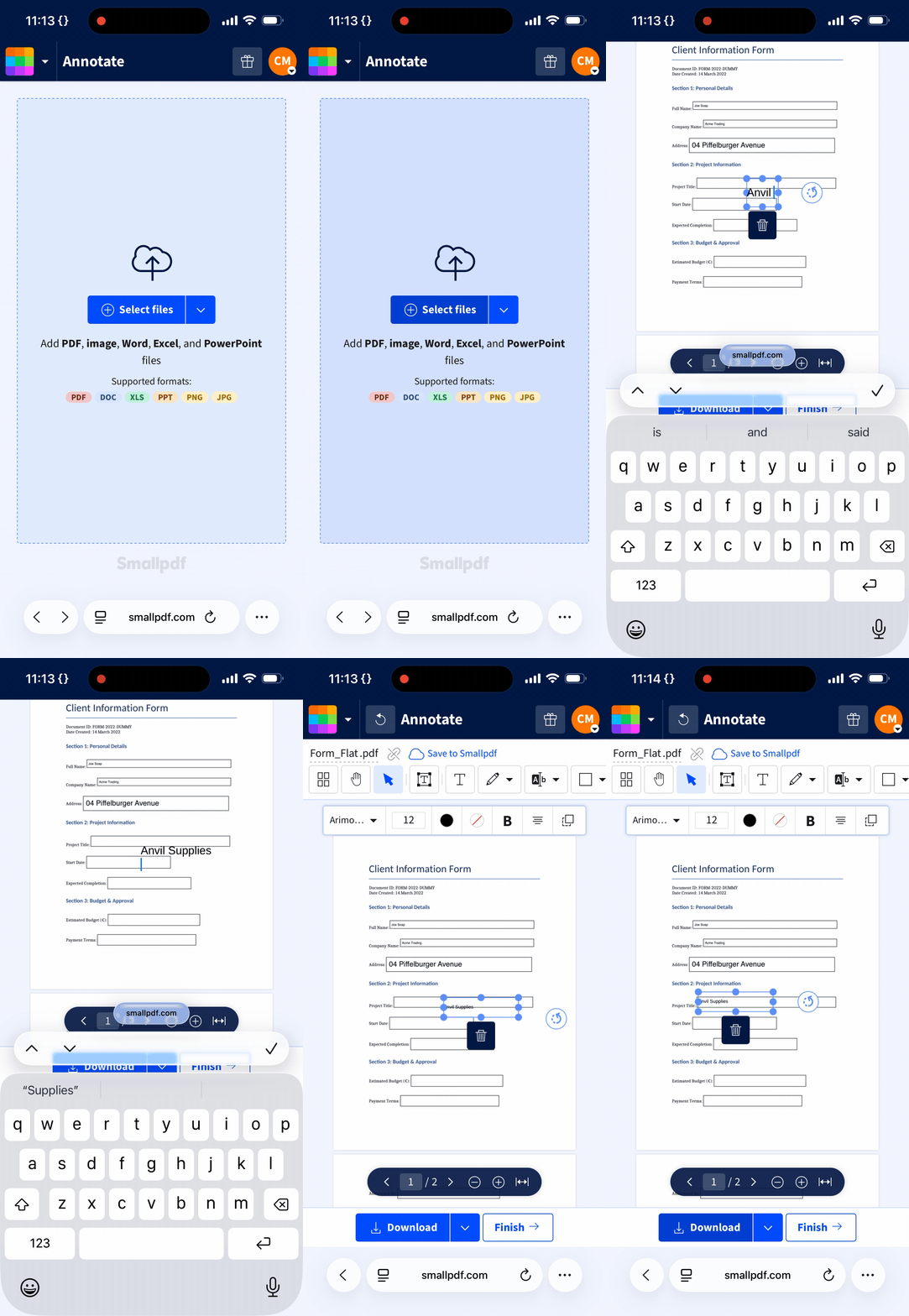
1. Upload Your Flat PDF
Open our PDF Form Filler on your iPhone.
Upload your flat PDF.
The tool switches to free-form editing mode automatically.
2. Place a Text Box Over Each Field
Tap “Add text” button.
Drag your finger over the field you want to fill.
Type your answer.
Adjust the font size so the text fits neatly inside the field.
Repeat for each field, working top to bottom.
3. Add a Signature if the Form Needs One
Lease agreements, consent forms, and onboarding documents usually need a signature too.
Tap the “Signatures & initials” tool to draw with your finger, type your name, or upload an image.
Position it over the signature line.
4. Download the Completed Form
Tap “Download” or “Finish” when you're done.
The file saves as a standalone PDF on your iPhone, ready to email, upload, or share from the Files app.
How to Fill Out a PDF on iPhone Using Apple Preview
Preview is built into iOS 26 and iPadOS 26. PDFs open in it automatically, so there’s no extra app required. It works offline, which makes it useful when you don’t have a connection.
It’s best for adding text or a signature. For long, multi-field forms, a dedicated form filler is usually faster.
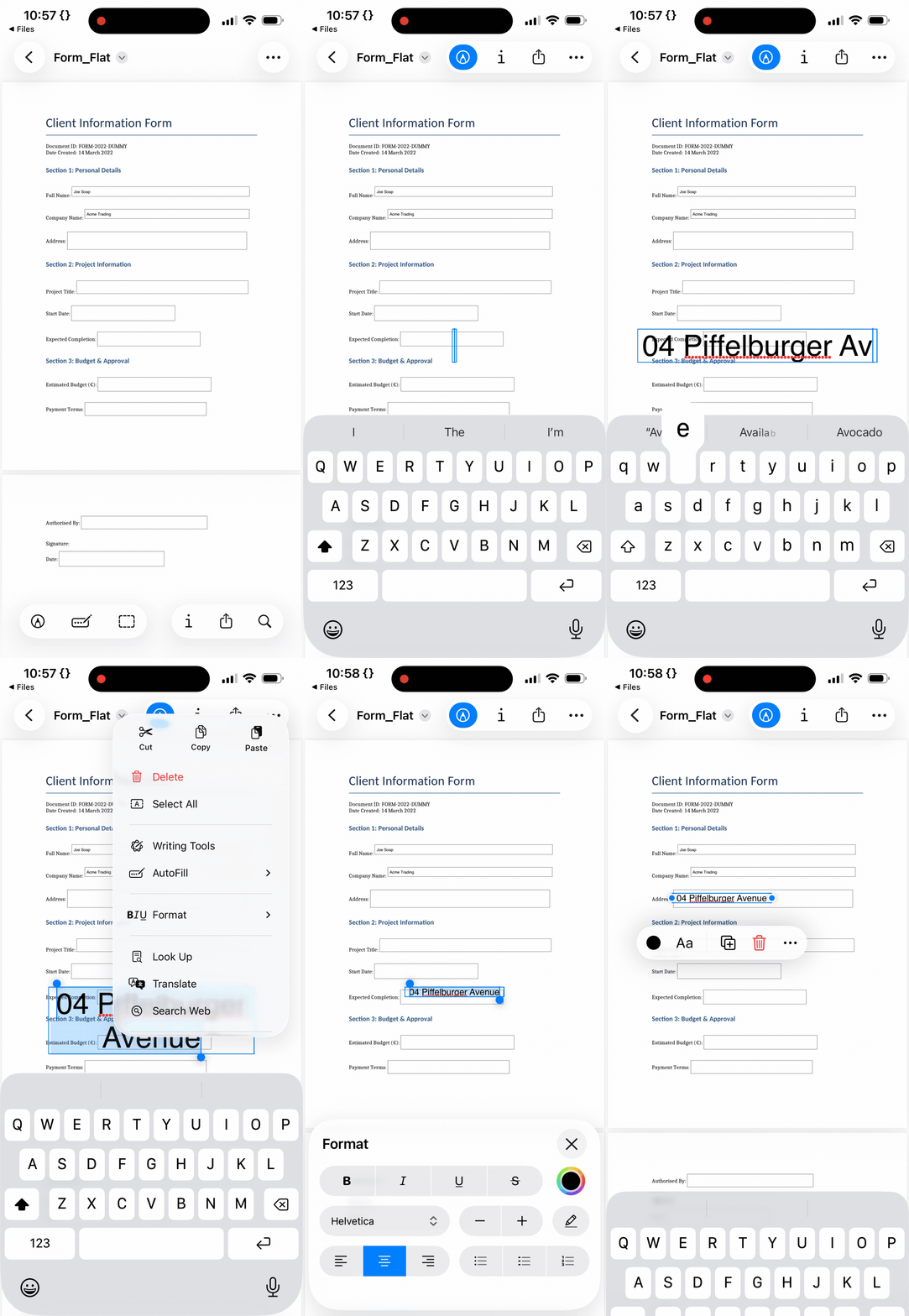
1. Open the PDF in Files or from Mail
Open the Files app and locate your PDF or tap it directly from an email attachment.
The document opens in Preview automatically.
2. Open the Annotation and Form Tools
Tap the pen icon at the bottom left of the screen.
A row of annotation tools appears. Tap the “+” button to open additional options, including “Add Text” and “Signature.”
3. Add Text to Each Form Field
Tap “Add Text.” A text box appears on the page.
Drag it over the field you want to complete.
Tap inside the box to type your answer.
Adjust size or position so it fits neatly within the form.
Repeat for each field.
To add a signature, tap “+” and choose “Add Signature,” then position it over the signature line.
4. Save or Share the Completed PDF
Preview saves changes automatically.
If you need to keep the original file untouched, create a duplicate before editing.
When you’re done, tap the share icon at the bottom right to send or export the completed PDF. Or tap the back arrow at the top left to return to the previous app.
Why Can't I Fill Out Certain PDF Fields on My iPhone?
If tapping a field does nothing, one of these is usually the reason.
The PDF is flat or scanned. A scanned form, a document printed to PDF, or a Word file saved straight to PDF won't have interactive fields. You will need to add text manually. Follow the steps above for filling out a non-interactive PDF on an iPhone.
The form is password-protected. Some PDFs require a password before you can edit or fill them out. If you have the password, you can unlock the file first using the Unlock PDF tool.
The fields are set to read-only. If the person who created the document locked the fields or restricted editing permissions, they won’t be fillable. You may still be able to manually add text over the form instead, or ask the document creator to remove the restrictions and resend the file.
If you regularly work with flat, non-interactive PDF forms, adding PDF Form Filler to your workflow will give you the most control on an iPhone—and iPad—without downloading anything.
Smallpdf’s PDF Form Filler is free to use with basic daily limits, which is usually enough for occasional forms. If you’re filling out multiple documents, working with larger files, or need full access to all editing tools, Smallpdf Pro removes those limits. You can try Pro free for 7 days to see if it fits your workflow before committing. The same tools are also available in the Smallpdf iOS app.
Want to Fill Out a PDF on an iPhone
Frequently Asked Questions About Filling Out a PDF Form on an iPhone
What's the easiest way to fill out a PDF on an iPhone for free?
If the PDF is interactive, use PDF Form Filler and type directly into the fields, then save a new copy. If it’s flat, add text boxes over the form instead. That way you can easily fill out a PDF on iPhone without installing extra apps.How do I fill out a scanned PDF form on an iPhone?
A scanned PDF form is non-interactive, so tapping fields won’t work. Upload the file to PDF Form Filler, put text boxes where each answer should go, resize them, then download the completed PDF as a new file.Can I fill out a PDF on my iPhone and save it as a new file?
Yes. When you download a completed form from Smallpdf, it saves as a separate PDF on your device. Your original file stays untouched. If you’re using Apple Markup or Preview on your iPad or iPhone, create a copy of the original file before you start.How can I add text to a PDF while filling it out on my iPhone?
For interactive PDFs, tap any field and type directly. For flat PDFs, use the “Add Text” feature in PDF Form Filler. You can also use Apple Markup or Preview, but they can be fiddly for long documents.Can I fill out a PDF form on my iPhone that requires my signature?
Yes. Smallpdf's PDF Form Filler has a signature tool built in. Use it to draw with your finger, type your name, or upload an image. Preview has a built-in signature option too. If it needs a formal electronic signature—or you need to ask other people to also sign it—use Sign.com.Can I fill out a PDF on an iPhone offline without the internet?
Apple Preview works offline. Browser-based tools like Smallpdf need an internet connection to upload and process the file, but once you've downloaded the completed PDF, it's saved locally on your device.How do I make a flat PDF form fillable on an iPhone?
You can't add proper interactive fields to an existing PDF on an iPhone without desktop software. The practical alternative is to place text boxes on top of the flat form using a PDF form filler or the Preview app.Does the iPhone have a built-in PDF form filler?
Yes, it does. iOS 26 includes Apple Preview, which opens PDFs automatically and lets you add text and signatures using the annotation toolbar. It works offline and saves changes automatically. For forms with many fields or complex layouts, a browser-based tool like the PDF Form Filler gives you more control.Edit and complete PDF forms on iPhone with Smallpdf Pro
Related Articles