- Home
- ›
- ›How to Make a Fillable PDF Form from Microsoft Word
How to Make a Fillable PDF Form from Microsoft Word
Make a fillable PDF form in Word in a few steps, even though Word can't export interactive fields directly, there's a reliable—and free—workaround.
Word lets you build a form layout using the Developer tab, but when you save it as a PDF, the interactive fields get flattened. Your layout is intact, but the interactivity is lost.
The fix is to build the form in Word, export it as a PDF, and use Smallpdf to add placeholder text over each field area. Recipients click on it, delete the dummy text, and type their own details in its place.
Turning a Word document into a fillable PDF this way is easy, works on both Windows and Mac, and doesn’t need expensive software. One thing to remember before you start: don’t add Combo Box controls from the Developer tab. They don't fit this workflow. Stick to Plain Text Content Controls and Check Box Content Controls.
How to Create an Editable PDF Form from Microsoft Word
If you just need a working form now, here's the short version:
Build your form layout using tables in Word and save it as a PDF.
Open Smallpdf PDF Annotator and upload the exported PDF.
Use the “Text Tool” to add placeholder text over each field: “Enter your full name,” “DD/MM/YYYY,” “Your email address.”
For checkboxes, use the “Shape” tool to draw squares.
Type a note next to them: “Type X to select.”
Download the PDF.
Recipients open it in Smallpdf Edit PDF (Windows, Mac, or on mobile) or Preview (Mac), delete the placeholder text, and type their own details.
Start here: Use the annotator below to upload your PDF and add placeholder text and checkbox shapes to build the form.
Still not sure? Here’s how to do it, with a bit more detail.
How to Prepare Your Word Form Before Exporting to PDF
Don’t complicate things by using Word's form fields tools in the Developer tab. There is a simpler way.
Build Your Form Layout
A table is the clearest way to line up labels and input areas. One column for the label, one for the space to fill in. A few things that help before adding fields:
Add borders or light shading to make each input area obvious.
Leave enough room for the expected answer. One line for a name is usually enough, but more for open-ended responses, or addresses.
Don’t forget to add space for check boxes if you are going to use any.
Layout decisions are easier to make here than after fields are added.
How to Export Your Word Document to PDF
Turning a Word document into a fillable PDF is where most people get stuck without turning to expensive software. If you tried adding form fields using Word's Developer tools, everything falls apart when exporting. Word’s PDF export preserves the visual layout but not the interactive fields. And there is no export setting to change this.
Save the File as a PDF
On Windows:
Open “File” and select “Save As.”
Choose “PDF” as the file type and click “Save.”
On Mac:
Open “File” and select “Save As.”
Choose “PDF” and click “Export.”
How to Make the Exported PDF Editable After Word Fields Don’t Carry Over
When Word's export flattens the fields, add placeholder text directly to the PDF. This is how to create a fillable PDF from a Word document without relying on the fields to survive the conversion. But you don’t do this in Word itself.
Add Placeholder Text to Every Field
Upload your exported PDF to our PDF Annotator.
Select the “Text Tool” and click over the first input area.
Type a short, clear prompt: “Enter your full name,” “DD/MM/YYYY,” “Your email address.”
Work top to bottom through the form, repeating for each field.
For checkbox areas, use the “Shape” tool to draw small squares.
Place a note alongside these: “Type X to select.”
That’s it. No sign-up needed to start, and no software to install.
Download the PDF once all placeholders are in place. Don't flatten it and don't protect it. If you do either, it locks the placeholder text and stops recipients from editing.
And that's how to make a fillable PDF from Word without fancy software. The result is a guided, editable form that works without native PDF form fields. Smallpdf's free plan limits how many documents you can work on each day, but a Pro subscription removes that. Sign up for a 7-day free trial to try without committing.
How Recipients Fill In the PDF
Once you've created a fillable PDF from your Word document, recipients can complete it without Word installed.
Use Smallpdf Edit PDF on Windows and macOS
Upload the form to Edit PDF.
Click any placeholder text, delete the text, and type your details.
For checkboxes, click near the box and type an X.
Download the completed form.
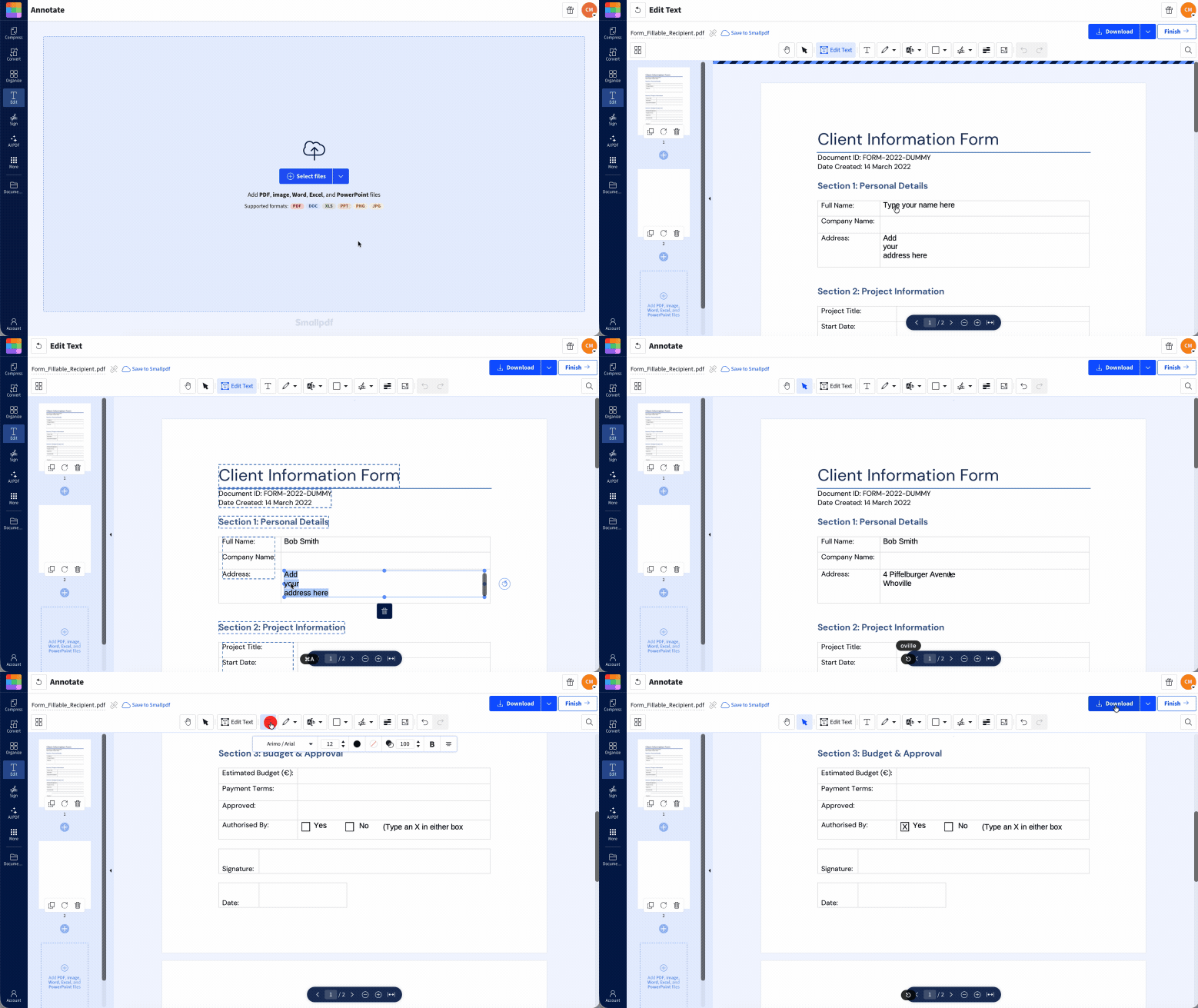
Edit PDF is a Pro feature, but a 7-day free trial is available with no commitment.
Or Use Preview on Apple Devices
Double-click the PDF to open it in Preview.
Preview is available on macOS, iOS 26, and iPadOS 26.
Click any placeholder text, delete the text, and type your details.
For checkboxes, click near the box and type an X.
Press “Cmd+S” to save, or go to “File” and select “Export as PDF” for a separate copy.
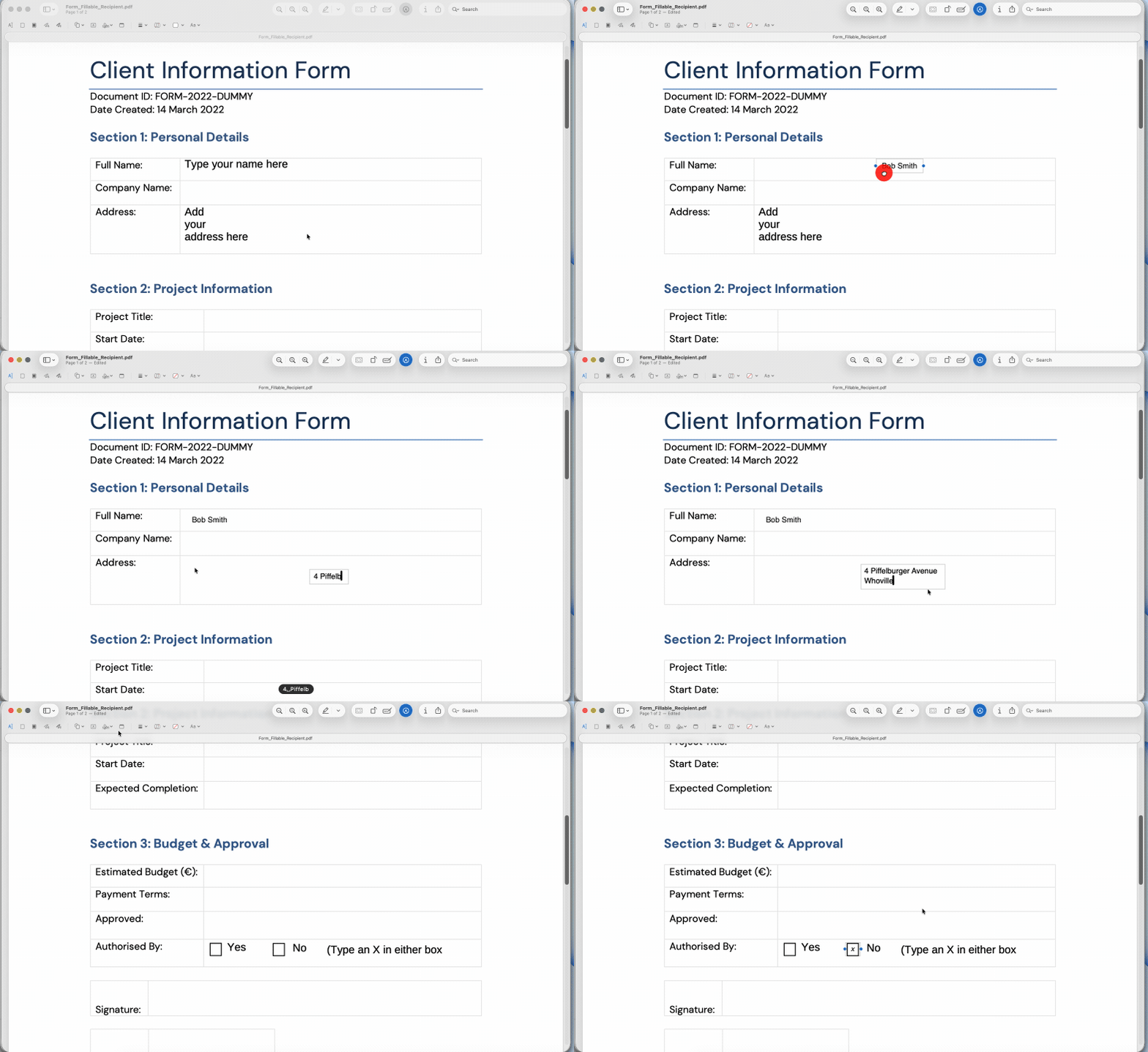
Preview handles this natively. No account or extra tools needed.
Why Don’t My Word Form Fields Appear in the Exported PDF?
They're probably there, you just can’t see them.
If you used tables to create your form fields, they won’t be visible unless you added a border or light shading to them.
If the layout also looks off (fields have shifted or labels don't align) the issue is usually in the Word file itself. Using tables in Word will help keep things more stable than floating objects or manually spaced content. Simplifying the structure in Word and exporting again usually sorts it.
If you need to convert a Word document to a fillable PDF regularly, using Smallpdf PDF Annotator to add placeholder fields directly in the PDF after export is the more reliable approach. And you don’t need any expensive software to get the job done.
Frequently Asked Questions
How do I enable the Developer tab in Word?
On Windows, open “File,” select “Options,” then “Customize Ribbon,” and check the “Developer” box. On Mac, open “Word,” go to “Preferences,” then “Ribbon & Toolbar,” and enable “Developer” from the list.Can I create dropdowns in Word that become fillable in the PDF?
No. Combo Box and dropdown controls from Word don't convert to interactive PDF dropdowns on export. Leave them out of this workflow.Can I make a fillable PDF from Word on both Windows and Mac?
Yes. You can prepare the form and export the PDF on either platform. The difference is on the recipient side. Both Windows and Apple users can fill it in using Smallpdf Edit PDF, but Mac users can also use Preview.Do fillable fields stay editable after exporting from Word to PDF?
No. Word form fields don't carry over as interactive PDF fields after export. The visual layout of the form stays intact, but none of the field behavior does. The tables and placeholder text workaround is what keeps the PDF editable.Can I update the fillable PDF later if I edit the Word document?
Yes, but you'll need to re-export the Word file and redo the placeholder text step in Smallpdf. The PDF is a separate file and changes to the Word document don't carry through automatically.How do I fix misaligned fields when turning Word into a fillable PDF?
Go back to the Word file and simplify the layout. Tables keep labels and input areas aligned more reliably than floating objects or manual spacing. Export again once the layout looks clean, then check the PDF before adding placeholder text.Which PDF viewers let recipients fill in Word-created forms?
Word's Developer controls don't export as native PDF form fields, so no viewer treats them that way. After the placeholder text workaround, recipients can fill in the form using Smallpdf Edit PDF on Windows or Preview on Mac.Convert Word to fillable PDF fields easily Smallpdf Pro
Related Articles
