How to Open a PDF in Word
Need to make changes to a PDF in Word? Here’s how to open a PDF in Word, either through Word’s built-in conversion option or by converting it to DOCX with Smallpdf first.
Quick Takeaways
Word can open a PDF by making a converted copy in an editable Word format. Your original PDF stays unchanged.
PDFs that are mostly text usually convert more cleanly than files with graphics, forms, footnotes, or complex layouts.
Use PDF to Word when you want a browser-based way to convert a PDF into DOCX.
For scanned documents, use PDF OCR so the words become editable text instead of staying part of an image.
You can turn the edited DOCX back into a PDF with PDF Converter.
Word can open many PDFs and turn them into editable documents. But the file may not look the same afterward. This commonly happens if it has scanned pages, complex tables, graphics, or unusual fonts. Here's how to follow both routes, plus a few fixes for when Word refuses to cooperate.
Can You Open a PDF in Word?
Yes, you can open a PDF in Word’s desktop app.
When you open a PDF, Word creates a copy and converts its contents into a format it can edit. The original PDF is not changed, so you can always return to it if the converted version needs too much cleanup.
This works best with PDFs that are mostly text, such as reports, letters, invoices, or simple agreements. A file with charts, images, columns, or scanned pages may need more work after it opens.
So, can Word open a PDF? Yes. But Word is converting the PDF into a Word document rather than editing the original file directly.
How to Open a PDF File in Word
Here’s how to open a PDF file in Word using the desktop app:
Open Microsoft Word.
Select “File,” then “Open.”
Choose “Browse” and find the PDF on your device.
Select the PDF, then click “Open.”
Wait for Word to create the converted copy.
Review the document, then save it as a DOCX file before you begin editing.
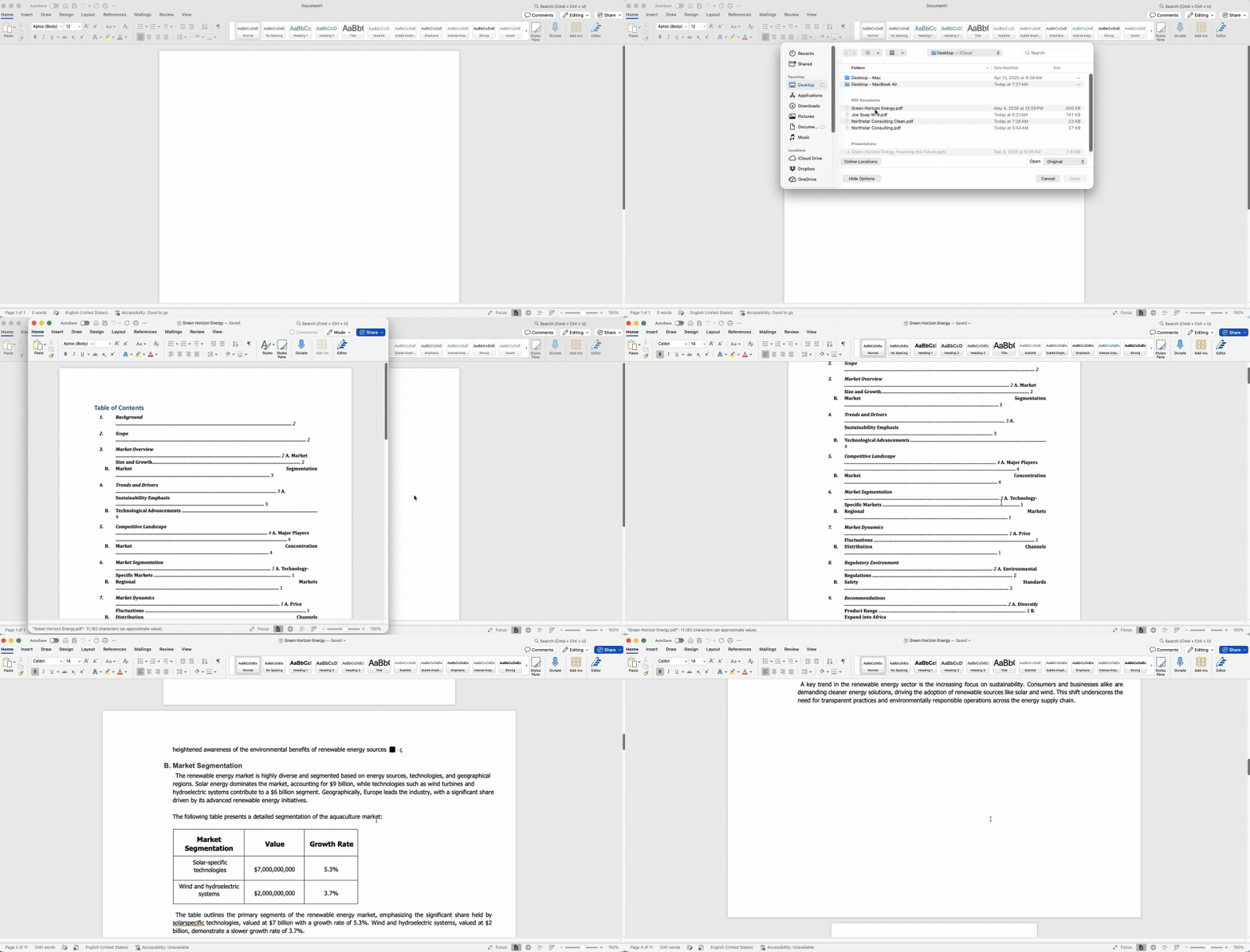
That’s the most direct way for you to open a PDF in Word. Open the file through Word, accept the conversion message, and work on the new document Word creates.
Save the converted version with a different name from the original PDF. For example, use Project-Plan-Editable.docx rather than overwriting or renaming the source file. It makes your files easier to identify later.
Why Does the PDF Look Different in Word?
PDFs are made to keep a fixed page layout. Word documents are built for editing, so text can move when you change a word, font, margin, or page size.
When Word converts a PDF, it must work out which parts of the page are headings, paragraphs, tables, images, and lists. It usually gets the general structure right, but some details can shift.
You may notice:
Text wrapping differently around images or tables
Fonts changing when the original font is unavailable
Footnotes appearing in the main body text
Columns turning into separate text blocks
Charts or diagrams showing up as images instead of editable content
This is normal. Before you start editing, check the first page, last page, headings, tables, page breaks, and any section with fine-print text. It is much easier to fix layout issues before you make a long list of edits.
For files where formatting needs to stay close to the PDF, start with PDF to Word. It converts your file in the browser and gives you a DOCX to open in Word.
How to Convert a PDF to Word Without Losing Formatting
No PDF-to-Word conversion can promise an identical result for every file. But you can keep cleanup to a minimum by starting with a clear source PDF and checking the converted file before editing.
Smallpdf PDF to Word is useful when you want to convert a PDF into an editable Word document without opening the PDF in Word first.
Open PDF to Word.
Drag and drop your PDF into the upload area or select “Choose Files.”
If the PDF is scanned, choose the OCR option so the text becomes editable.
Click “Convert.”
Download the DOCX file.
Open the downloaded file in Word and check the formatting.
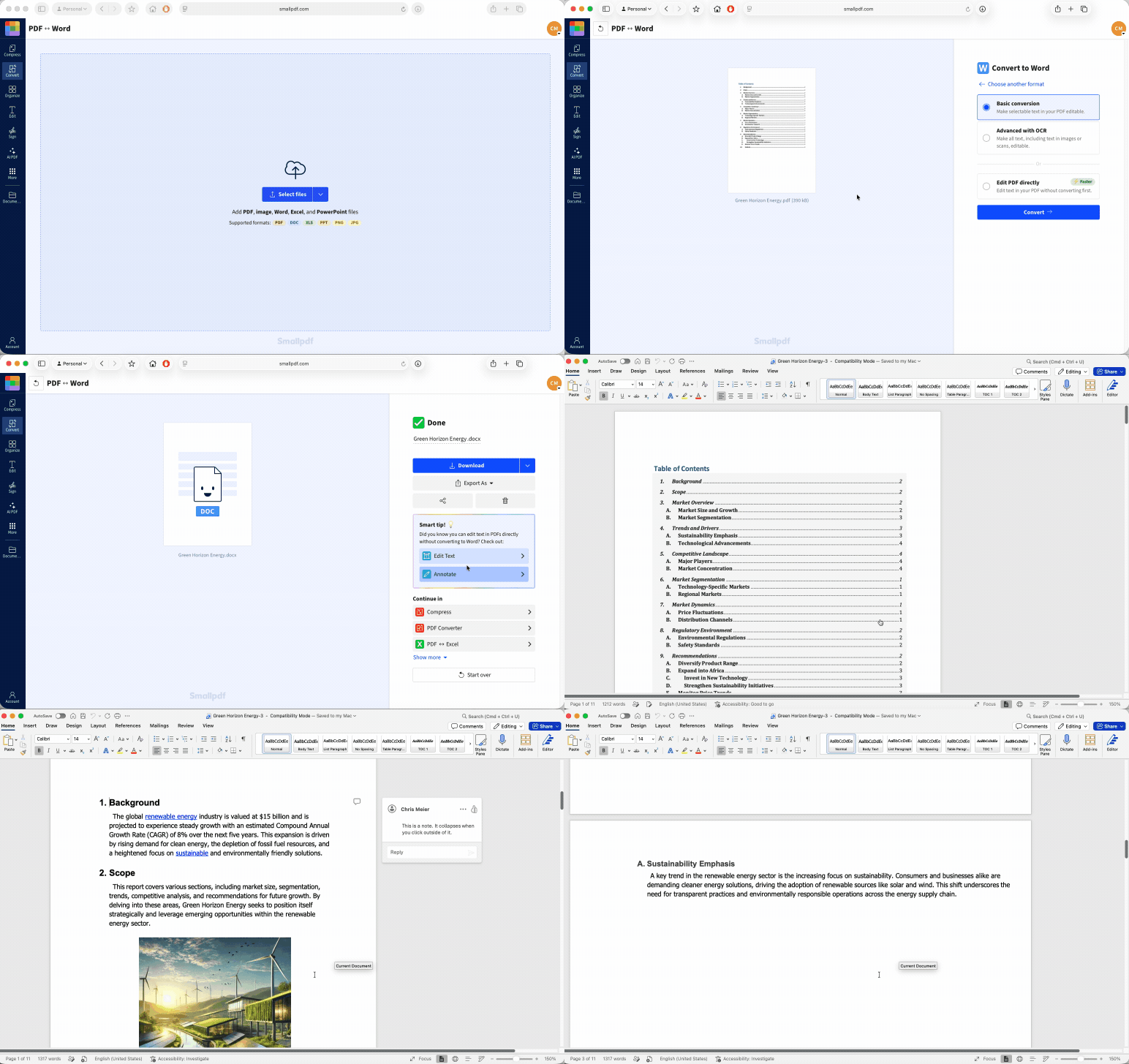
PDF to Word works in your browser. No installs. No sign-up to start.
After conversion, review the document before you send it on or make major changes. Check tables, text boxes, headers, footers, page numbering, and spacing around images. Complex files may still need a few small adjustments in Word.
If your PDF is a scan and you cannot select any text in it, OCR is the route to use. It reads the text from the image and puts it into the Word file as editable content.
For a more detailed look at scanned files, read How to Convert a Scanned PDF to Word Online.
How to Insert a PDF Into a Word Document
Opening a PDF in Word converts it into editable content, while inserting a PDF adds it as an object, icon, or link within your document.
To insert a PDF:
Open your Word document.
Place your cursor where you want the PDF.
Go to “Insert” then choose “Object.”
Select “Create from File,” then browse for your PDF.
Choose to display it as an icon or link, then click “OK.”
This works well for attaching a PDF without changing its content. For more options and details, see our full guide on how to insert a PDF into Word.
PDF Won’t Open in Word? Here’s How to Fix It
A PDF that will not open in Word is usually damaged, password-protected, scanned, or too complex for Word to convert neatly.
Start with these checks:
Open it through Word: Choose “File,” “Open,” and then “Browse” instead of double-clicking the PDF from a folder.
Download a fresh copy: If the file came from an email, shared folder, or website, download it again before trying to open it.
Check for a password: Ask the sender for the password or an unrestricted copy if Word asks for one.
Test whether the text is selectable: If you cannot select words in a PDF reader, the file may be a scan. Use OCR through PDF to Word.
Open the source file instead: If the PDF came from a Word document, spreadsheet, or presentation, use the original file where possible.
Try PDF to Word: Upload the PDF to Smallpdf, convert it to DOCX, then open the downloaded Word file.
You may also see the file open as read-only or in Protected View. Word does this as a safety measure for files from the internet or locations it does not trust. Only enable editing after checking that the file came from a source you trust.
Frequently Asked Questions
How do I open a PDF in Word on a Mac?
Use PDF to Word in your browser on Mac. Upload the PDF, convert it to DOCX, download the converted file, then open it in Word for Mac. This is also the better option when you want to convert a scanned PDF with OCR.Can Word open a scanned PDF?
Depending on how it was created, Word might open a scanned PDF, but the text can remain part of the page image and may not be editable. Use PDF to Word with OCR to turn scanned text into editable Word content.Why does the PDF open as read-only or in Protected View?
Word can open files as read-only or in Protected View when they come from the internet, email attachments, or an unfamiliar location. The document owner may also have restricted editing. Check that you trust the file before you enable editing and ask the sender for access if the document is protected.How do I turn the Word file back into a PDF after editing?
In Word, select “File,” then “Save As,” and choose PDF as the file type. You can also upload the DOCX to our PDF Converter, then download the new PDF in your browser.Will comments and annotations from the PDF appear in Word?
Do not rely on PDF comments, highlights, or annotations becoming editable Word comments. Review the original PDF alongside the converted DOCX, especially when comments are part of a review or approval process. Keep the original PDF as a reference file.Convert PDFs into editable Word documents with Pro tools