Why Are My PDF Files Greyed Out on iPhone?
Need to fix a greyed-out PDF on iPhone? Check the cause, then open or convert your file with Smallpdf if needed.
Quick Takeaways
A greyed-out PDF is usually unavailable to the app you’re using, rather than damaged.
Confirm that the file has finished downloading from iCloud before trying to select it.
Move the PDF to “On My iPhone” or Downloads to rule out a cloud-storage problem.
Some upload screens accept only specific formats, so unrelated files appear greyed out by design.
Try the PDF in another app or upload it to Smallpdf PDF Reader to check whether the file itself opens.
If the PDF opens elsewhere, the original app or website is probably causing the problem.
If no app can open it, download the file again or ask the sender for a fresh copy.
Why are my files greyed out on iPhone when they look perfectly normal in the Files app? In most cases, the app or website you’re using cannot select that file in its current location or format. The PDF may still be fine.
A file can also appear greyed out when it hasn’t finished downloading from iCloud, is stored through a disconnected cloud service, or isn’t supported by the app’s upload screen. If the file is selectable but won’t open, you’re dealing with a different problem, such as an incomplete download or damaged PDF.
Let’s narrow it down and get that file working again.
Why Are My PDF Files Greyed Out on iPhone?
A grey file normally means “not selectable here.” Your iPhone can see the file, but the app, browser form, or current action cannot use it.
There’s an important difference here. A PDF that appears grey in one place may open normally from the Files app or another PDF reader. Before trying to repair or convert anything, check where the problem happens.
The App Is Only Accepting Certain File Types
Apps and websites can limit which formats you’re allowed to upload. A job application form might accept PDF and Word files, while an image uploader may accept only JPG or PNG. Everything else stays visible but appears grey.
The restriction may also be narrower than it first seems. A form that asks for a photo, identity image, or profile picture may reject PDFs even when the document inside the PDF is a scanned image.
Look for text near the upload button listing accepted formats. It may say something like “PDF only,” “JPG and PNG,” or “Images up to 10 MB.”
If a PDF is greyed out because the form wants an image, convert the relevant PDF page with PDF to JPG. When the form wants a PDF, but your document is currently an image, use Image to PDF.
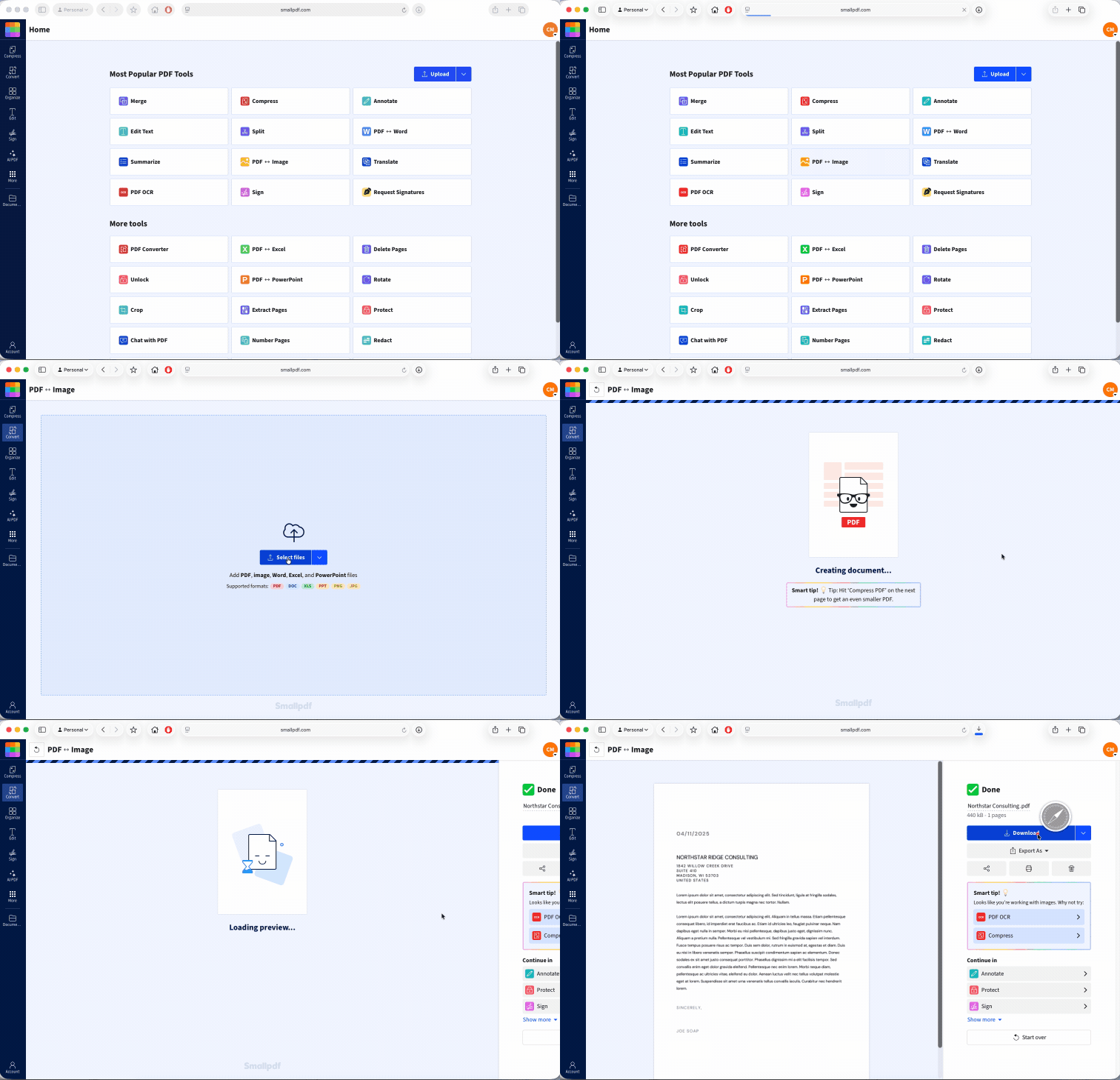
Do not convert the file unless the upload instructions call for another format. Changing formats unnecessarily can make forms, signatures, links, or page layouts behave differently.
The PDF Hasn’t Downloaded From iCloud Yet
Files stored in iCloud Drive can appear in the Files app before a full local copy is available on your phone. You may see a cloud icon beside the file name when the document still needs downloading.
A weak connection, paused sync, low storage, or a temporary iCloud problem can stop the download. The file may then appear grey in another app because that app cannot access the full document yet.
Open the Files app and find the PDF under iCloud Drive. Tap the file or its cloud icon and give it time to download. Once it opens in Files, return to the app where it was greyed out and try again.
For a more reliable test, press and hold the PDF, tap “Move,” and save a copy under “On My iPhone.” This places the document in local storage instead of relying on a live cloud connection.
The File Is Stored With Another Cloud Provider
The Files app can display documents from third-party storage services. Those files may become unavailable when you’re signed out, the provider’s app is missing, or its connection to Files has stopped working.
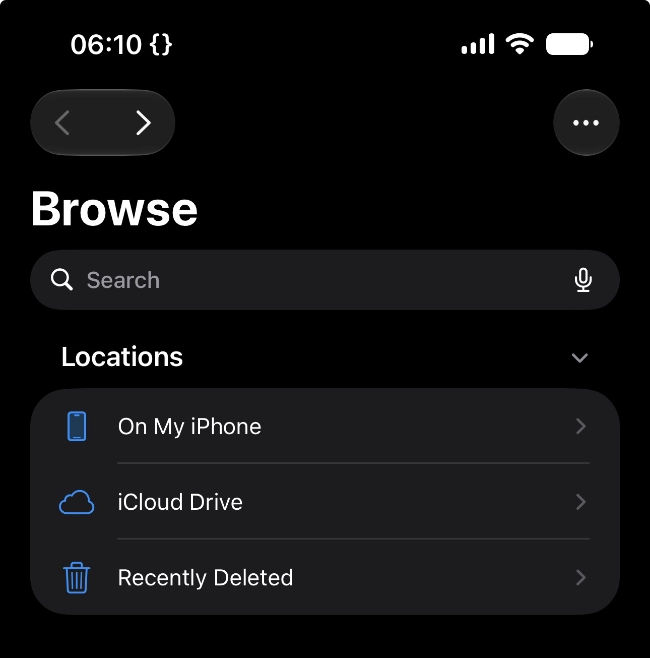
Go to Files, tap “Browse,” then tap the three-dot menu and choose “Edit.” Check whether the storage location is turned on. Open the provider’s own app as well and confirm that you’re signed in.
You can also copy the PDF to “On My iPhone” or iCloud Drive. If the local copy becomes selectable, the original storage connection caused the problem.
The File Is Still Uploading, Syncing, or Being Created
A PDF can sometimes appear in Files before another app has finished writing or syncing it. This can happen just after you save an email attachment, export a scan, download a large document, or create a PDF in another app.
Wait a moment, then refresh the folder. Close and reopen the file picker if needed. You can also check the file size by pressing and holding the PDF and choosing “Get Info.” A file showing zero bytes or an unusually small size may be incomplete.
Download or export it again if the size does not change.
The App Cannot Access That Storage Location
Some apps can browse only the folders they support. A file may be available in Files but remain disabled when you reach it through an app’s built-in picker.
Moving the PDF often solves this. Try one of these locations:
On My iPhone
Downloads
iCloud Drive
A folder created by the app you’re using
Avoid leaving the only copy inside a temporary download folder or an email preview. Save it to Files first, then open the destination app and select it from there.
Screen Time or Device Management Is Limiting Access
Restrictions can affect file sharing on family, school, and workplace devices. A managed app may be allowed to open documents from approved work storage but not personal cloud folders. The reverse can happen too.
If only one account, app, or folder is blocked, check whether your iPhone is managed by an employer or school. You may need to use an approved folder or ask the device administrator about the restriction.
On a personal phone, review Screen Time settings if file access recently changed. Turning off restrictions temporarily can help confirm whether they are causing the issue.
How to Fix Greyed-Out Files on an iPhone
Start with the quickest checks. You probably won’t need every fix.
Fix 1: Check the PDF With Smallpdf PDF Reader
Opening the file somewhere else tells you whether the PDF is usable or whether the problem belongs to the original app.
Open Smallpdf PDF Reader in Safari or upload the PDF in the drop box below
Select the PDF from the Files app.
Wait for it to open in the reader.
If the PDF opens, the document itself is probably fine. Return to the original app and check its accepted formats, file-size limit, and storage access.
If the file is also greyed out in the Smallpdf picker, open it directly in Files first and make sure it has downloaded. Moving a copy to “On My iPhone” can also help.
You can use the Smallpdf mobile app when you regularly read, scan, edit, compress, or convert PDFs on your iPhone. It can access PDFs from Files or iCloud and save the finished document back to your phone.
Fix 2: Download the PDF Before Selecting It
Open Files and go to the folder containing the PDF. Tap the document and wait for it to open fully.
If you see a cloud icon:
Connect to Wi-Fi or mobile data.
Tap the cloud icon or file name.
Keep Files open while the download finishes.
Open the PDF once from Files.
Return to the original app and select it again.
Still no luck? Press and hold the file, choose “Move,” and place a copy in “On My iPhone.”
Fix 3: Confirm the Accepted File Format
Go back to the app or website and read the upload instructions. Check both the file type and the allowed size.
A file named with ‘.pdf’ may still be rejected if the form accepts only images. It may also require a specific document type, such as an image of your ID rather than a multi-page PDF containing several records.
Convert only when the instructions require it. Smallpdf has browser-based tools for common changes, including:
PDF to JPG when the form accepts images
JPG to PDF when an image must be submitted as a PDF
Compress PDF when the PDF exceeds the upload limit
Most Smallpdf tools are free to try, although free accounts have usage and download limits. A Smallpdf Pro account gives you unlimited access to all 30+ tools, unlimited document downloads, and extra features such as Strong Compression and OCR. You can try Pro with a 7-day free trial.
Check the converted file before submitting it. Make sure every required page is present and readable.
Fix 4: Move or Duplicate the File
A local copy can bypass a syncing or permission problem.
Open Files.
Press and hold the PDF.
Tap “Copy.”
Go to “On My iPhone” or Downloads.
Press and hold an empty area and tap “Paste.”
Try selecting the copied file.
You can also choose “Duplicate” and rename the copy. Use a short, plain file name such as ‘tax-return.pdf’. Remove special characters if the website appears to reject the file after selection.
Fix 5: Reopen the App or Safari
The file picker may keep an old view of the folder after a download or format change. Close it and start again.
For an app, open the app switcher and swipe the app away. Then reopen it and return to the upload screen.
For Safari, reload the page. Be careful with forms that already contain unsaved information, as reloading may clear your entries. Save any text elsewhere first when the form has taken a while to complete.
Fix 6: Restart the iPhone
A restart can clear a stuck Files process, cloud connection, or app session. Restart your iPhone, open Files first, and test the PDF there before returning to the original app.
Also check for iOS and app updates when the issue keeps returning. An older app may have trouble working with the current file picker or cloud-storage connection.
Fix 7: Download or Export the PDF Again
The first copy may be incomplete. Delete only the faulty copy, then download the attachment or export the document again.
When the PDF came through email or a messaging app:
Open the original message.
Tap the PDF attachment.
Tap the Share button.
Choose “Save to Files.”
Select “On My iPhone” or iCloud Drive.
Open the saved copy from Files.
If the attachment itself no longer opens, ask the sender to send the original PDF again rather than forwarding the damaged copy.
Why Some PDFs Won't Open on iPhone Even When They’re Not Greyed Out
A selectable PDF that refuses to open has passed the file picker’s first check. The problem is now more likely to involve the document, download, available storage, or viewing app.
The Download Is Incomplete
An interrupted browser or email download can leave behind a file name without a complete document. Check the file size under “Get Info.” Download it again if it shows zero bytes or seems far smaller than expected.
Try saving the second copy under a different name so you don’t accidentally reopen the first one.
The PDF Is Damaged
A damaged PDF may display a blank preview, stop loading, or produce an error. Test it with Smallpdf PDF Reader or another app on the iPhone.
If it fails everywhere, ask for a fresh copy or recreate the PDF from the original document. Our guide to repairing a damaged PDF also covers recovery steps when the source file is unavailable.
The File Is Too Large for the Current App
Large, scanned PDFs, illustrated manuals, and image-heavy reports can take longer to load. Close unused apps, check that your phone has free storage, and open the PDF from Files rather than an email preview.
When the file opens but is difficult to send or upload, use Compress PDF to create a smaller copy. Keep the original until you have checked the compressed version.
The PDF Uses Features the App Cannot Display Properly
Some PDFs contain complex forms, embedded media, unusual fonts, layers, or security settings. A basic preview may show blank areas or fail to respond even though another PDF reader can display the document.
Try opening the file in Smallpdf PDF Reader or the Smallpdf mobile app. If it opens there, continue using that reader or create a simplified copy from the source document.
The File Extension Is Wrong
A file can be named ‘.pdf’ without containing valid PDF data. This may happen when a download page, image, or other document was renamed rather than converted.
Renaming a JPG to PDF does not change its format. Open “Get Info” and check the file details. When the source is an image, convert it properly with Image to PDF.
Frequently Asked Questions
Why is a file greyed out in one app but not another?
Each app can decide which file types and storage locations it accepts. When the PDF opens in Files or another reader, but appears grey in one app, check that app’s upload rules and move the document to a supported location.Why is a file greyed out right after I saved it?
The app may still be creating, syncing, or downloading the file. Wait for the process to finish, refresh the folder, and check the file size under “Get Info” before trying again.Why can I open the PDF on my Mac but it’s greyed out on my iPhone?
The Mac may have a complete local copy while the iPhone is showing an iCloud placeholder. Open the PDF in Files on your iPhone and let it download or move a copy to “On My iPhone.”Why are my files greyed out only when uploading from Safari?
The website’s upload field may accept only certain formats, or Safari may not be able to access the file’s current storage location. Check the listed file requirements, download the PDF fully, and try a local copy from Downloads or “On My iPhone.”Why can’t I open a PDF on my iPhone after downloading it?
The download may be incomplete, or the PDF may be damaged. Delete the failed copy, download it again, and open it directly from Files or Smallpdf PDF Reader.What should I do when a PDF won’t open on iPhone at all?
Test the PDF in a second reader and, where possible, on another device. If it fails everywhere, ask for a new copy or recreate it from the original file.