- Home
- ›
- ›Why Won't My PDF Resume Upload? Common Reasons and Quick Fixes
Why Won't My PDF Resume Upload? Common Reasons and Quick Fixes
Need to know what's stopping your PDF resume from uploading? Learn the most common causes and how Smallpdf helps you resolve them quickly.
Quick Takeaways
Check the accepted file types and upload limit on the application page first.
A text-based PDF usually works better than a scanned image of a resume.
Compress a copy when the PDF is too large, then check the downloaded file before submitting it.
Use a simple filename with letters, numbers, hyphens, or underscores.
If the upload fails on your phone, try again in a different browser or from a computer.
Your application is filled in, you hit upload, and the job portal rejects your resume. Annoying, especially when the deadline is close.
The problem is usually the file, the portal, or the device you are using. Most can be easily fixed with Smallpdf. Saving you from having to create your resume from scratch.
Why Your Resume Won't Upload
Job portals don't always explain the error clearly. “Upload failed” can mean the file is too large, the format is not accepted, the document is damaged, or the application session has expired.
Start with the upload field itself. It may list accepted formats, a maximum file size, or a note about how the portal handles mobile uploads.
Your PDF Is Larger Than the Portal Allows
A resume made mostly of text is usually small. File size climbs when it includes a large headshot, full-page background images, scanned certificates, or portfolio pages.
Each employer sets its own attachment limit. A PDF that worked for one application may fail on the next.
Fix: Compress a Copy of Your Resume
Keep the original resume untouched. Upload a copy to Compress PDF or in the dropbox below to download the smaller version, and open it before you submit it.
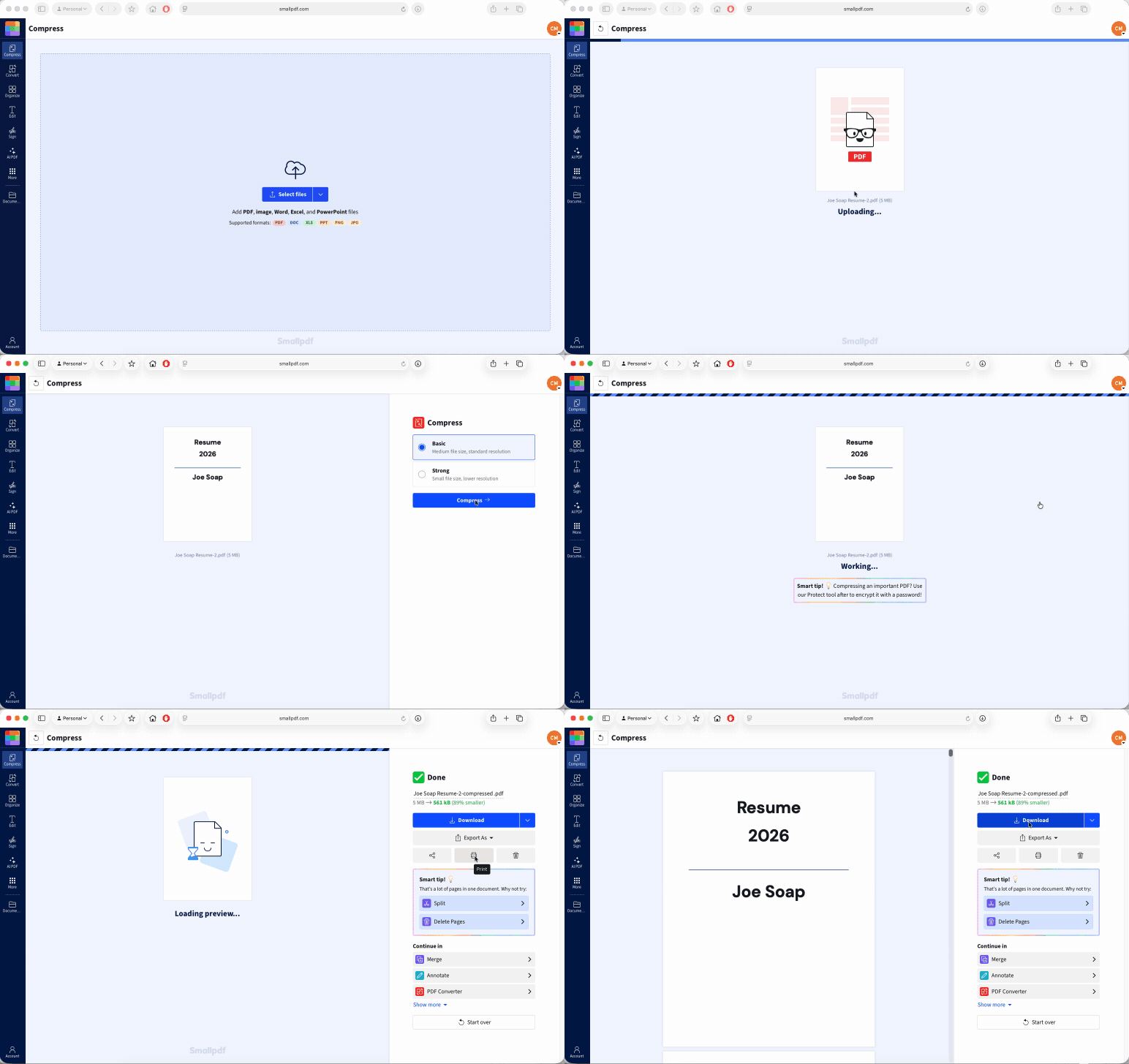
Check the contact details, headings, and small text. If the PDF still exceeds the portal’s limit, go back to the original document and remove images that are not needed for the application.
The Portal Does Not Accept Your File Type
A file ending in .pdf is not always the file type the employer wants. Some portals accept PDFs, DOC files, and DOCX files. Others ask for DOCX only.
Renaming a Word file so it ends in .pdf does not convert it. It only changes the label. And no amount of fiddling will change that.
Fix: Match the Format Listed on the Application
Follow the file types shown beside the upload button or in the job post. If the employer requests a PDF, export a fresh one from your original resume document.
If the site asks for DOCX, use the original Word file where possible. Only have a PDF copy? PDF to Word can create a DOCX version, but review the layout before sending it. Tables, columns, and unusual fonts may need a little cleanup after conversion.
A simple, text-based PDF works with many applicant tracking systems. Some employers still prefer DOCX, especially when their system needs to read the resume into form fields. Can ATS Read PDF Resumes? explains when each format makes sense.
The PDF Is Password-Protected, Damaged, or Built From Images
A password can stop a job portal from opening your resume. A damaged download can also look normal on screen but fail when the portal reads it.
Another common issue is an image-only PDF. This happens if a printed resume is scanned or if screenshots are saved as a PDF. The pages look fine, but the text is not real, selectable text.
Fix: Create a Fresh Application Copy
Open the PDF from your device and try selecting a sentence. If you can select individual words, the resume contains text. If the whole page selects as one image, return to the original document and export a new PDF.
If the original is gone, PDF OCR can make scanned text searchable and selectable. But check the completed file closely before submitting the new file. The layout and fonts can change during the process, introducing mistakes or layout issues. Names, email addresses, phone numbers, dates, and job titles need to be exact.
Do not send a password-protected resume unless the employer specifically asks for one.
The Browser or Application Session Has Failed
Sometimes the resume is fine and the portal is the problem. A weak connection, a browser extension, or a session that has been open for too long can interrupt an upload.
You may see a loading icon that never finishes, a blank error message, or a file that disappears when you move to the next page.
Fix: Start a Fresh Upload
Save your written application answers somewhere safe first. Then sign out, open a new browser window, and start again.
A private browsing window can help when a stored session or browser extension is interfering. If the portal still rejects the same file, try another browser or upload from a different device.
Why You Can't Upload Your Resume From a Phone
Phones make it easy to apply quickly, but they can make file handling harder. Your current resume may be sitting in an email attachment, cloud storage folder, browser preview, or Downloads folder, and the portal may not have permission to see all those locations.
Download the PDF fully before you begin the application. Then open it from your Files or Downloads app to make sure it is the right version.
Open the job portal in Safari, Chrome, or another full browser. Avoid applying through an in-app browser inside an email, social platform, or messaging app.
A few checks can help:
Choose the actual PDF, not an email preview or sharing link.
Wait for the file to finish downloading before opening the application.
Check that the phone has enough free storage.
Switch to a stronger Wi-Fi or mobile connection.
Try a desktop browser when the upload button does nothing.
If the same PDF uploads from a computer but not from your phone, the resume probably does not need changing. The device, connection, or portal session is the likely cause.
How to Prepare a Resume File That Uploads Reliably
Keep one editable master copy of your resume. Update that document when your experience changes, then export a new application copy from it.
Use real text for your name, contact details, job history, and qualifications. A hiring manager and an applicant tracking system can both read a clean text-based resume more easily than a scan or screenshot. This is also why it is better to stick to default fonts throughout your resume.
Before applying, run through this short check:
Open the file and make sure every page appears.
Select and copy a line of text to confirm the words are not part of an image.
Check the file size against the portal limit.
Keep a PDF and DOCX version ready.
Remove passwords and editing restrictions from the copy you plan to upload.
A simple layout also helps. Use readable fonts, clear headings, and enough space between sections. Keep contact details in the main body of the document rather than placing them inside an image or design element.
Could Your Resume Filename Be Blocking the Upload?
It can. Some job portals struggle with emojis, symbols, multiple periods, or punctuation in filenames.
Use a clear, plain name instead:
‘Jordan-Lee-Resume.pdf’
‘Jordan_Lee_CV.pdf’
‘Jordan-Lee-Marketing-Resume.pdf’
Avoid names such as ‘Jordan’s Résumé!.pdf,’ ‘Resume FINAL (4).pdf,’ or ‘⭐Jordan Lee CV⭐.pdf.’
The filename will not improve the resume itself, but it removes one avoidable upload problem. Keep the .pdf ending in place and make sure it reflects the file’s real format.
Frequently Asked Questions
What file size is usually too big for a resume upload?
There is no universal limit. Every application portal sets its own maximum file size, so check the note near the upload field. If your PDF is too large, compress a copy and inspect it before submitting.Can applicant tracking systems read a PDF resume correctly?
Many can read a clean, text-based PDF. Problems are more likely with scans, image-only files, password-protected PDFs, and layouts where contact details or work history are trapped inside graphics.Is it safe to convert or compress my resume in an online tool?
Check the provider’s security information before uploading personal documents. Smallpdf uses 256-bit TLS encryption for uploaded files, holds ISO/IEC 27001 certification, and automatically deletes uploaded files after one hour.Does compressing a PDF lower the quality of the text in the resume?
Text usually remains readable. Images and scanned pages may lose some detail, so open the compressed PDF and inspect every page before you upload it.Why does the job portal say my file type is “invalid” even though it is a PDF?
The employer may only accept DOC or DOCX, the file may not have downloaded correctly, or the file extension may not match its real format. Export a new PDF from the original resume document, then try again with the format listed on the application page.Fix PDF resume upload issues faster with Smallpdf Pro