- Home
- ›
- ›PDF Fillable Form Not Working? Quick Fixes and Troubleshooting
PDF Fillable Form Not Working? Quick Fixes and Troubleshooting
PDF fillable form not working? The fix is usually quick once you know whether the problem is the file, the viewer, or your settings.
Most PDF form issues come down to one of a handful of causes. The form might look interactive but have no fields underneath. The file might be locked. Or the tool you're using to open it simply wasn't built for form filling. None of these take long to fix once you've identified which one applies.
Why You're Unable to Fill PDF Forms
The most common reason a PDF form won't let you type in it, is that the file doesn't actually have form fields. It just looks like it does.
The form has been saved as a flat PDF, a static image of the original. The fields you see on the page aren't interactive, so clicking on them does nothing.
But that's not the only cause. Even a PDF with real, built-in form fields can refuse to work because:
The file is a flat PDF. Scanned documents, older forms, and Word files saved to PDF are typically flat files. They look like forms but contain no actual fields to fill in.
The PDF is locked against editing. Password protection or permission settings can disable form filling, even when the fields are there.
Your PDF viewer doesn't support form fields. Some basic viewers display the form but can't interact with it. Switching to a full-featured reader or an online tool usually fixes this.
The form has a structural problem. Fields may have been added incorrectly, layered on top of each other, or broken during conversion. The form looks right but doesn't respond the way it should.
Each of these has a fix.
Quick Fixes When PDF Form Fields Aren't Working
Flat or Scanned Form? Add Text on Top
The most common reason you can't fill in a PDF fillable form is that the PDF is flat. There are no fields underneath, only an image that looks like a form. Clicking anywhere does nothing.
The fix is to place text directly on top of the page:
Open PDF Form Filler.
Upload your PDF. You can drag and drop or click “Select files.”
Click the “Add text” button to place a text box on the page.
Drag it over the field you want to fill and type your answer.
Repeat for each field, then download.
No software needed, and it works on any flat or scanned form.
Quick fix: Use the form filler below to upload your PDF and place text boxes over each field to fill it manually.
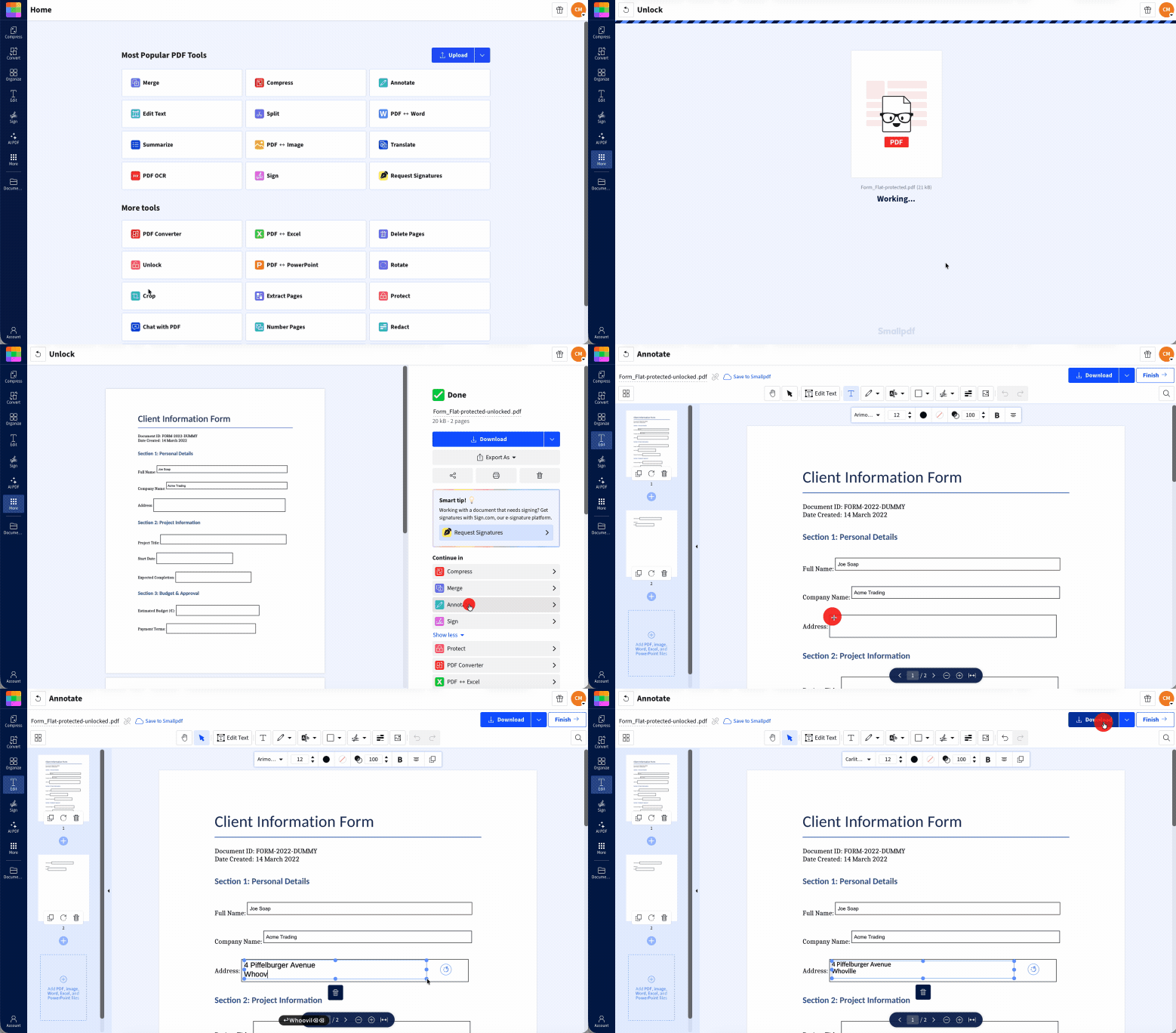
Password-Protected File? Unlock It First
Some PDFs require a password before you can open or edit them. In that case, you’ll see a password prompt when trying to open the file.
Other PDFs open normally but have editing or form fields locked by the creator. If the fields are restricted like this, unlocking the file won’t help. You’ll need to ask the sender for an editable version instead.
If the PDF requires a password to open and you have the password:
Go to Smallpdf's Unlock PDF.
Upload the file and enter the password.
Download the unlocked version, then open it in PDF Form Filler to fill it out.
If the file is restricted and you don’t have the password (or the fields are locked by the creator) go back to the sender and ask for an unlocked or editable copy.
Wrong Viewer? Open in a Compatible Tool
Sometimes you end up with a fillable PDF where the fields are visible on the page but clicking them does nothing. Or the form works fine somewhere else but now won't accept input in a different app.
This can happen with browser-based viewers like Chrome's built-in viewer or Safari's default PDF handling. A new build or update is often the reason a fillable PDF stops working even when the file is fine.
Open the PDF in our PDF Form Filler instead of your browser's default viewer.
On Mac, open the file directly in Preview rather than in a browser tab.
On Windows, try a dedicated PDF app rather than relying on your browser to handle the form.
The same PDF that won't respond in one viewer often works immediately in another.
Filled Text Disappears After Saving? Flatten on Export
You complete the form, save it, reopen it—and every field is blank. This is one of the most reported issues with PDF fillable forms not working after saving. The viewer saves the file without embedding what you typed. Your entries existed in its memory but weren't written into the PDF itself.
Open the document using PDF Form Filler and enter all the information again. Smallpdf flattens entered data into the file when you download it or save it to Google Drive, Dropbox, or OneDrive. By doing this, your text becomes a permanent part of the PDF, not a separate layer.
Invisible or Blank Fields When Typing? Check Font and Display
You click into a field and type, but nothing appears. Or text shows up while the field is active, then vanishes when you click elsewhere.
This usually means the field has a white font color, the text is set too small to see at standard zoom, or content rendering outside the visible field area. These are all formatting issues baked into the PDF by whoever built it.
Zoom in on the field. Some forms default to a very small font size.
Try the PDF in our PDF Form Filler. If it shows up correctly there, the problem is with your current viewer.
If the issue follows the file across multiple tools, the form itself has a color or sizing error. Treat it as flat and add text on top instead.
PDF Auto-Filling With Old Data? Clear Saved Form Information
You open a fillable PDF, and all the fields fill in automatically using an old name, address, or date you didn't enter this time. The reason your PDF is auto-filling is because your browser or viewer cached data from a previous session. and is applying it to fields with matching names.
In Chrome, go to “Settings,” click on “Autofill and passwords,” and then select “Addresses and more”. Delete old information and entries appearing in the wrong fields.
In Firefox, go to “Settings,” “Privacy & Security,” then “Forms and Autofill.” Clear autofill data.
In Safari, open “Settings,” go to “AutoFill,” and uncheck “Using information from my contacts” to disable autofilling of information in fillable PDFs.
If you're using a desktop PDF app, check its preferences for saved or remembered form data and clear it from there.
Or just open the PDF in the Smallpdf PDF Form Filler. It doesn't store form data between sessions, so every upload starts clean.
Quick Alternatives When PDF Forms Simply Won't Work
Some PDFs have errors baked in that no viewer can fix. These could be anything from corrupted fields to broken form logic or encoding problems from whatever software created them.
When the form itself is the issue, the fastest fix is to stop treating it as interactive and fill it as a flat document.
The Smallpdf PDF Form Filler handles both fillable and flat PDFs. Upload any PDF, use the text tool to place answers where they need to go, add a signature if needed, and download a clean completed copy. No installs, no sign-up to start.
Free users get access to over 30 PDF tools, with up to two tasks per day. That’s enough for most one-off situations. If you're dealing with PDF forms regularly, Pro removes the daily limit across all tools and adds batch processing. There's a 7-day free trial included, so it's worth trying before you commit.
And if it's a form you need to fill out regularly, also ask the sender for a fresh copy. Broken PDFs often come from outdated templates. Whoever owns the file can usually replace it with one that works.
Want to Fix Your PDF Form?
Frequently Asked Questions
Why can't I type into my PDF form?
The form is most likely flat or scanned. It has no interactive fields, only the image of a form. The second most common reason is that the file is restricted or password protected. Upload the PDF to PDF Form Filler: if fields respond on click, the form is interactive. If nothing happens, use the text tool to place your answers on top of the page.Why is my PDF form showing as an image?
The document was scanned or printed to PDF rather than built as an interactive file. Scanned PDFs are images, which often means no selectable text and no clickable fields. To fill them out, you need to add text on top using a tool like Smallpdf's PDF Form Filler or your device's built-in annotation tools.Why do form fields look blank or invisible when I type?
The field probably has a formatting error. This is usually white text on a white background, or a font size set so small it's nearly invisible. Zoom in first. If that doesn't help, try the file in a different viewer. If the problem follows the PDF everywhere, treat it as flat and use the text tool to write on top of it.What viewer should I use to fill out PDF forms properly?
A dedicated form tool is more reliable than a general browser viewer. Our PDF Form Filler works in any modern browser on any device, no download needed. On Mac, Preview handles most standard forms well. On Windows, look for a dedicated PDF app that explicitly supports interactive fields.Why does the filled text disappear after saving the PDF?
Your viewer saved the file without embedding the data. So, your entries existed temporarily in its memory but weren't written into the PDF. Smallpdf's PDF Form Filler flattens PDF layers automatically when you download, so all text you entered is embedded without you having to do anything extra.Why don't PDF forms work in my browser?
Browser PDF viewers can be a bit fussy when it comes to form interaction. Chrome, Safari, and Firefox can all suddenly stop reading fillable form fields. Sometimes this might be after an update, or it could be that they can’t read some of the data in the file. Download the file and open it in a dedicated viewer or upload it directly to the PDF Form Filler. Either way you should now be able to manually add text blocks over the fields.Fix fillable PDF forms fast with Smallpdf Pro
Related Articles
