- Home
- ›
- ›How to Use AI for Data Extraction from PDFs
How to Use AI for Data Extraction from PDFs
Turn messy PDFs into clean Excel data in minutes. This guide shows you how to extract tables, text, and forms using AI tools—no tech skills needed.
AI Tools & Guides
More on Edit PDF
More on PDF OCR
Small business owner? Data pro? Researcher? PDFs slowing you down? We’ve got tools to make your daily document management easier than ever.
The Main Ways to Extract Data from PDFs
| Method | Best For | Strengths | Limitations |
|---|---|---|---|
| Manual copy and paste | Very small tasks and short text | Simple, free, and requires no setup | Slow for long documents and does not work with scanned PDFs |
| PDF to Word, Excel, or CSV converters | Structured PDFs with clear tables or form-like layouts | Fast, keeps layout structure, ideal for tables | May struggle with complex formatting or inconsistent layouts |
| OCR for scanned PDFs | PDFs that are images, scans, or photos | Converts images to readable text and can recognize handwriting in many cases | Accuracy depends on scan quality, lighting, and clarity |
| Zonal or rule-based extraction | Repeated forms, invoices, and statements with fixed data locations | Very accurate for repetitive documents | Requires setup and is unsuitable for mixed or unpredictable layouts |
| AI parsing for complex PDFs | Research papers, multi-column layouts, mixed content, and multilingual PDFs | Understands structure and context and handles difficult layouts | Results vary when formatting is irregular or scan quality is very low |
Try the PDF Converter now, Just upload your file to get started. No sign-ups required.
What Is Data Extraction from PDF?
PDF data extraction is the process of pulling specific information from PDF documents and converting it into editable formats like Excel, CSV, or plain text. Unlike Word docs or web pages, PDFs are designed to preserve formatting rather than make data easily accessible.
There are two main types of data in PDFs:
Structured data: Tables, forms, and organized information with clear patterns
Unstructured data: Paragraphs, images, and mixed layouts without predictable structure
Common data types you can extract include text, tables, images, form fields, signatures, and metadata.
The challenge? PDFs can contain scanned images, complex layouts, or mixed content that makes extraction tricky without the right tools.
AI PDF Data Extraction Methods and When to Use Them
Not all extraction methods work the same way. Here’s when to use each approach.
Manual Copy-Paste for Small Jobs
Perfect for grabbing a few sentences or small tables. Simply select the text in your PDF viewer and paste it into Excel or Word. Quick and free, but time-consuming for large documents.
PDF Converters to Word, Excel, or CSV
Tools like Smallpdf’s PDF to Excel converter automatically transform entire documents. Best for structured PDFs with clear tables and consistent formatting.
OCR for Scanned PDFs
Optical Character Recognition (OCR) reads text from images and scanned documents. Essential when your PDF is basically a photo of a document. Our PDF OCR tool handles this seamlessly.
Zonal and Rule-Based Extraction for Forms and Invoices
This method targets specific areas of documents where data always appears in the same location—like invoice numbers or form fields. Great for processing batches of similar documents.
AI Parsing for Complex Layouts
AI-powered tools understand document structure and context, making them perfect for mixed layouts, research papers, or documents with varying formats. This is where Smallpdf’s AI tools really shine.
How to Extract Data from a PDF with Smallpdf Step-by-Step
Ready to extract data like a pro? Here’s your simple workflow.
Upload Your PDF
Drag and drop your document into the drag-and-drop area below of any Smallpdf tool (for example, Edit PDF), or click to choose a file, upload from your device, or import directly from OneDrive, Google Drive, or Dropbox.
Choose Your Extraction Method
Pick the right tool for your needs:
Summarize: Get key insights from long documents.
Translate: Extract and translate content while preserving layout.
Chat with PDF: Ask specific questions about your document.
Convert to Excel: Pull tables and structured data.
Export to Excel or Copy Text
Download or copy your extracted data.
Smallpdf Features That Make PDF Data Extraction Easy
Here’s what sets our extraction tools apart:
OCR for Scanned PDFs and Handwriting
Our OCR technology reads both printed text and handwritten notes from scanned documents. Works with invoices, forms, contracts, and even old documents that have been digitized.
Table-to-Excel Accuracy
Complex tables with merged cells, headers, and mixed data types? No problem. We preserve table structure and relationships when converting to Excel.
Preserved Formatting When Translating
Need a quick overview of long documents? The AI PDF Summarizer condenses pages of content into comprehensive summaries, saving you valuable time.
Upload your document to the AI PDF Summarizer.
2. The AI scans and identifies the key points of the document, producing a condensed version.
3. Download or copy the summary for easy viewing.
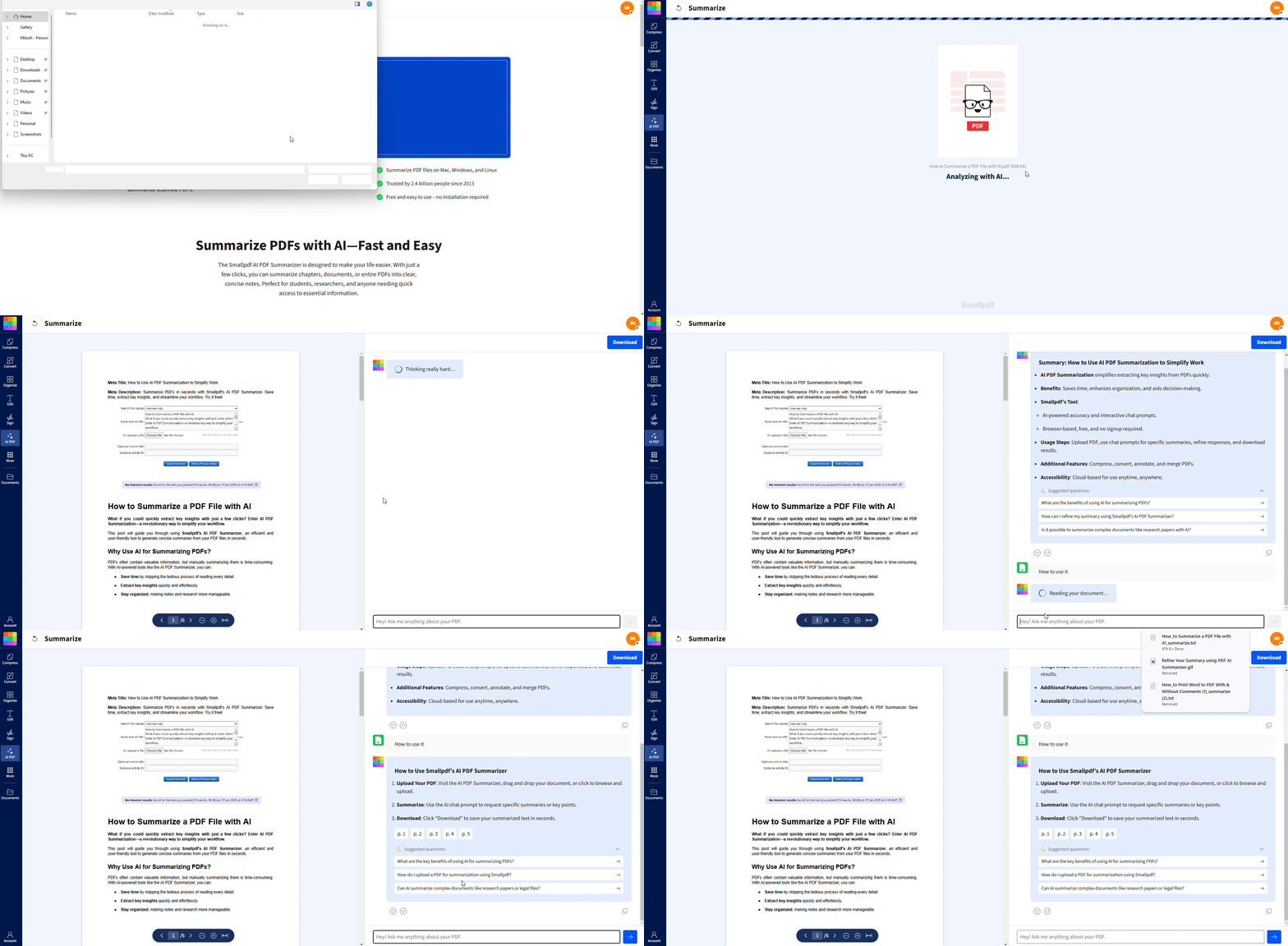
Best For: Quickly getting the main points of contracts, research papers, and lengthy reports.
Chat with PDF for Q&A
Don’t know how to interpret the data in your PDFs? Just ask our AI! Interact with PDFs like never before using our Chat with PDF.
Open our Chat with PDF.
2. Upload your desired PDF document.
3. Start chatting with your document!
Best For: Effortlessly extract data, answer questions, or clarify information directly from your PDFs.
Common PDF Data Extraction Use Cases
Here’s how real users extract data from PDFs every day.
Invoices and Receipts to Excel
Pull vendor names, amounts, dates, and line items from invoices directly into spreadsheets. Perfect for expense tracking and accounting workflows.
Research PDFs and Reports
Extract key findings, data tables, and citations from academic papers or business reports. Use our summarizer to get the main points quickly.
Contracts and Forms
Pull specific clauses, dates, names, and terms from legal documents. Great for contract management and compliance tracking.
Multilingual PDFs
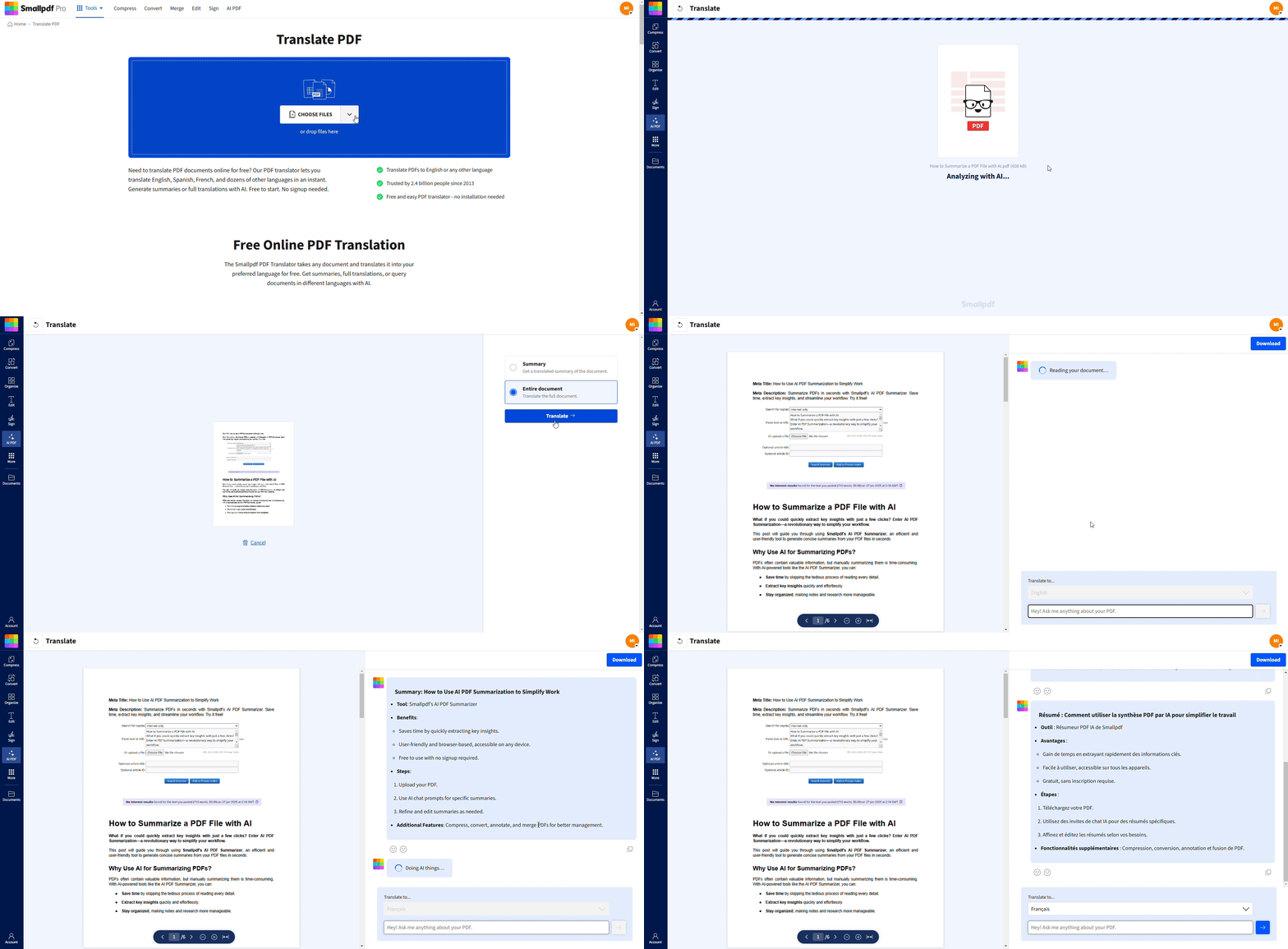
Have documents in multiple languages? Unlock the power of Automated Data Retrieval with our PDF Translator, which translates your PDFs without compromising their formatting.
Open the PDF Translator.
Upload your PDF and select the target language.
2. The AI translates the content while preserving the document’s structure.
3. Download your translated file and share it with confidence.
Best For: Translating multilingual documents like proposals, contracts, or global reports.
Accuracy and Best Practices for Reliable PDF Data Extraction
Want the most accurate results? Follow these tips:
Scanned vs Digital PDFs
Digital PDFs (created from Word or other software) extract more accurately than scanned documents. For scanned files, use OCR tools first.
Clean Source Files
High-resolution scans and clear fonts improve extraction accuracy. Avoid blurry or low-quality source documents when possible.
Tables With Merged Cells
Complex table structures can be tricky. If extraction isn’t perfect, try converting to Word first, then copying tables manually.
Troubleshooting AI PDF Data Extraction
Running into issues? Here are quick fixes for common problems.
OCR Didn’t Detect Text
Check if your PDF is actually a scanned image. Try increasing the resolution or using a clearer scan. Some handwriting or decorative fonts may not be recognized.
Tables Exported Incorrectly
Complex layouts can confuse extraction tools. Try converting to Word first or use manual selection for problem tables.
Mixed Languages or Special Characters
Make sure your document uses standard fonts and encoding. Some special characters or mixed writing systems may need manual review.
Large Files or Many Pages
Break large documents into smaller sections for better performance. Focus on specific pages or sections you actually need.
Data Privacy and Security at Smallpdf
Your documents are safe with us. We use enterprise-grade encryption, delete files after processing, and comply with GDPR and other privacy regulations. All data extraction happens securely in the cloud.
Why Smallpdf for OCR and AI PDF Data Extraction
When it comes to extracting data from PDFs, Smallpdf isn’t just another tool—it’s your ultimate AI-powered assistant. Here’s why professionals love using Smallpdf’s AI PDF tools:
User-Friendly Interface: Simply drag, drop, and your work is done. No steep learning curve or complex steps.
Time-Saving Automation: Automate repetitive tasks like extracting text, tables, and summaries with precision.
Accurate Results: Advanced AI ensures text, tables, and data are extracted with minimal errors.
Versatile Applications: From invoices and research papers to multilingual reports, our tools can handle it all.
With Smallpdf, AI PDF data extraction becomes easy, letting you focus less on the manual process and more on your real work.
For trends on data-heavy PDF formats and extraction demands, see our PDF statistics.
Want to Try AI PDF?
Frequently Asked Questions
What types of data can AI extract from a PDF?
AI can extract a wide range of data, including text, tables, images, charts, and even summaries of key content. Tools like Smallpdf’s AI PDF make it seamless.Can Smallpdf extract data from scanned PDFs?
Yes! Our PDF OCR technology reads text from scanned documents and images, converting them into editable formats.What file formats can I export extracted data to?
You can export to Excel, CSV, Word, or plain text formats depending on your needs and the tool you’re using.Is my data secure when using Smallpdf’s extraction tools?
Absolutely. We use enterprise-grade encryption, automatically delete files after processing, and comply with GDPR and other privacy regulations.Why didn’t the AI extract all the text from my PDF?
This often happens with low-resolution scans, blurry text, or decorative fonts. Try a clearer scan or ensure the file is high-quality.Why are my tables not exporting correctly?
Complex layouts, merged cells, or multi-column designs can confuse auto-extractors. Converting the PDF to Word first can improve results before copying the table.Why is the extracted text showing the wrong characters or missing accents?
Mixed languages, unusual encoding, or special characters may need manual review. Converting the file to a more standard font sometimes helps.Why is the extraction slow on very large PDFs?
Large files with many pages take longer to process. Splitting the PDF into sections can speed things up.How do I extract tables from PDFs to Excel?
For structured data like invoices or receipts, Smallpdf’s PDF to Excel makes it simple to pull only the relevant rows and columns you need, in an editable format.Are AI tools effective in extracting tables and charts from PDFs?
Absolutely! Our PDF OCR ensures tables and charts are accurately converted into editable formats like Excel while preserving their structure.What’s the difference between OCR and AI extraction?
OCR reads text from images and scanned documents, while AI extraction understands document structure and context for more complex layouts and data relationships.Can AI extract handwritten notes from a PDF?
Yes! If the notes are part of a scanned document, our OCR AI technology can recognize and convert handwriting into digital text.Use AI-assisted tools to extract data from PDFs with Smallpdf Pro
