- Home
- ›
- ›AI PDF Rewriting: Instantly Replace and Modify PDFs
AI PDF Rewriting: Instantly Replace and Modify PDFs
PDFs have always been a go-to for sharing documents, but editing them? That’s where the struggle begins—until now.
AI Tools & Guides
More on Edit PDF
More on PDF OCR
With Smallpdf, you can now let AI change PDF text in seconds. Instead of manually retyping or reformatting, simply upload your file and tell the AI what to do—from rewriting sentences to replacing outdated details.
Smallpdf’s AI PDF Editor makes it easy to update content while keeping your layout intact. Whether you’re correcting typos, modernizing dates, or translating sections, the process stays quick, secure, and accurate—all in your browser.
How to Change PDF Text with AI
Follow these quick steps to let AI change PDF text for you. Ideal for updating contracts, reports, or any document without manual re-typing.
Step 1: Upload Your PDF to Chat with PDF
Visit Chat with PDF. No downloads, no hassle—just drag and drop your document right in your browser. It works on any device (Mac, Windows, Linux, or mobile) and supports files up to 120 pages.
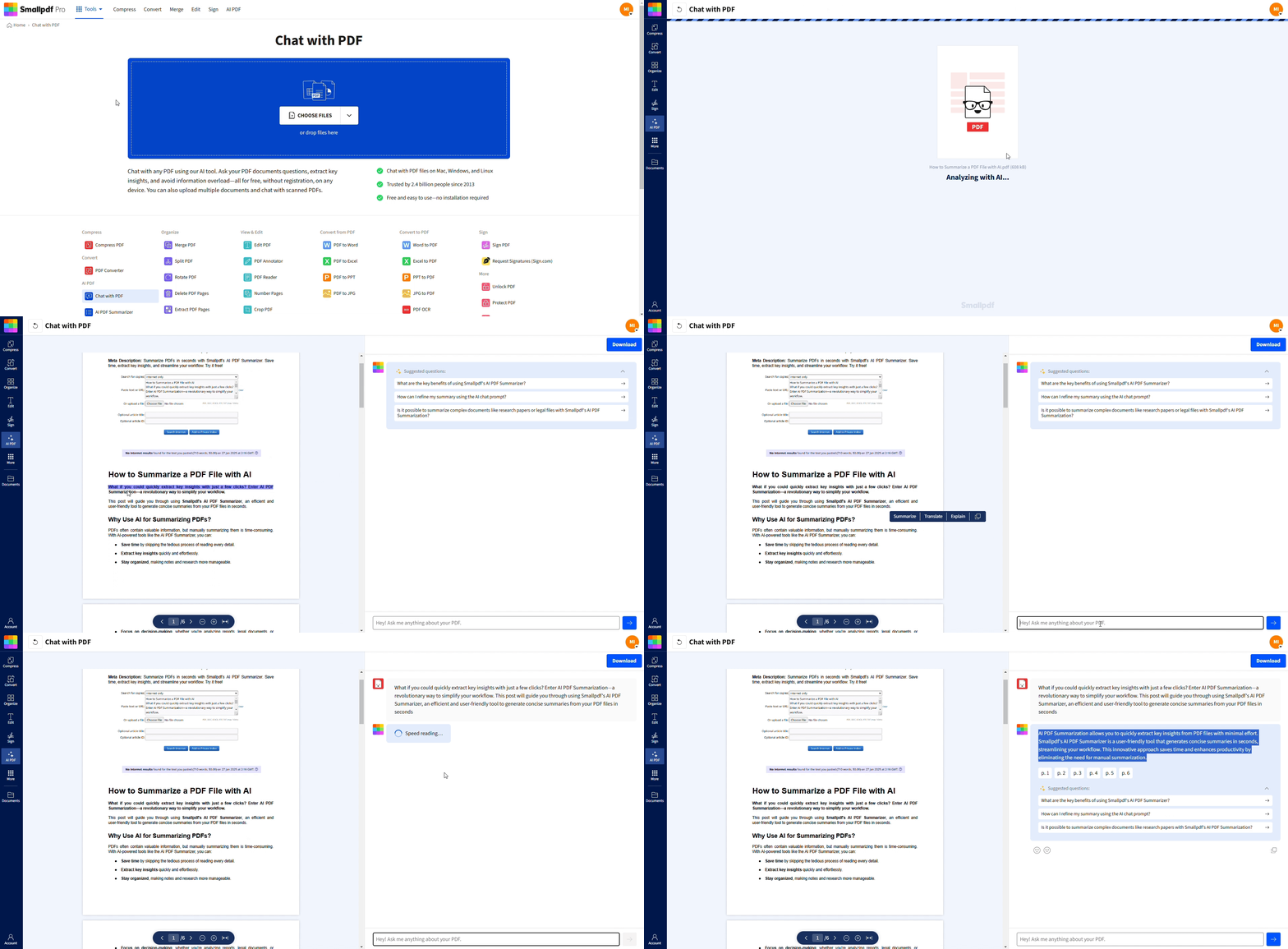
Step 2: Ask the AI to Rewrite or Replace Text
Once your document is uploaded, you can interact directly with Smallpdf’s AI assistant. Type in commands or questions like:
“Rewrite this paragraph professionally.”
“Replace the word ‘X’ with ‘Y’ throughout the document.”
“Make this section more concise.”
“Update all instances of 2024 to 2025.”
“Translate this paragraph to Spanish.”
The AI will respond instantly, helping you rewrite text effortlessly using natural language commands.
Step 3: Fine-Tune Your Edits in Edit PDF
Now that you’ve gotten AI suggestions, you can make precise edits directly using the Edit PDF tool.
Upload to Edit PDF (Drop or upload the file below)
2. Add the rewritten text or make additional changes.
3. Adjust formatting, fonts, and layout as needed.
Step 4: Summarize Long PDFs (Optional)
Pressed for time? Try the AI PDF Summarizer. This tool extracts the key takeaways from lengthy PDFs, saving you hours of reading. With the click-to-copy feature, you can pull relevant information in seconds.
Step 5: Export, Share, or Print Your PDF
When done, export or download your clean, polished PDF. You can:
Download as PDF, Word, or other formats.
Print directly from your browser.
It’s that simple!
AI PDF Editor Features in Smallpdf
Smallpdf’s AI PDF editor combines artificial intelligence with comprehensive PDF tools to handle any document task.
Chat with PDF to Ask, Rewrite, and Extract
Have conversations with your PDFs using natural language. Ask questions, request rewrites, or extract specific information. The AI understands context and delivers accurate results.
AI PDF Summarizer for Quick Takeaways
Get instant summaries of lengthy reports, research papers, or contracts. Perfect for busy professionals who need key insights without reading every page.
Translate PDF into Multiple Languages
Break language barriers with AI-powered translation. Convert your PDFs into dozens of languages while maintaining formatting and layout.
Edit PDF Text, Images, and Shapes in Your Browser
Make traditional edits enhanced by AI suggestions. Modify text, replace images, insert an image into the PDF, add shapes, and annotate—all without downloading software.
Sign and Request Signatures
Add legally binding e-signatures or request signatures from others. The AI helps organize signature workflows for faster document completion.
OCR for Scanned PDFs
Convert scanned documents and images into editable, searchable text using advanced OCR (Optical Character Recognition) technology powered by AI for higher accuracy.
Redact Sensitive Information
Automatically identify and redact sensitive data like social security numbers, addresses, or confidential information to maintain privacy and compliance.
Is an AI PDF Editor Safe? Security and Privacy at Smallpdf
Security is our top priority when handling your documents with AI technology.
Encryption and Secure File Handling
All files are protected with TLS encryption during upload and processing. Our servers use bank-level security to keep your documents safe from unauthorized access.
Data Retention and Deletion
Your files are automatically deleted from our servers within 60 minutes of processing. You control your data, and we never store documents longer than necessary.
Compliance (GDPR) and Certifications
Smallpdf is fully GDPR compliant and follows strict European data protection standards. We’re certified for enterprise security and regularly audited for compliance.
More PDF Tools in Smallpdf
Smallpdf goes beyond just text editing. Use the platform to compress, convert, and manage pdfs effortlessly.
For instance, the AI PDF Question Generator is perfect for students, while translate PDF makes working with international clients a breeze.
No matter the task, Smallpdf turns your document challenges into opportunities for efficiency.
Troubleshooting Common Issues When AI Changes PDF Text
Even with advanced tools, some PDFs behave differently. Here’s how to fix common hiccups when using AI to change or rewrite text.
Formatting Looks Off After Editing
Use the Edit PDF tool to adjust spacing, fonts, or alignment after AI rewriting. Some PDFs contain embedded styles that need manual tweaks.
Fonts Don’t Match the Original Document
Upload the edited text through Edit PDF, then select the same font style to restore the original look. Embedded fonts sometimes don’t transfer perfectly.
The AI Can’t Select Text From Your PDF
Your file may be scanned or image-based. Use OCR (Optical Character Recognition) first to make the text editable, then apply AI rewriting.
Changes Don’t Appear After Download
Make sure the document was saved or exported correctly before closing. Reapply edits and download again to confirm they’ve been saved.
Keep your file readable, consistent, and ready to share.
AI PDF Editor FAQs
Is there an AI that edits PDFs for you?
Yes, but not in a single click. Smallpdf’s AI can suggest and rewrite text for you through Chat with PDF, then you can apply those updates in the Edit PDF tool. It combines AI-generated changes with manual editing to keep your formatting consistent.Can ChatGPT modify a PDF?
Not directly. ChatGPT can read text but not change PDFs. To have AI change PDF text, use Smallpdf’s Chat with PDF tool, which edits actual file content online.What happens with complex layouts or tables?
AI can read and rewrite text from complex layouts or tables, but it doesn’t directly edit those elements in the PDF. After getting your rewritten text from Chat with PDF, open the file in Edit PDF to manually replace the content and adjust spacing or alignment where needed.Does AI editing affect fonts and formatting?
AI doesn’t directly modify fonts or layouts inside the file. It provides rewritten text that you can copy and insert using Edit PDF. Once added, adjust the font, size, or spacing to match your original document.What if the AI doesn’t detect my text?
That usually means your PDF is image-based. Use OCR first to convert it into an editable format, then open it with Chat with PDF to have AI rewrite or extract the text before applying changes in Edit PDF.Is it safe to use an AI PDF editor?
Yes. Smallpdf uses TLS encryption, automatic file deletion within 60 minutes, and GDPR-compliant servers to protect your data.Rewrite and replace PDF text instantly with Pro-level AI
