- Home
- ›
- ›Best Methods to Proofread PDF with AI in 2026
Best Methods to Proofread PDF with AI in 2026
Proofread a PDF in seconds with AI. Catch grammar, spelling, and formatting issues before you share or publish. Fast, free, with no sign-ups ended.
AI Tools & Guides
More on Edit PDF
More on PDF to Word
If you want a document that feels polished and trustworthy, you need accuracy and speed. AI now makes it much easier to proofread a PDF without retyping or converting files by hand. With Smallpdf’s AI features, you upload a file, ask for a check, and get clear suggestions you can apply right away.
Below, we walk through quick AI steps, general proofreading methods, a comparison of options, and practical tips so you can choose the best way to proofread a PDF for your workflow.
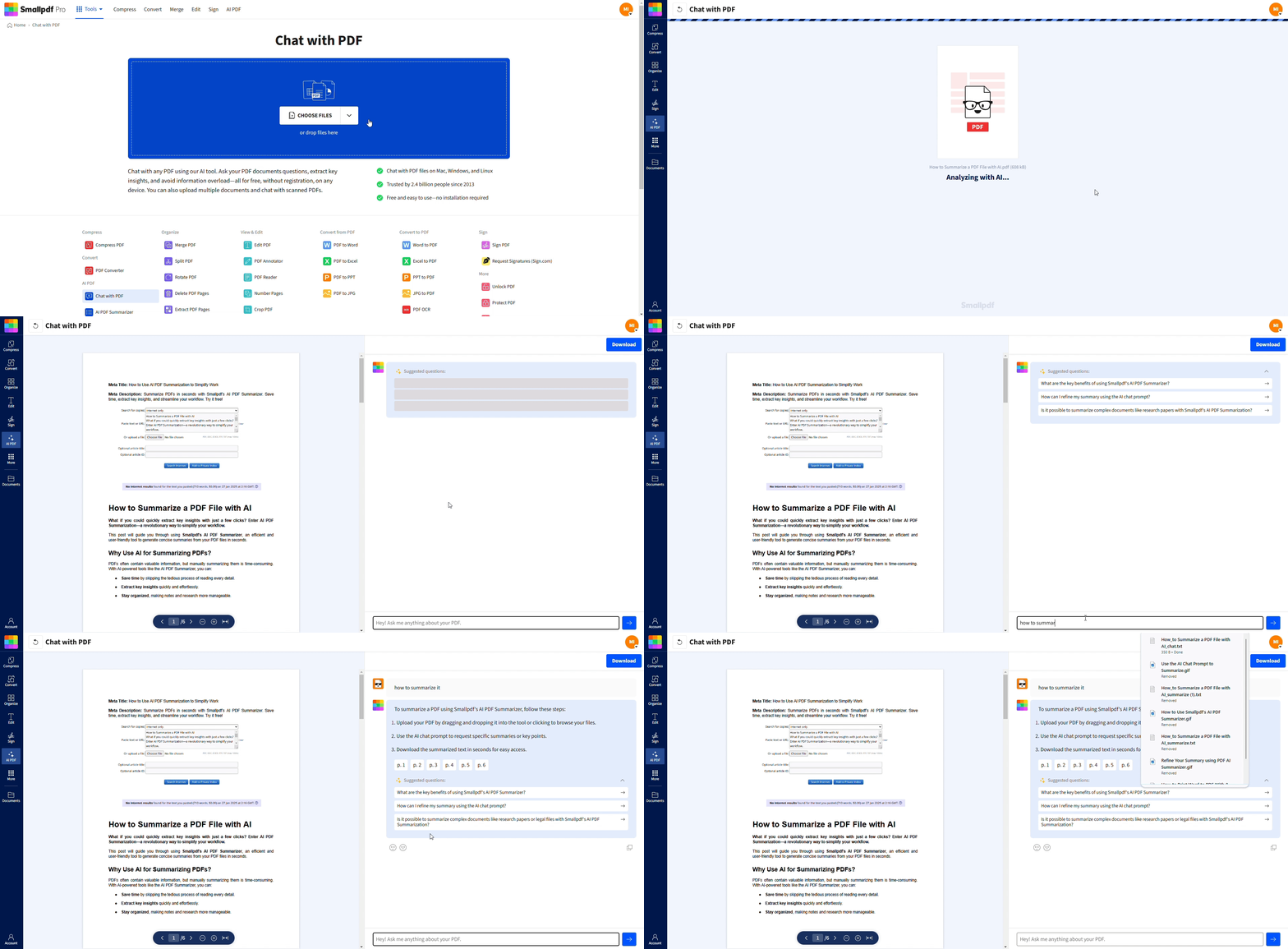
Quick Checklist: How To Proofread a PDF with AI
What Is PDF Proofreading?
PDF proofreading is the final review stage where you catch grammar mistakes, spelling errors, and formatting inconsistencies before your document goes live.
Unlike editing (which focuses on content structure and flow), proofreading is your last line of defense against typos and style issues.
Common errors caught during PDF proofreading include:
Spelling mistakes and typos
Grammar errors and punctuation problems
Inconsistent formatting and style
Missing words or repeated text
How To Proofread a PDF Online for Free
You can proofread a PDF with AI directly in your browser, without installing anything.
Step 1: Upload Your PDF
Go to Chat with PDF on Smallpdf.
Drag and drop your PDF into the upload area, or click to choose a file from your device, Google Drive, Dropbox, or OneDrive.
Step 2: Ask AI To Proofread Your Document
When the file loads, move to the chat box on the right.
Type a request such as:
‘Please proofread this document for grammar, spelling, and punctuation errors.’
‘Highlight unclear sentences and suggest clearer alternatives.’
The AI reads your PDF, understands the context, and returns specific suggestions.
Step 3: Review Suggestions and Apply Changes
Read through the AI’s feedback section by section.
Copy corrected sentences or paragraphs using the copy button.
Paste them into your next draft, or into a Word version if you plan deeper edits.
Step 4: Export Your Polished PDF
When you are happy with the changes, download the final file.
If you need extra adjustments, you can use:
Edit PDF for quick text edits and comments.
PDF to Word for major rewrites.
Word to PDF to convert your revised draft back to PDF.
You get a cleaner document without leaving your browser.
General Ways To Proofread a PDF
AI is powerful, but it works best as part of a larger proofreading process. Here are common methods you can combine with AI for better results.
1. Manual On-Screen Review
Zoom in and read line by line.
Use the search to check repeated names, dates, or key terms.
Turn on comments or annotations to mark issues you want to revisit.
2. Summarize the Document
Head over to the AI PDF Summarizer.
Drag and drop your PDF file into the designated area, or click the upload button to browse for your document.
Once uploaded, the AI will process your PDF in seconds, providing a clear and concise summary of its contents. This is perfect for quickly reviewing lengthy reports, research papers, or business proposals.
3. Read Aloud or Use Text to Speech
Read the PDF aloud or use a screen reader.
Listen for missing words, awkward phrasing, or repeated phrases.
Mark anything that sounds confusing or clumsy.
4. Print and Mark Up (For Critical Documents)
Print a copy and use a pen or highlighter.
Mark grammar issues, spacing problems, and layout errors.
Update the digital version based on your paper notes.
5. Collaborate with Others
Share the PDF or a converted Word version with colleagues.
Ask them to focus on clarity, tone, or specialized terminology.
Combine human feedback with AI proofreading for the best balance.
AI gives you speed, while manual checks maintain nuance and judgment.
Smallpdf AI PDF Proofreading Features
Our AI PDF tools are built specifically for documents, not just plain text.
1. Fix Grammar, Spelling, and Style
Catch spelling mistakes, typos, and punctuation errors.
Flag subject-verb agreement issues and tense shifts.
Suggest clearer wording when sentences feel heavy or confusing.
2. Work With Scanned PDFs Using OCR
When your PDF is a scan, OCR converts it into readable text.
AI can then proofread that text and highlight issues.
This is useful for printed contracts, forms, and older documents.
3. Proofread In Multiple Languages
Support for several major languages such as English, Spanish, French, German, and more.
Helpful for teams that create or review documents across regions.
4. Security and Privacy
Files are encrypted during upload and processing.
Documents are automatically deleted after a short time.
We are GDPR compliant and ISO certified, so you can safely proofread sensitive content.
5. Fast On Long Documents
Works on short reports and long theses alike.
Handles many pages without you needing to copy content out of the PDF first.
Compare PDF Proofreading Methods
Use this overview to decide which method fits your current task best.
| Method | Best for | Pros | Cons |
|---|---|---|---|
| Smallpdf AI PDF proofreading | Fast checks on any PDF | Quick, in-browser, works with scans, multilingual | Needs review by you before final approval |
| Manual on screen proofreading | Nuanced tone and style | Full control, good for sensitive texts | Time-consuming, easy to miss small errors |
| Print and mark up | High stakes or legal documents | Precise layout checks, physical focus | Uses paper, slower, manual re-entry |
| Convert to Word and proofread | Heavy rewrites and reordering | Easier to edit long sections and add comments | Extra conversion steps, possible layout changes |
Most users combine at least two methods for important documents, for example, AI plus a quick human scan.
Tips To Proofread PDFs Effectively With AI
You get better results when you guide the AI and keep a clear goal.
1. Be Specific in Your Prompts
Instead of only asking for ‘proofreading,’ try prompts like:
‘Highlight grammar and spelling errors, but keep my tone.’
‘Improve clarity for a business audience and fix punctuation.’
‘Check this for formal tone and remove casual phrases.’
2. Focus on Your Main Goal
Decide if you care more about:
Correctness only
Clarity and readability
Tone and formality
All of the above
You can run several passes with different prompts if needed.
3. Always Review Before Final Use
AI helps you move faster, but you are the final editor.
Confirm names, titles, and numbers manually.
Check any specialized jargon, legal terms, or references.
Make sure the voice still sounds like you or your organization.
Who Should Proofread PDFs with AI?
AI PDF proofreading works great for anyone who wants error-free documents without the time and cost of professional editors:
Students: Perfect for essays, research papers, and thesis documents before submission.
Business professionals: Ideal for reports, proposals, and client presentations that need to look polished.
Legal teams: Essential for contracts and legal documents where accuracy is critical.
Authors & writers: Great for manuscripts and articles before publication.
Remote teams: Helpful for collaborative documents that need a consistent style and tone.
Proofread Your Next PDF With AI
You do not need to scan every line alone or copy pages into another editor. With AI, you can proofread a PDF in minutes, fix the most visible errors, and then spend your time on the parts that truly need your judgment.
Open Chat with PDF on Smallpdf, upload your document, and let AI help you turn a rough draft into a polished, ready-to-share PDF.
Want to Proofread PDF with AI
FAQs About Proofreading PDFs
How do I proofread a PDF without downloading software?
You can use Smallpdf in your browser. Open Chat with PDF, upload your document, ask AI to proofread it, and review the suggestions. There is no installation required.Can AI fully replace a human proofreader?
No. AI is excellent at spotting many grammar, spelling, and punctuation issues quickly. However, it can miss subtle context, tone choices, and domain-specific details. For important documents, combine AI checks with a final human review.How do I proofread a scanned PDF?
Upload the scanned PDF to Smallpdf. Our OCR turns the scan into readable text, and then AI can proofread it. You can copy the corrected text out or use other tools like Edit PDF for final tweaks.Is it safe to proofread sensitive PDFs with AI?
Yes, as long as you use a platform that takes security seriously. Smallpdf encrypts file transfers, stores documents securely during processing, and deletes them automatically after a short period of processing. This keeps your data under tight control.Can I proofread a PDF in different languages?
Yes. Our AI supports multiple languages, so you can proofread PDFs written in several major languages. This is useful for international contracts, marketing materials, or academic work.What is the difference between AI proofreading and editing a PDF?
Proofreading focuses on surface-level errors such as grammar, spelling, and basic style. Editing covers bigger changes such as structure, argument flow, and content cuts or additions. AI can help with both, but you control which level you ask for.Why does my PDF look the same even after proofreading?
AI proofreading does not automatically rewrite your original PDF file. It gives you suggested corrections that you need to apply, either by editing the PDF directly or by updating a Word version and converting it back to PDF.Fix errors and polish PDFs with Pro AI proofreading
Related Articles