- Home
- ›
- ›How to Convert Large PDFs & Excel Documents
How to Convert Large PDFs & Excel Documents
Convert large PDFs to Excel or export big Excel sheets to PDF in a few clicks. Your tables stay clean, readable, and ready to work with.
More on PDF to Excel
More on Excel to PDF
More on PDF Converter
Handling big PDF reports or heavy Excel workbooks can get messy fast. With Smallpdf, you can convert PDFs into editable Excel spreadsheets or turn Excel files into shareable PDFs in a simple, secure workflow that runs right in your browser.
Below you’ll find a quick-start summary, detailed steps, troubleshooting tips, and FAQs for both directions: PDF to Excel and Excel to PDF.
Quick Start: Large PDF & Excel Conversion In Seconds
If you just want the fastest answer, start here.
Convert PDF to Excel
Convert Excel to PDF
Both tools work in your browser, support large files, and are protected with TLS encryption and automatic file deletion.
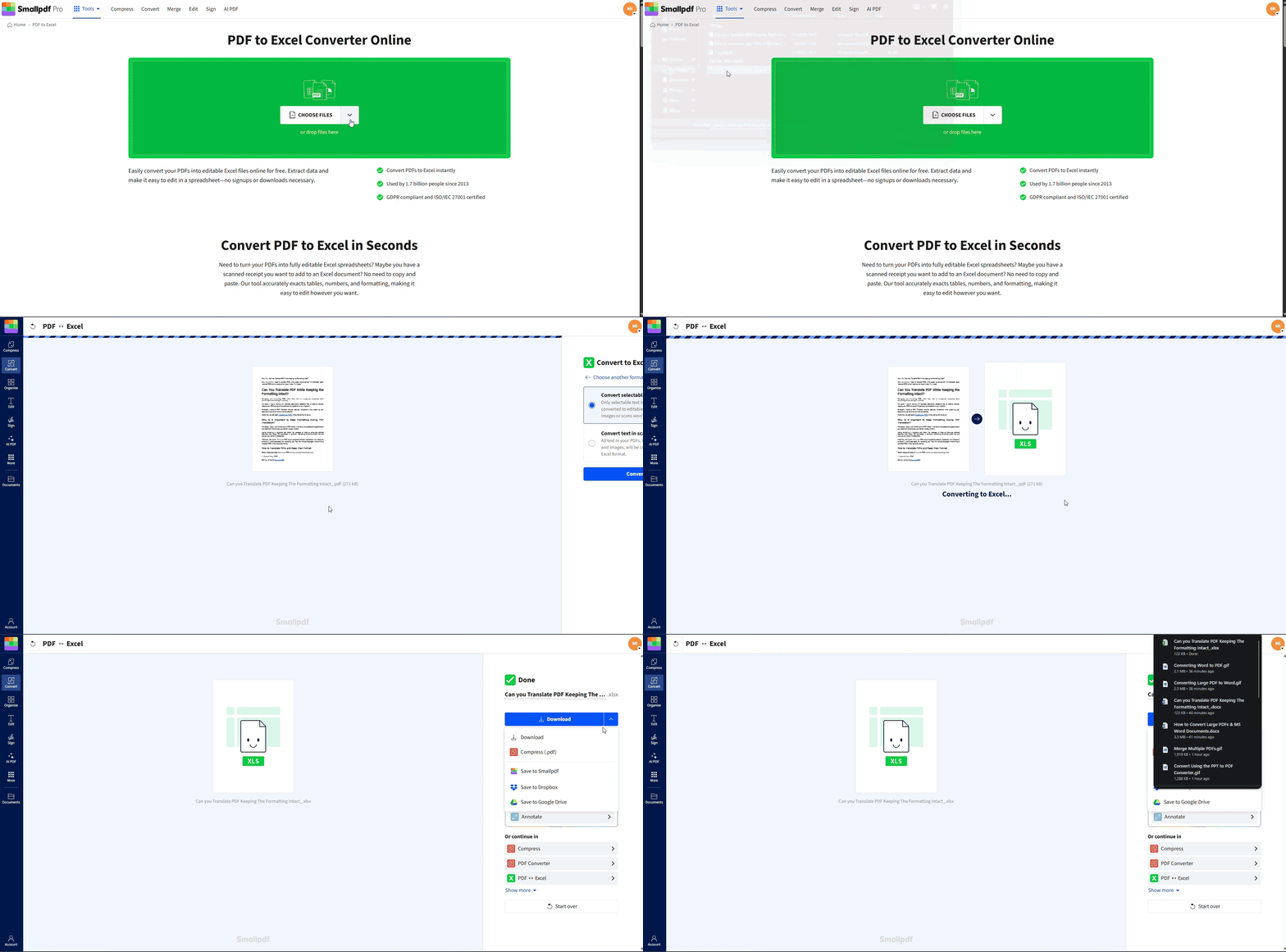
How to Convert PDF to Excel Online
Smallpdf PDF to Excel converter is built to handle large reports, multi-page tables, and scanned documents.
Step 1: Upload Your PDF
Open the PDF to Excel.
Upload your file by:
Dragging and dropping it into the upload area below, or
Clicking “Choose Files” and selecting your PDF, or
Importing from Google Drive, Dropbox, or OneDrive.
Step 2: Choose Excel as Output
We default to “XLSX,” which is ideal for most users.
If needed, you can also export to the older “XLS” format.
Step 3: Enable OCR for Scanned PDFs (Pro)
If your PDF is a scan or image-based, Toggle on OCR (Pro feature).
This lets us recognize text and tables from images. You’ll end up with an actual editable spreadsheet instead of static images
Step 4: Convert and Download
Click “Convert” to start the process.
Once it’s done, download your Excel file and open it in your spreadsheet software.
We keep table structures, data, and most formatting intact, so you spend less time cleaning up.
PDF to Excel Converter: Key Features
Our PDF to Excel converter offers everything you need for accurate, secure file conversion:
Accurate table extraction: We detect rows, columns, and merged cells to rebuild your table in Excel as precisely as possible.
OCR for scanned PDFs (Pro): Turn images and scanned reports into real, editable data instead of retyping.
Batch conversion (Pro): Convert multiple PDFs to Excel in one go when you’re dealing with recurring reports.
Cross-platform access: Use it on Windows, Mac, mobile browsers, or our apps, without installing heavy desktop software.
Secure processing: TLS encryption, automatic file deletion after one hour of processing, and full GDPR and ISO/IEC 27001 compliance.
How to Convert a Large Excel File to PDF
If you want a clean, shareable version of your spreadsheet, converting it to PDF is a smart move.
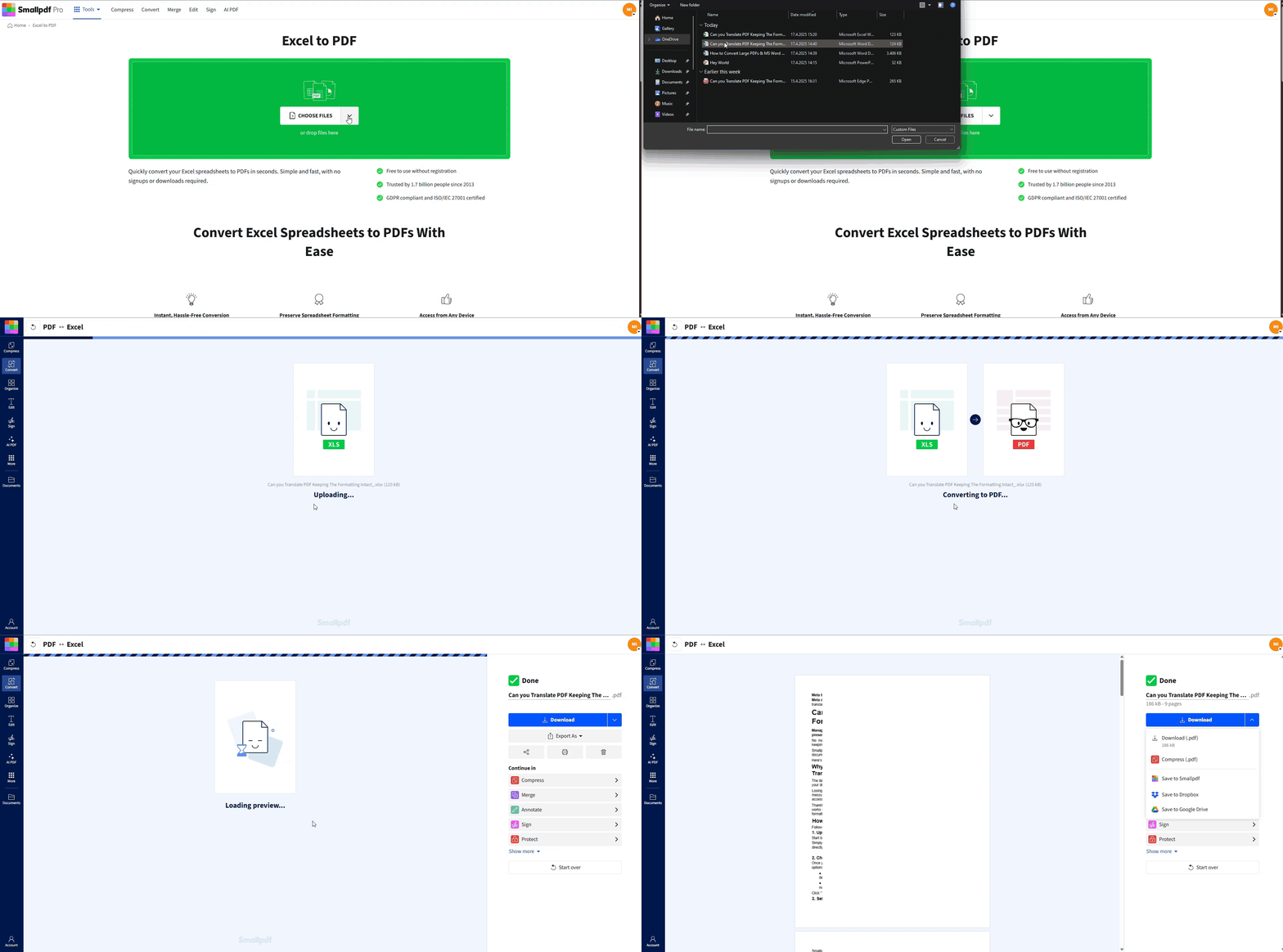
Convert Excel to PDF with Smallpdf
Open the Excel to PDF.
Upload your large “XLS” or “XLSX” file in the tool area below from your device, Drive, Dropbox, or OneDrive.
We handle large tables and multiple sheets, optimizing layout for PDF.
Download your PDF or send it to your email or cloud storage.
You get a polished, ready-to-share PDF without worrying about page breaks and printer settings.
Convert Excel to PDF in Microsoft Excel
You can also export directly from Excel if you prefer working locally.
Method 1: Save As PDF
Open your workbook.
Go to “File” > “Save As.”
Choose a folder.
Select “PDF” as the file type.
Click “Save.”
Method 2: Export to PDF
Click “File.”
Choose “Export” (or “Share” on Mac).
Select “Create PDF/XPS Document.”
Adjust options and click “Publish.”
This gives you control over print quality and which sheets to include.
Common Challenges When Converting Large PDFs to Excel
Large PDFs and big Excel files can cause a few headaches. Here’s how to fix the most common ones.
1. Tables look broken or misaligned
Check that your PDF tables use clear rows and columns.
Avoid complex nested layouts when possible.
After conversion, adjust column widths in Excel to improve readability.
2. File is too large to upload or share
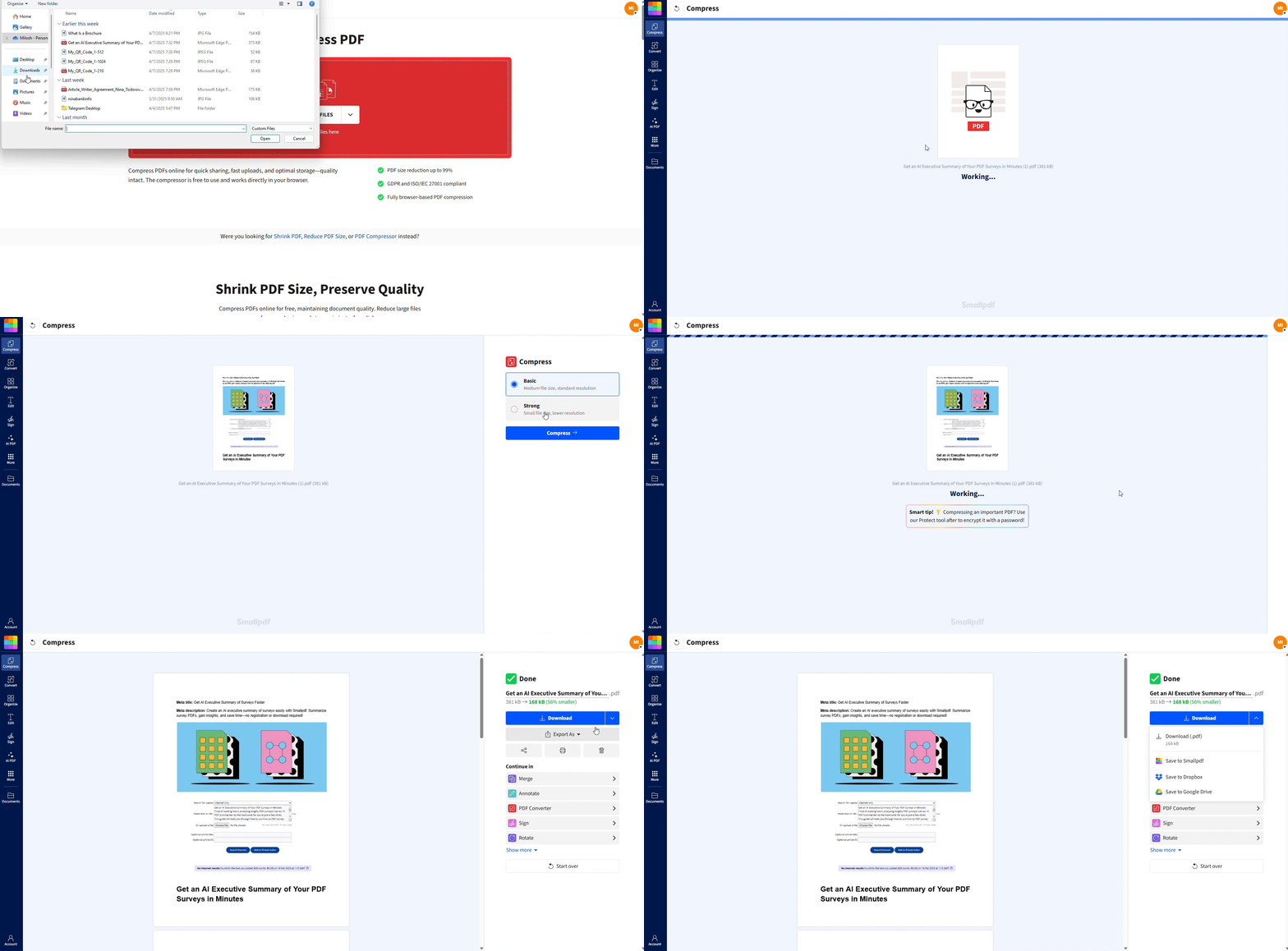
Use Compress PDF before or after conversion to reduce size.
Remove unused pages, images, or blank areas.
For Excel, remove hidden sheets, embedded objects, or unused ranges.
3. Scanned PDFs don’t convert correctly
Enable OCR in the PDF to Excel converter (Pro).
Use the best scan quality you have available.
Avoid skewed pages or heavy shadows when scanning.
4. Excel PDF is cutting off columns or rows
In Excel, set a Print Area before exporting.
Use “Fit to 1 page wide” to keep columns visible.
Preview the print layout in Excel before you convert.
When to Use PDF to Excel Conversion
PDF to Excel conversion is perfect for turning static documents into editable data. Here are a few common situations:
Finance teams exporting monthly PDF statements to Excel for deeper analysis.
Freelancers turning Estimate or Invoice PDFs into Excel trackers.
Teachers converting PDF grade sheets into Excel to update scores.
Project managers turning Excel timelines into PDFs to share with stakeholders.
Small businesses converting supplier PDFs into Excel inventory sheets.
By moving data between formats, you keep one workflow for editing and another for sharing.
Tips for Better PDF to Excel Conversion
Get the best results from your PDF to Excel conversions with these tips:
Ensure PDFs have clear table structures - Well-formatted source files convert more accurately.
Use high-quality scans for OCR accuracy - Crisp, clear text improves conversion results.
Compress large files before converting - Use our Compress PDF tool for faster processing.
Check formatting after conversion - Preview your Excel file to ensure everything looks right.
What to Do If Your File Is Too Large
If your file is too large to upload or share, use our Compress PDF to reduce its size without compromising quality. It’s quick, easy, and ensures your files are ready for seamless conversion or sharing.
Start Converting PDFs to Excel Today
Converting large PDFs and Excel documents should not be a hassle. With Smallpdf, you can:
Extract data from PDFs into Excel
Export Excel sheets into reliable PDFs
Keep everything secure and organized in one place
Start your free trial to access OCR, batch processing, and the full Smallpdf suite.
PDF to Excel Converter FAQs
Can I convert PDF to Excel for free?
Yes, you can convert PDFs to Excel for free with basic features. Pro features like OCR for scanned documents and batch processing require a subscriptionDoes the PDF to Excel converter work with scanned documents?
Yes, with our Pro OCR feature, scanned PDFs and image-based documents convert to editable Excel format.What’s the difference between XLS and XLSX formats?
XLSX is the newer Excel format that supports more features and larger file sizes. XLS is the older format with some limitations.How accurate is the table extraction from PDF to Excel?
Our converter provides high accuracy for native PDFs with clear table structures. OCR technology improves accuracy for scanned documents.Can I convert multiple PDFs to Excel at once?
Yes, our Pro batch processing feature lets you convert multiple PDF files to Excel simultaneously, saving you valuable time.Is my data secure when converting PDF to Excel online?
Absolutely. We use TLS encryption during upload and processing, automatically delete files after one hour, and meet GDPR and ISO/IEC 27001 standards.Convert large PDF and Excel files efficiently using Smallpdf Pro
