How To Reduce Page Size of PDF?
Learn how to reduce page size of PDF files online. Compress PDFs safely, and keep text and images readable for email, storage, and sharing.
More on PDF Compression: Tool & Guides
More on ZIP to PDF
PDF Sharing Tool & Guides
Big PDFs are hard to email, slow to upload, and painful to store. With Smallpdf, you can reduce your PDF in seconds, keep it clear, and fix issues when your file still feels too large.
Keep reading to learn how to do it—for free, with no software sign-ups.
Quick-Start: Reduce PDF Page Size Fast
Want to Reduce Page Size of PDF?
If you want more control, keep reading for advanced methods and troubleshooting tips.
How to Reduce PDF File Size Online for Free
You can compress a PDF in a few clicks using our Compress PDF feature.
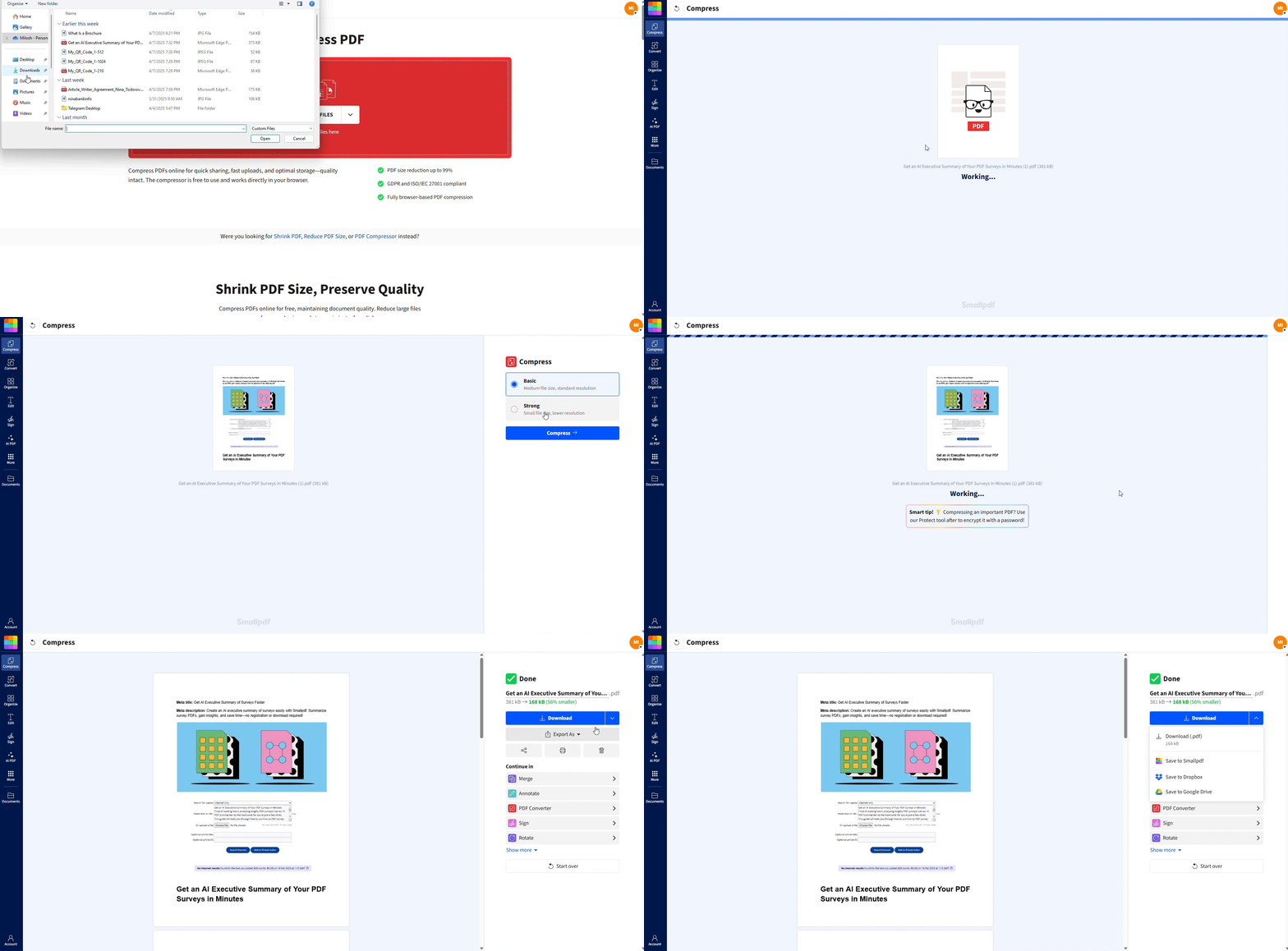
Step 1: Select and Upload Your File
Go to Compress PDF.
Click “Choose Files” or drag and drop your PDF onto the page. You can also import from Google Drive or Dropbox if your file is stored in the cloud.
Our service supports large PDFs, so contracts, reports, and image-heavy documents are all covered.
Step 2: Choose Basic vs. Strong compression
Once your PDF uploads, you will see two options:
Basic Compression: Reduces file size while keeping quality very close to the original. Good for documents you plan to print or present.
Strong Compression: Makes the file as small as possible with more aggressive optimization. Best when you must meet strict email or upload limits.
Pick the level that matches how you plan to use the final PDF.
Step 3: Download, Share, or Continue Editing
Click “Compress” to start the process. After a few seconds, your compressed PDF is ready.
Process of reducing a PDF file size with Smallpdf Compress PDF
You can:
Download it to your device.
Save it back to Google Drive, Dropbox, or OneDrive.
Continue with other actions like Protect PDF, Merge PDF, or Edit PDF.
We protect your files with TLS encryption and automatically delete them from our servers after one hour
Why Reduce PDF File Size (and What Compression Does)
Large PDFs cause problems when:
Email providers block big attachments
Online portals have strict upload limits
Printers struggle with heavy graphics
Teams need to download files on slower connections
Compression works by:
Re-encoding images at an appropriate DPI
Removing unused metadata and embedded objects
Optimizing fonts and internal structure
The goal is to make your PDF smaller while keeping it clear enough for its final use.
Why Choose Smallpdf to Reduce PDF File Size
At Smallpdf, we understand the challenges that come with handling digital documents. Our Compress PDF tool is packed with features that make resizing files effortless and secure.
Here’s why we’re trusted by over a billion users worldwide:
Works on any device: Use it on Windows, Mac, Linux, iOS, or Android in your browser, or with the Smallpdf Mobile App when you are on the go.
Supports multiple formats: Compress PDFs directly, or convert and compress Word, PowerPoint, Excel, and image files as needed.
Secure by design: We use TLS encryption for transfers, follow GDPR, and are ISO/IEC 27001 certified. Files are automatically deleted after one hour.
Simple interface: Drag, drop, click compress, and you are done. No menus to learn or settings to manage unless you want advanced control.
You can also chain tools together: Compress after merging, compress before sending for signature, or compress after scanning.
Advanced Ways to Reduce PDF Size Without Losing Quality
If you need fine-grained control, these extra steps can help you squeeze out more space without hurting readability.
1. Downscale Images to the Right DPI
Images are usually the biggest reason a PDF is large. When creating the PDF:
Use around 72 DPI for on-screen only documents.
Use around 150 DPI for general office printing.
Use 300 DPI only when you truly need high-end print quality.
Downscaling images before you create the PDF reduces size without noticeable quality loss for most uses.
2. Optimize or Unembed Fonts
Fonts can add hidden weight:
Subset fonts so only used characters are embedded.
Avoid embedding common system fonts like Arial or Times New Roman when possible.
This is often handled in your original design or export settings, and it can shrink complex documents noticeably.
3. Remove Unused Objects and Metadata
Over time, PDFs collect extra data like:
Hidden layers and comments
Old form fields and scripts
Document metadata and unused color profiles
Cleaning these elements out in your authoring tool, then compressing the exported PDF with Smallpdf, gives you both structure and size improvements.
4. Handle Scanned PDFs Smartly
Scanned PDFs are often much larger than digital originals.
A good workflow is:
Scan the document.
Run OCR to turn images into searchable text.
Use Compress PDF afterward.
This can reduce file sizes by 80% or more while making your document searchable.
Achieve Smaller, Cleaner PDFs With Other Smallpdf Tools
Compression goes a long way, but sometimes the biggest improvements come from tightening the structure of your PDF itself.
Removing pages you no longer need keeps the file focused and smaller, and Delete Pages is ideal for cutting out cover sheets, long appendices, or outdated content.
If your document has wide margins or unnecessary white space, Crop PDF lets you trim those areas so each page carries only what matters.
And when you need to share or store a shorter version, tools like Merge PDF and Split PDF help you combine important pages or extract only the sections you want to keep.
Together, these tools give you more control over what stays in your PDF, what gets removed, and how big the final file will be. It’s a simple way to reduce size while keeping your document organized and easy to use.
Frequently Asked Questions
How do I lower a PDF’s file size quickly?
Open Compress PDF, upload your file, choose Basic or Strong Compression, and download the smaller version. For most documents, this only takes a few seconds and requires no extra settings.How can I resize a PDF for free?
You can compress PDFs for free with Smallpdf using Basic Compression. If you need more structural changes, you can also delete pages or crop content with other free tools and then compress the final file.How do I reduce PDF size before emailing?
Email services often limit attachments to around 20–25 MB. Use Strong Compression to bring your PDF under that limit, then attach the smaller file. If the file is still too big, consider splitting it into parts or sharing a link from your cloud storage.How do I resize a PDF page?
Use Crop PDF to trim margins or remove extra white space, then save and compress the result. This is helpful when you want a smaller visual page size or need to adjust layout for printing.Will compression affect quality?
Basic compression keeps quality close to the original and works well for printing and presentations. Strong compression makes files much smaller but can slightly soften images. Choose the level based on whether quality or size matters more for your use case.Can I compress PDFs on mobile devices?
Yes. You can use Smallpdf in your mobile browser or install the Smallpdf Mobile App. Upload the PDF, compress it, and download or share the smaller file directly from your phone or tablet.Why is my PDF still too large after compression?
Your document might contain very high-resolution images, large attachments, or embedded media. Try reducing image resolution in the source file, deleting unneeded pages with Delete Pages, or splitting the PDF and compressing each part separately.Is it safe to compress sensitive PDFs with Smallpdf?
Yes. We use TLS encryption for all transfers, automatically delete files after one hour, and hold ISO/IEC 27001 certification. You can also combine compression with Protect PDF to add a password before sharing.Resize PDF pages easily using Smallpdf Pro
Related Articles
